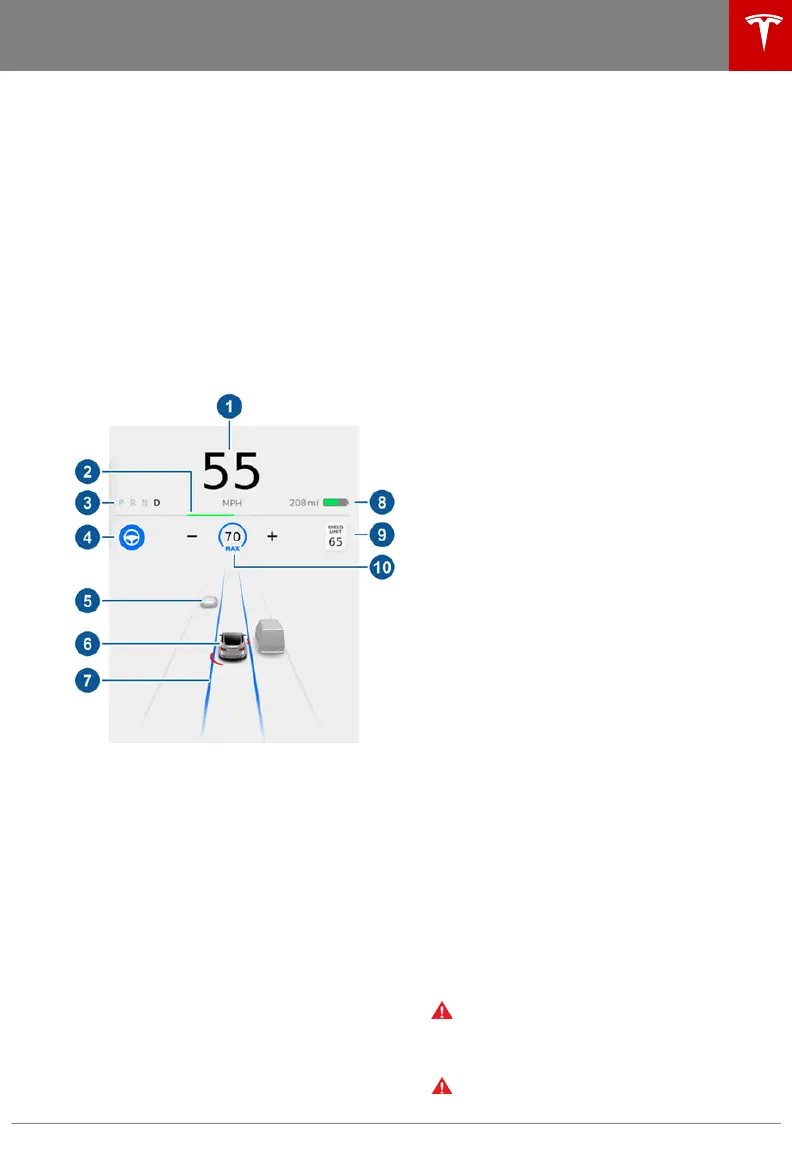
Driving Status
When Model Y is driving (or ready to drive),
the touchscreen shows your current driving
status and a real-time visualization of the road
as detected by the Autopilot components (see
About Autopilot on page 82). The
visualization automatically zooms in and out
to better utilize touchscreen space and inform
you when a vehicle is detected in your blind
spot.
Note: The following illustration is provided for
demonstration purposes only. Depending on
vehicle options, software version, and market
region, the information displayed may be
slightly dierent.
Note: Touch Controls > Autopilot > Full Self-
Driving Visualization Preview to display more
details about the roadway and its
surroundings, such as road markings, stop
signs, stop lights, objects (such as trash cans
and poles), etc.
1. Driving speed.
2. On the energy bar, black (or white in night
brightness) represents energy being used
during acceleration and green indicates
energy being gained through regenerative
braking. A dashed line appears on the
energy bar when power available for
acceleration or power that can be gained
by regenerative braking is being limited.
Model Y limits power for many reasons.
Here are just a few examples:
• Acceleration may be limited when the
Battery is reaching a low state of
charge or if the powertrain is hot.
• Both acceleration and regenerative
braking may be limited when the
ambient temperature is either very
warm or cool.
• Regenerative braking may be limited
when the Battery is fully charged.
3. Currently selected gear: Park, Reverse,
Neutral, or Drive.
4. Autosteer (if equipped). When Autosteer
is available but you haven't activated it,
the icon is gray. When Autosteer is
actively steering Model Y, the icon is blue.
5. The car in front of you (if applicable).
6. Your Model Y. Colored lines radiate from
the image of your Model Y as objects are
detected (other motorists, guard rails,
etc.). The location of the lines correspond
to the location of the detected object. The
color of the lines (white, yellow, orange, or
red) represents the object's proximity to
Model Y, with white being the farthest and
red being very close and requiring your
immediate attention. See Lane Assist on
page 107.
7. When Autosteer is active (if equipped)
and detecting the driving lane, the lane is
highlighted in blue (see Autosteer on
page 91).
Note: If Navigate on Autopilot is active,
the driving lane displays as a single blue
line in front of Model Y (see Navigate on
Autopilot on page 95).
8. Total estimated driving distance (or
energy) available. Instead of driving
distance, you can display the percentage
of battery energy remaining. To do so,
touch Controls > Display > Energy
Display > Energy (see Controls on page
115).
Note: When anticipating when you need
to charge, use range estimates as a
general guideline only.
9. The detected speed limit (see Speed
Assist on page 113)
10. The set cruising speed. When Trac-
Aware Cruise Control (if equipped) is
available but you haven't set a cruising
speed, the icon is gray and the speed is
not shown (see Trac-Aware Cruise
Control on page 85).
Warning:
Pay attention to important alert
messages that display on the car status
window. Ignoring these messages can
result in serious injury or death.
Warning: Although the touchscreen
shows surrounding trac, some vehicles
Car Status
Driving 65















 To Next Page