Getting Started with 4G Modem Card
2.3 Start Up the Modem Card
16
t MLx31_startup_guide_v01 2021-05-06
Confidential / Prelimenary
Page 9 of 17
2.3 Start Up the Modem Card
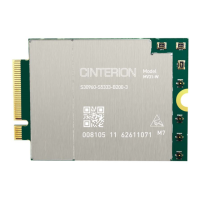
After connecting the 4G Modem Card to the 4G Modem Card Adapter Board as described in
Section 2.2, the 4G Modem can be used.
Note: The driver package provided by Thales needs to be available. Extract and Copy the sup-
plied driver files to a folder on the Windows computer. Be sure to use the latest driver software
supplied by Thales.
2.3.1 Script based Driver Installation
The drivers can be installed by command. Therefore connect the Starter Kit with your PC first.
When unpacking the driver package, don’t use space character in the folder path.
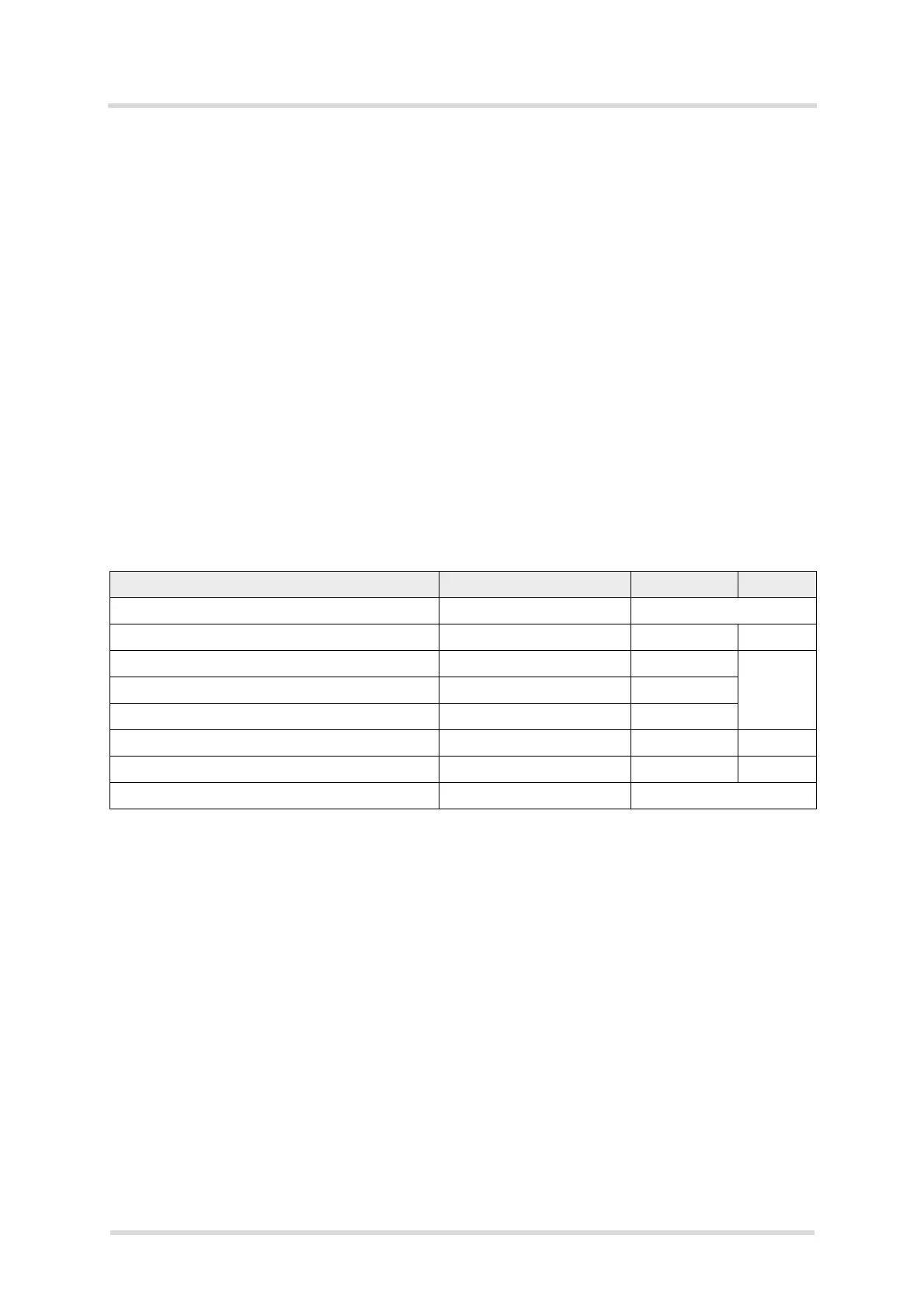
Then run as "Administrator" the command "pnputil.exe /add-driver <path/inf-file> /install" for
each inf-File in the sequence given in Table 1.
After running the commands the interfaces shown in Table 1 should be installed.
After successful driver installation the installed devices are listed in the Windows Device Man-
ager (see Table 1).
Table 1: Installed Interfaces for USB
Interface Device Type inf-File Sequence
Generic Mobile Broadband Adapter Network adapters by Windows 10
Cinterion PID 0x006D USB Modem Modems qcmdm.inf 3
Cinterion PID 0x006D USB Diagnostics (COM14)
1
1.
COM Port number depends on the Host configuration
Ports (COM & LPT) qcser.inf
4 (last)Cinterion PID 0x006D USB NMEA (COM15)
1
Ports (COM & LPT) qcser.inf
Cinterion PID 0x006D USB Application (COM16)
1
Ports (COM & LPT) qcser.inf
Cinterion PID 0x006D USB GNSS QMUX System devices qmuxmdm.inf 1 (first)
Cinterion PID 0x006D USB GNSS System devices qcgnss.inf 2
ADB Interface Universal Serial Bus Devices by Windows 10



 To Next Page