
 Need help?
Do you have a question about the The Shade Store V2 APP and is the answer not in the manual?
Essential first step to download the free app from the Apple App Store to control motorized window treatments.
Hardware requirement: purchase one or more Wireless Links depending on the size of your space.
The app allows control over motorized window treatments via smartphone or tablet.
Functionality within the app to control pre-set scenes for window treatments.
The app supports timer functionality for automated window treatment operation.
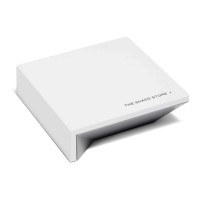
List of components included with the Wireless Link Hub package.
Details on radio frequency, Wi-Fi connectivity, and power requirements for the hub.
Recommendations for optimal placement and network configuration for the Wireless Link Hub.
Information on the maximum number of motors, locations, and rooms the hub can support.
Step-by-step guide for unboxing and physically preparing the Wireless Link Hub.
Instructions to open the app and proceed to the sign-up screen by selecting CONTINUE.
Steps to create a new user account by selecting SIGN UP and entering credentials.
Option for users who already have an account to log in with their credentials.
Start the process by selecting 'ADD NEW HUB' within the app's location settings.
Choose the specific Wireless Link hub you wish to pair with the app.
Scan the QR code on the hub for Apple HomeKit functionality.
Set the correct time zone and daylight savings settings for the hub's location.
Complete the hub pairing process by selecting NEXT to finalize.
Navigate to settings by selecting the three-bar menu button on the Home screen.
Initiate the process to add an additional Wireless Link hub to the system.
Select the option to connect to a newly added Wireless Link hub.
Allow the hub to access your Wi-Fi network by selecting ALLOW.
Configure the time zone and daylight savings settings for the additional hub.
Choose the desired location access permissions for the app.
Proceed with the setup by selecting NEXT to finalize the configuration.
Finish the hub pairing process by selecting DONE in the top right corner.
Navigate to the DEVICES section from the Home screen to add a motor.
Choose the Wireless Link hub to which the motor will be paired.
Choose the specific type of motor device you wish to pair.
Select your preferred method for pairing the motor, either via remote or hub.
Instructions for pairing a motor using its dedicated remote control.
Instructions for pairing a motor directly through the Wireless Link hub.
Allow the app time to establish a connection with the motor during pairing.
If pairing is successful, select NEXT to continue the setup.
Assign a specific name to the paired motor device for easy identification.
The app will save the device information, which may take a moment.
Select the three-bar menu button on the Home screen to access main options.
Select the 'ADD NEW LOCATION' option to create a new geographical area.
Enter a name for the location and select OK, then DONE to confirm.
Switch between programmed locations using the location icon.
Choose the specific location for which you want to change the image.
Select the option to change the current image associated with the location.
Choose an image from your device's library to use for the location.
Allow the app to access your photos to select a desired image.
Choose the specific shade or device you want to control from the list.
Use the down button or drag the shade illustration to the bottom to close it.
Use the up button or drag the shade illustration to the top to open it.
Drag the shade illustration to the desired point to set a custom height.
Navigate to the ROOMS section on the Home screen to create a new room.
Enter a name for the room and select OK to confirm.
Select an appropriate icon to represent the room you are creating.
Select the devices that should be associated with the newly created room.
Finalize the room creation process by selecting DONE.
The app will process and finalize the setup of your new room.
Choose the specific room you wish to operate from the list of created rooms.
Choose to open, close, or move all shades in the selected room to 50%.
Navigate to the SCENES section on the Home screen and select ADD NEW SCENE.
Enter a desired name for the scene and select OK to confirm.
Select an icon to visually represent the scene you are creating.
Select UPDATE SCENE DEVICES to add specific devices to your scene.
Specify actions for devices (Open, Close, Custom) within the scene.
Complete the scene setup by selecting DONE.
The app will process and finalize the setup of your new scene.
Select DONE again to confirm and complete the scene setup.
Simply select GO to activate a previously created scene.
Navigate to the TIMERS section on the Home screen and select ADD NEW TIMER.
Enter a name for the timer and select OK to confirm.
Select an appropriate icon to represent the timer you are creating.
Choose the scene you want to associate with the timer's activation.
Specify the exact time you want the timer to activate.
Set timers based on local sunrise/sunset instead of a specific time.
Select the specific days of the week for the timer to be active.
Complete the timer configuration by selecting DONE.
Toggle the switch to green to activate a timer.
Tap 'PAUSE TIMERS' to temporarily stop all scheduled timer activations.
Tap 'RESUME TIMERS' to restart all paused timers.
Select FAVORITES on the Home screen to manage your favorite devices or scenes.
Select whether to favorite a DEVICE or a SCENE.
Choose your desired device or scene from the list to add to favorites.
Your added favorites will be displayed on the Favorites screen.
From the Home screen, select DEVICES and then the specific device.
Select the EDIT option to access device settings for adjustments.
Choose whether to adjust the TOP POSITION or BOTTOM POSITION.
Select OK to confirm the intent to adjust the selected position limit.
Move the shade to the desired position and press 'Set Top/Bottom Position'.
The app will take a moment to configure the device with the new limits.
Complete the limit adjustment process by selecting DONE.
Press the 'R' reset button with a paper clip for 10 seconds.
After 10 seconds, release the reset button.
Indicates no Wi-Fi or active network connection.
Indicates paired to Wi-Fi but no internet service.
Indicates the device is ready to be paired (not connected to internet).
Indicates the hub is communicating with app servers.
Indicates the device is receiving a firmware update.
Indicates the app is connected to the Wireless Link.
Indicates Wi-Fi connection has been lost.
Indicates the reset button has been pressed.
Indicates factory reset has started.
Indicates Apple Home is currently pairing with the app/hub.
Indicates the device is offline.
Visual indicators for the battery level of motors.
Icons representing the signal connection quality between hub and motor.
Indicates when a motor is offline and shows last known values.
Steps to resolve issues when pairing the hub to the Wi-Fi network.
Steps to resolve issues when pairing shades after the hub is connected.
Procedure to reconnect the hub after a power interruption.
Steps to re-pair the hub when changing Wi-Fi network credentials.
Apple Home integration is a mandatory step for the Shade Store V2 app setup.
Procedure to enter the HomeKit setup code manually if QR code is not recognized.
Input the 8-digit code found on the hub's label to connect to HomeKit.
Ensure the Apple Home app is installed on the device for setup.
Instructions to delete any duplicate Wireless Link hubs from the Apple Home app.
Verify that HomeKit privacy settings are enabled for The Shade Store V2 app.
This document provides comprehensive setup and troubleshooting instructions for The Shade Store V2 App, designed for Apple devices, and its associated Wireless Link Hub.
The Shade Store V2 App allows users to control motorized window treatments using a smartphone or tablet. It facilitates the management of individual or multiple window treatments, creation of scenes, and setting up timers for automated operation. The Wireless Link Hub acts as the bridge between the app and the motorized window treatments, enabling communication and control.
 General
| Brand | The Shade Store |
|---|---|
| Model | V2 APP |
| Category | Switch |
| Language | English |

 To Next Page