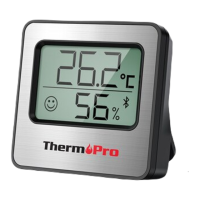
1. Temperature
2. Bluetooth Icon
3. Humidity
4. Comfort Level
5. ˚F /˚C button
6. Hanging Hole
7. Magnet
8. Battery Compartment Door
Temperature range: -4˚F to 140˚F (-20˚C to 60˚C)
Temperature accuracy: +/-1.0˚F (+/-0.5˚C)
Humidity range: 10% to 99%
Humidity accuracy: +/- 2%RH
Comfort Level – 3 icons:
If humidity is below 30%:
If humidity is between 30% to 60% :
If humidity is above 60%:
Wireless Bluetooth range: 260ft/80m
Power source: One AAA battery (1.5V)
2.4GHZ wireless Bluetooth function, connect to smartphone app via Bluetooth
˚F /˚C button: Press to toggle the temperature display unit between ˚F and ˚C.
Press and hold for two seconds to enter pairing status.
Magnet-mountable and wall-mounted design
Usage
Follow the simple steps below to set up your ThermoPro Bluetooth Thermometer/ Hygrometer and remotely monitor
the temperature and humidity of your living room, bedroom, greenhouse and etc. from your smartphone!
Step 1: Download and install the “ThermoPro Sensor“App.
Scan the QR code above, or search for “ThermoPro Sensor” on the Apple Store for IOS devices or on the Google
Play Store for Android devices. Download the app and install it on your smartphone.
iPhone and iPad apps need IOS 9.0 and above.
Android app need versions 4.4 and above.
Android users need to allow all the app requests.
Step 2: Enable Bluetooth on your smartphone under the smartphone Settings section. If your smartphone has
Bluetooth enabled, you can skip this step.
Step 3: Insert one AAA batteries into the battery compartment on the back of the thermometer with correct polarity
(+) and (-) as indicated.
Step 4: The temperature and humidity will be displayed on the screen and the Bluetooth icon will be flashing on
the display. The Bluetooth icon will be flashing for 2 minutes which indicates that the thermometer is ready for
pairing to your smartphone.
Step 5: Launch the ThermoPro Sensor APP and press the to add a thermometer. The thermometers will be
shown on a list and select one to pair. Once pairing is complete, the Bluetooth icon on the thermometer display
will stop flashing and the current temperature and humidity will show on the APP.
If the Bluetooth icon stops flashing and you have not finished the pairing process, press and hold the ˚F /˚C


 To Next Page