12
D - CONFIGURATION AND USE
1
2
3
4
5
6
7
8
9
10
11
12
13
14
15
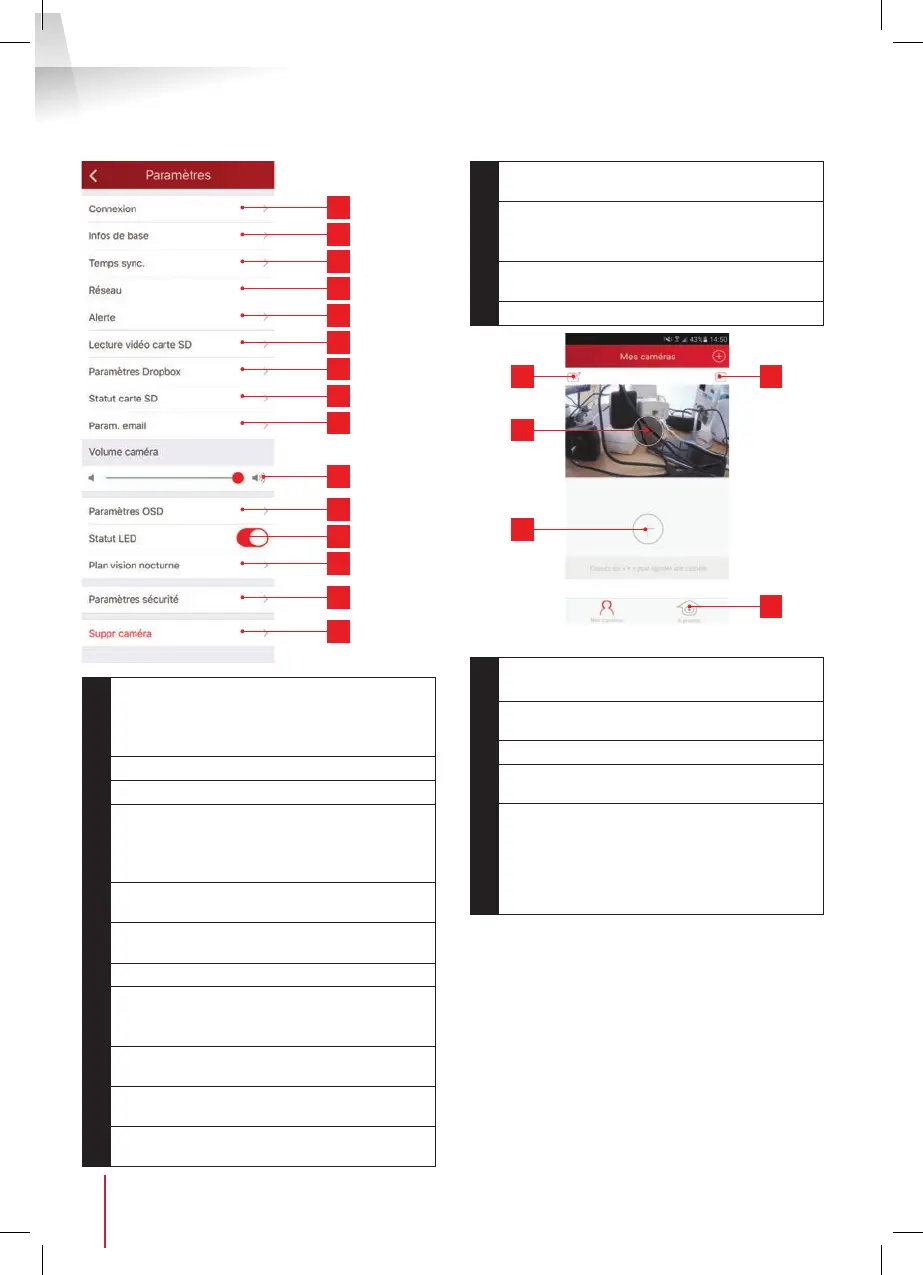
1
Camera information: display and change
the name in the app, display the camera
UID, and display the user account used for
connection.
2
Model and MAC address of the camera
3
Camera time setting
4
Camera WiFi settings (if you set up the
camera using a wired connection and want
to switch to a wireless connection, you can
select and congure a WiFi network here)
5
Movement detection settings, sound
detection settings (compatible cameras only)
6
Allows playback of videos made on the
micro SD card (not supplied)
7
Not used
8
Display micro SD card information, if
installed: space used, free space and
formatting
9
Email conguration for sending messages
when there is detection
10
Set camera volume (compatible
cameras only)
11
Embed the name and time in the camera
image
12
Activation or deactivation of camera
indicator lights (compatible cameras only)
13
Programme the lighting ranges for the
night vision, if you do not want to use the
automatic function
14
Enables you to modify the username or the
password for camera connection.
15
Delete camera from your user account.
4
5
1
2
3
1
Name under which the camera is registered
in the app
2
Photo of the camera image. The icon in the
centre shows the live image from the camera
3
Add another camera to the application
4
Access to photos and videos taken from your
smartphone / tablet.
5
- Information about your ThomView user
account.
- Authorisation to connect by 3G/4G or WiFi
only
- Management of Push notications camera
by camera (only for compatible models)


 To Next Page