Working with images 15
• You can select multiple images (by holding down or Shift as you
click images, or by dragging the mouse) and save them all at one
time. When you do this, you select the location to save the files in the
Save As window, but do not specify file names. Each screen image is
saved with its default file name. If that name already exists, a suffix
such as -1, -2, etc., is added to the new file name so it does not
overwrite the previous file.
Viewing screen images
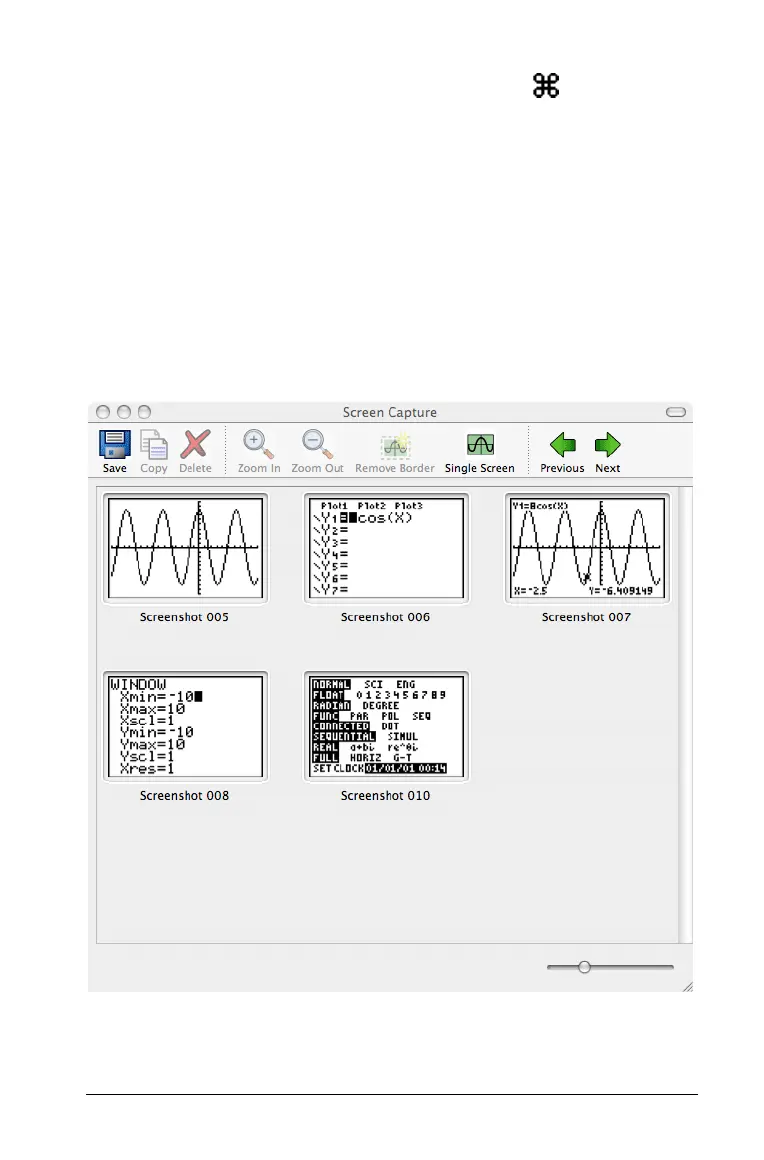
When you capture a screen image, that image opens in the Screen
Capture window. You can view the images individually or as a group of
images, called thumbnails. A reference name is displayed under each
image.



 To Next Page