26 Using scripts
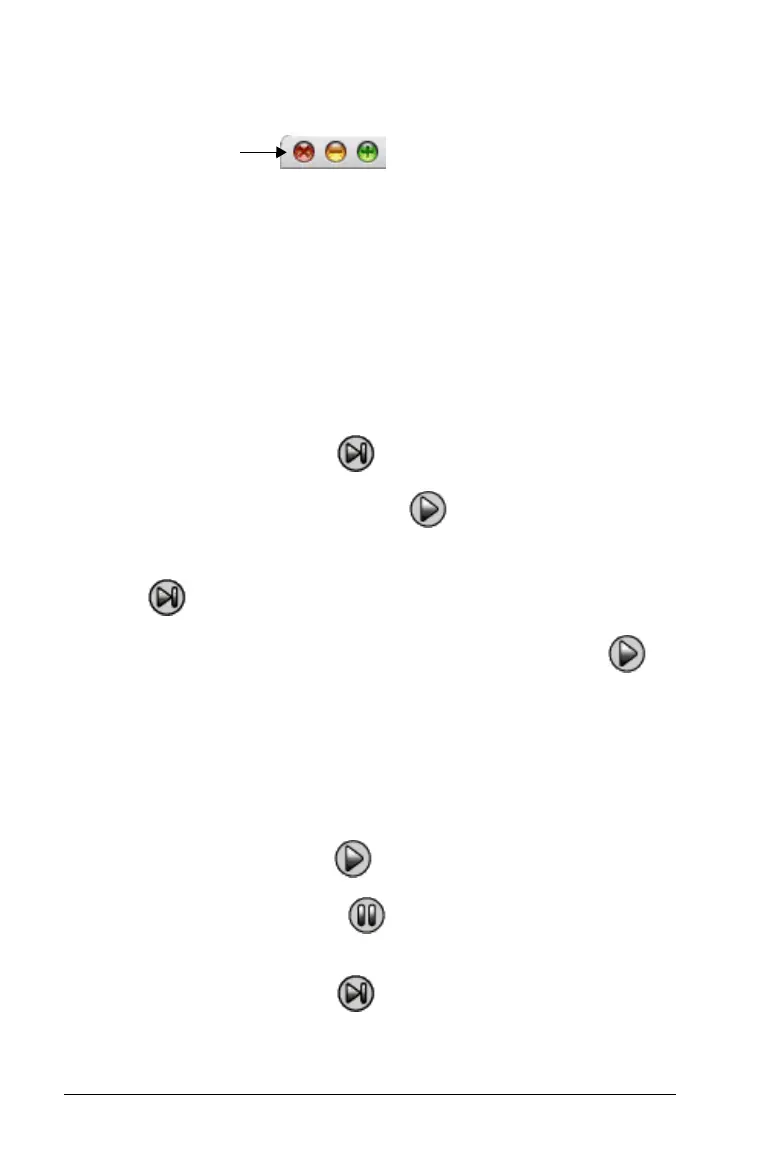
f Click File > Close or click X in the script window’s upper-left
corner.
Stepping through a script
You can step through a script one key press at a time. This is the same
effect as if you had used pause commands to halt the script between
every key press. Depending on the length of the script, you may want to
step through all or only parts of it.
Stepping through a script from the beginning
In the script window, instead of playing the script:
1. Click Scripts > Step or click to start the script.
Note: Do not click
Scripts > Play or .
The script pauses automatically after every key press.
2. Click repeatedly to step through each key press.
3. After stepping through a series of key presses, you can click to
play the remaining key presses continuously.
Note: After the first pause, you can also press the right arrow key on the
computer keyboard to step through a script.
Stepping through part of a script
In the script window:
1. Click
Scripts > Play or click .
2. Click
Scripts > Pause or click to pause at a location before you
want to start stepping through.
3. Click
Scripts > Step or click repeatedly to step through each
key press.
Click to close
the script.



 To Next Page