Using the key press history 19
Using the key press history
What is the key press history?
Each key you click on the calculator is recorded automatically in the key
press history. At any time, you can view the key press history to see a
listing of all the keys you’ve used. This has several benefits, including:
• If a calculation gives unexpected results, you can view the key press
history to see if you entered the correct data.
• If you perform a calculation and then find you need to perform it
repeatedly, you can copy those keys from the key press history and
paste them into a script. When you need to repeat the calculation,
you can play the script instead of re-entering all the key presses.
The key press history shows some key sequences in a different form than
they’re shown in the user’s guide for the TI-84 Plus calculator. For
example, suppose you display the calculator’s MEMORY menu.
• The user’s guide shows the key sequence as y L, where L is
the 2nd function of the à key.
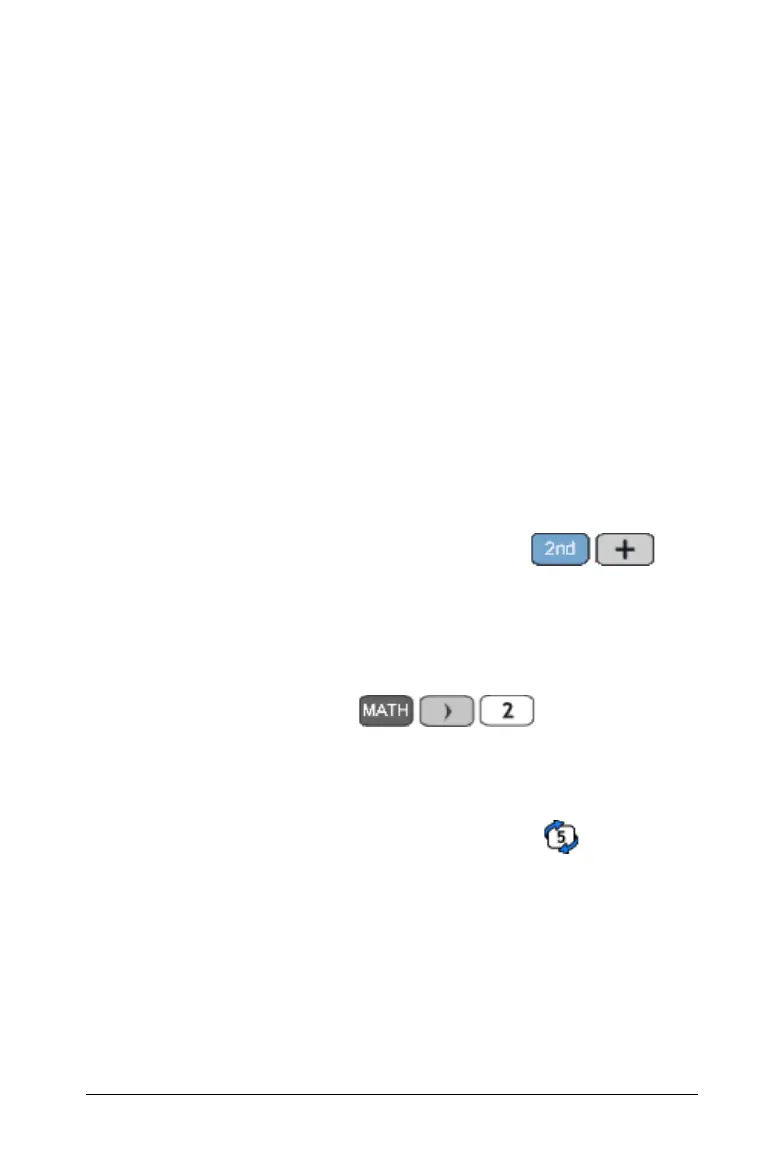
• The key press history shows the key sequence as
because those are the actual keys you click.
Similarly, suppose you select the round( function from the
MATH NUM
menu.
• The user’s guide shows the function as round(.
• The key press history shows because those are
the keys you click.
Showing or hiding the key press history
f Click Window > Show/Hide Key History or click .
This toggles the History window on and off. Hiding the window does not
clear the contents of the key press history.
Clearing the key press history
f Click Edit > Clear Key Press History, or click Clear at the bottom
of the History window.



 To Next Page