Getting started 5
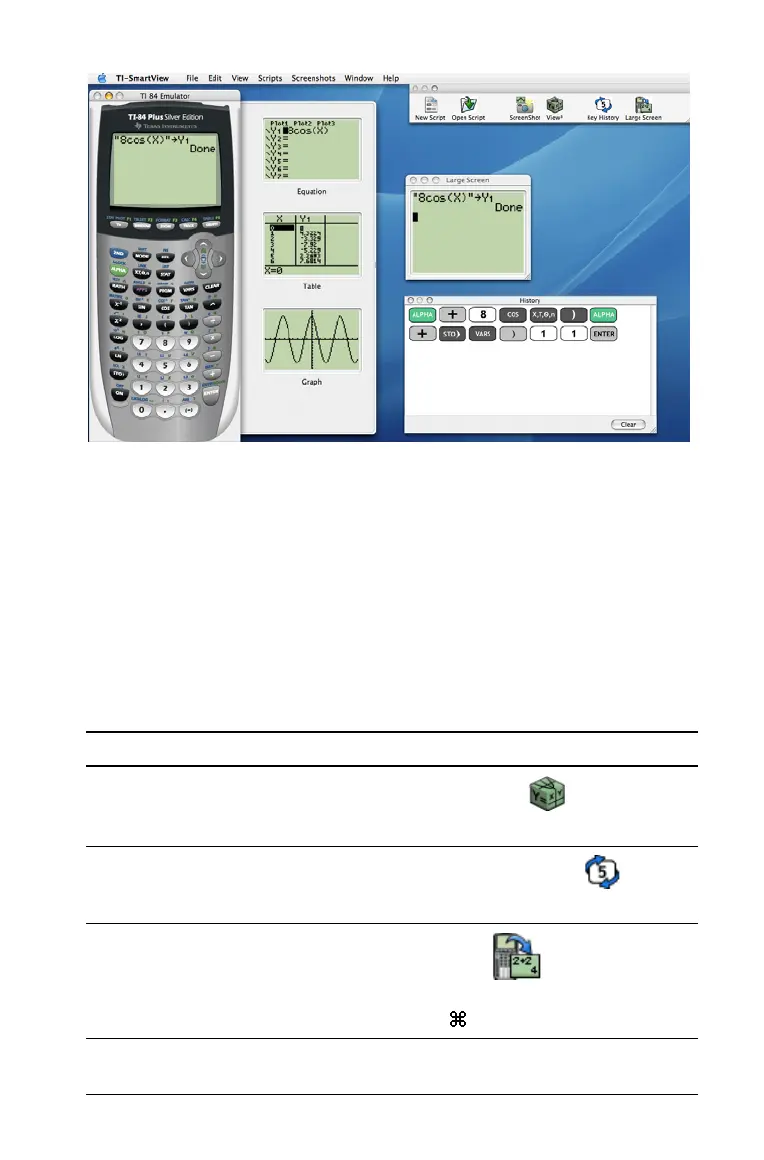
The View
3
™ drawer initially shows the Y= editor, table, and graph
screens. However, you can select which calculator screen you want to
show for each of the three displays. (The stat plot, list, and window
screens are also available.) The screens are updated each time you press
one of the graphing keys (p, q, r, s), change the
Window or Zoom settings, or press Í.
The History window shows all of the calculator keys you have clicked.
The Large Screen window shows a large image of the current calculator
screen.
Script windows show any open scripts.
Display Option Click:
View
3
™ drawer
Window > Show/Hide View
3
or to toggle the
drawer open and closed.
Key press history
Window > Show/Hide Key History or to
toggle the History window on and off.
Large screen
Window > Large Screen or to show the
Large Screen. To close the window, use the close
button in its title bar or
W.



 To Next Page