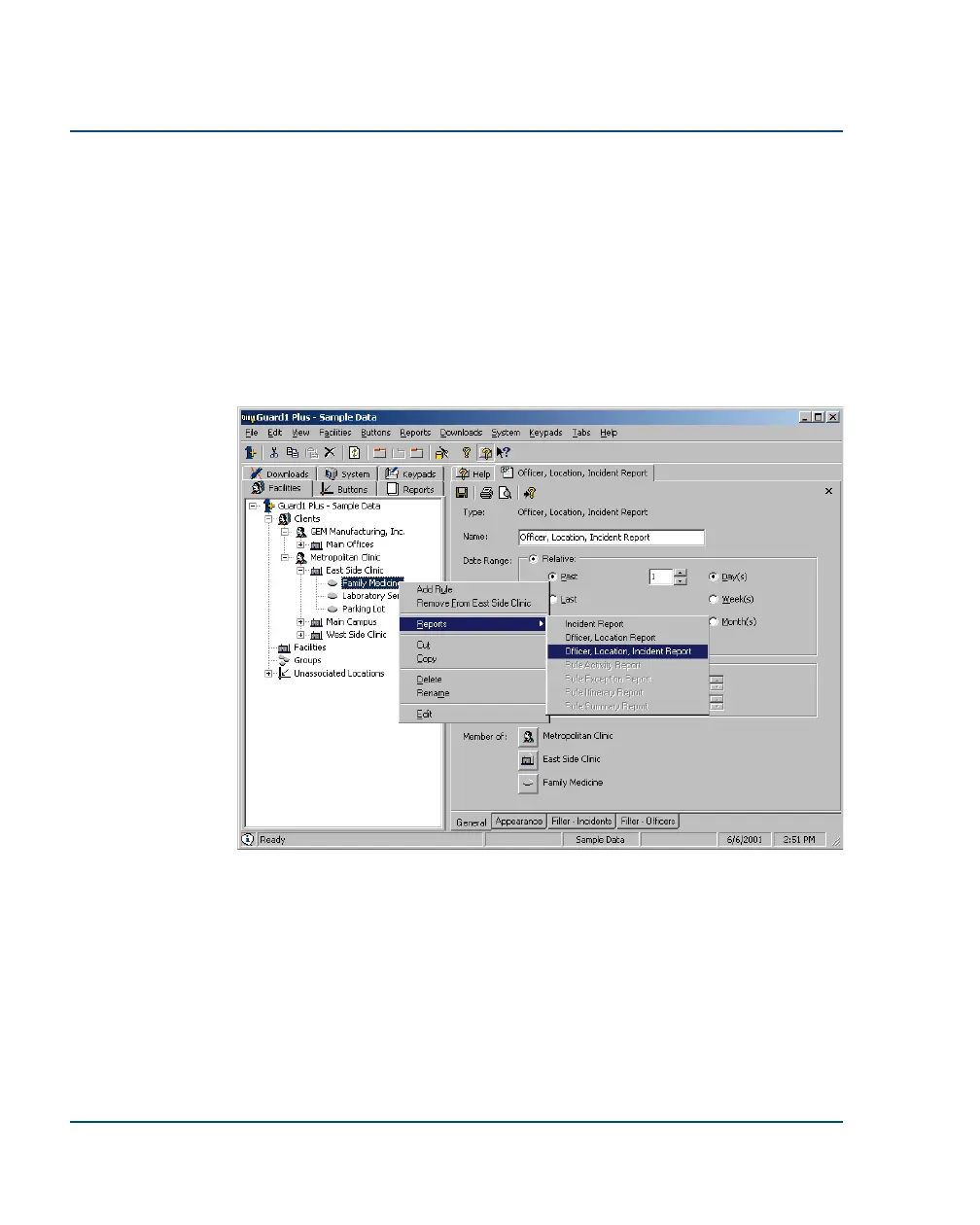
To view a report for a client or facility:
If you have set up a client or facility, as explained in section 7 of this guide, you
can now print a report for that facility.
1. Click on the Facilities tab.
2. Right-click on the client or facility.
3. A drop down menu will appear. Select Reports.
4. A submenu will appear. Select the report type you want.
5. A report tab will be displayed on the right side of the G
UARD
1 P
LUS
window. Select the desired date range. (You will probably want to
leave the default of the past day, and check the box for Include
Today.)
6. If you like, explore the reporting options available by clicking on the
option tabs (General, Appearance, and Filters) at the bottom of the
report tab.
20
••
View or Print Your Data Installation Guide



 To Next Page