24
13. MicroCapture Plus Software
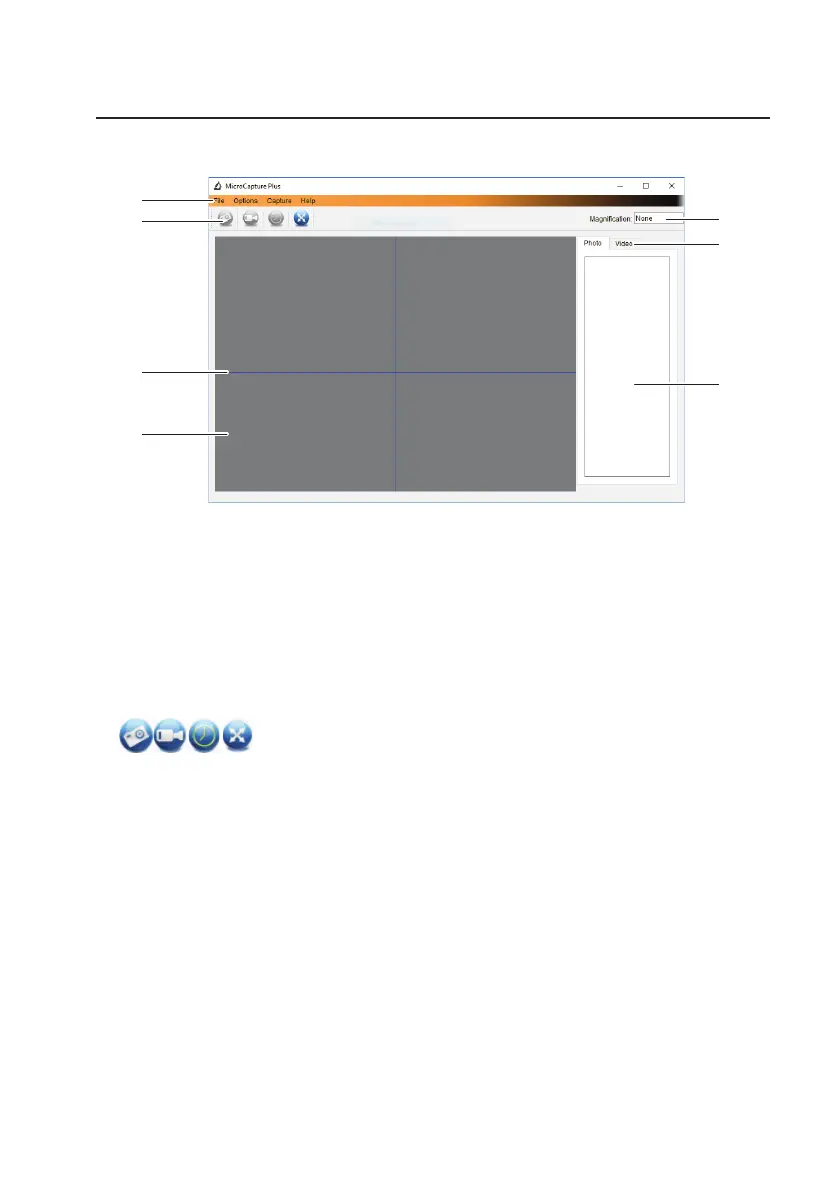
a) Overview
B1
B2
B3
B4
B5
B6
B7
B1 Menu items
- File > Photos or Videos Folder: Captured images location.
- Options > Resolution: Change image capture resolution.
- Options > Date /Time: Show/hide the recorded date and time in photo or video.
- Options > Language: Change user interface language.
- Options > XY Guide: Show/hide guidelines.
B2 Shortcuts: Camera / Video / Timer / Full Screen.
Enter / exit full screen mode by double-clicking the preview area or selecting the full screen icon.
B3 X and Y axis guidelines.
B4 Image preview area.
B5 Magnicationinformation.
B6 Photo / Video tab: Select a tab to view saved Photos or Videos.
B7 Saved images window (thumbnail view).
- Captured images / videos show up as thumbnails.
- If you hover the mouse over a thumbnail, the image will show in the preview area (B4).
- RightmouseclickanimageforfurtheroptionssuchasOpen, Save as, Copy, Delete, Delete All.


 To Next Page