Sorting positions
• TheTViscapableofreceivinganumberof
differentchannelsdependinguponwhereyou
live.
• Sortingprogrammepositionisaneasyway
ofstoringeachchannelontheprogramme
positionofyourchoice.
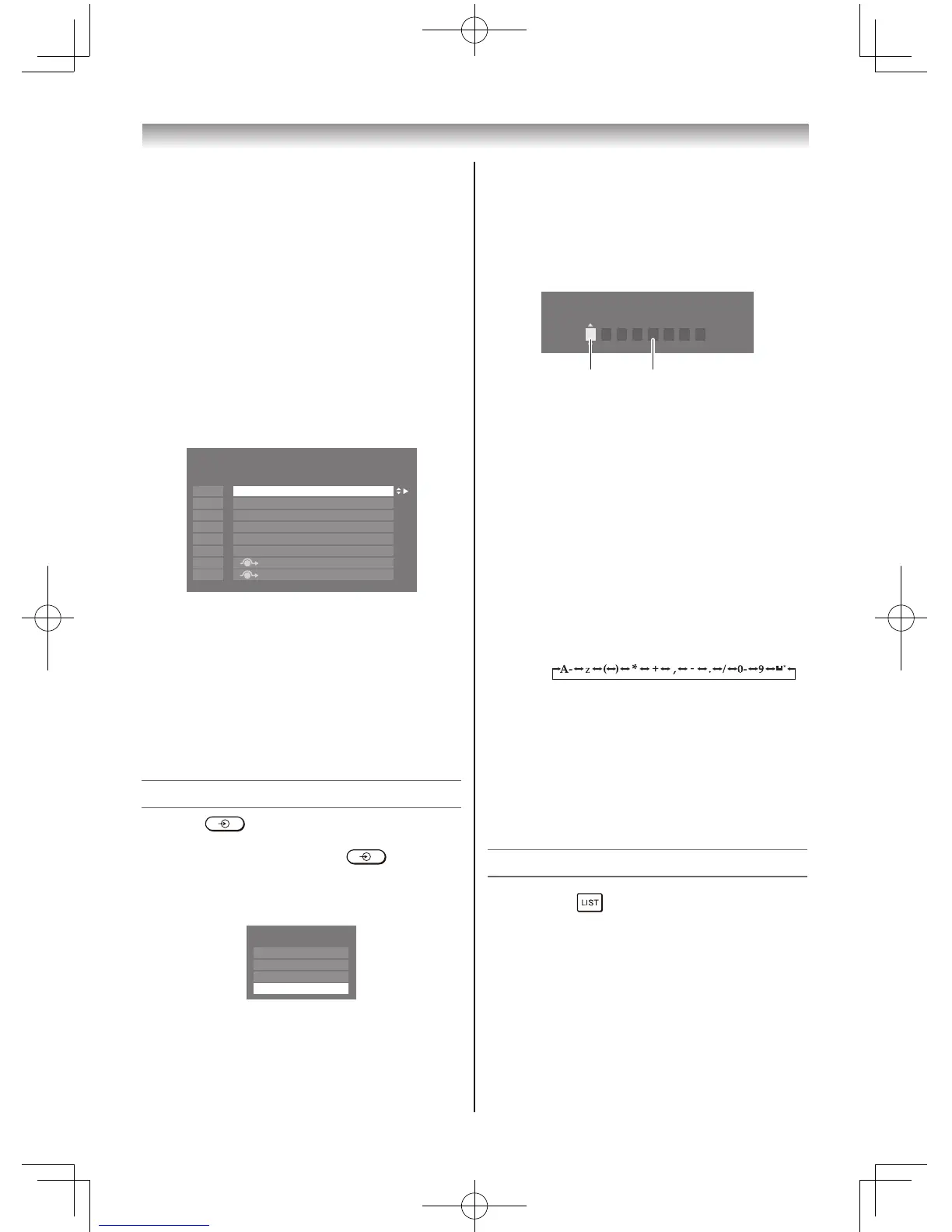
Ex.:ToswapchannelABCD(Prog.1)forchannel
MNOP(Prog.4):
1 FromtheSETUP menu,presssorrto
selectManual Tuningmenu,andthenpress
Q.
2 PresssorrtoselectthechannelABCD,
thenpressw.
1 ABCD
EFGH
IJKL
MNOP
Manual Tuning
Pos. Label
2
3
4
5
6
7
8
3 Pressstoselectthenewposition“4”,then
pressv.
4 PressrtoselectthechannelMNOP,then
pressw.
5 Pressrtoselectthenewposition“1”,then
pressv.
6 ConrmnewManual Tuningmenu.
Selecting the video input source to view
1 Press ontheremotecontroluntil
thevideoinputmodelistappearsonthe
screen,thenpresss,ror toselect
appropriateinputsource(orpressoonthe
TVleftsidepaneltoselectrequiredinput
sourcedirectly).
2 PressQ.
TV(analogueaerialinput),
VIDEO(oCOMPONENT/VIDEOINPUT,
standardorcomponentvideoinput),
HDMI(HDMIinput),
PC(oRGB/PC,PCinput)
Introduction / Getting started
Setting the Manual Settings menu
1 FromtheSETUPmenu,pressvorwto
selectManual Settings,andthenpressQ.
2 Pressvorwtoselectanitem,andthen
presssorrtoselecttheitemasshown
below.
Manual Settings
Colour System : Auto
VIDEO
A
A B
A. Colour System
ConrmthatColour Systemissetto“A”
(Auto).Ifnot,select“A”withsorr.
Note:
OnlyVIDEOsignalinput,thisfunctionis
available.
B. Label
Thelabelallowsyoutolabeleachinput
sourceforyourTV.
To change or create labels:
1) Presssorrrepeatedlytoselecta
characterfortherstspace,thenpress
vorw.
2) Repeatstep1)toentertherestofthe
characters.Ifyouwouldlikeablank
spaceinthelabelname,youmust
chooseablankspacefromthelistof
characters.
PressQtostoreyoursettings.
Channel List
1 Pressthe button.TheChannel Listwill
appear.
2 Presssorrtoselectachannel,andpress
Qtowatch.



 To Next Page
 Loading...