PRINTING FROM Macintosh
- 56 -
● PRINTING FROM Macintosh
Printing From Application
Setting options and printing from
Macintosh Computers
In Mac OS X applications, print options are set from both the
[Page Setup] dialog box and the [Print] dialog box.
Printing from Macintosh applications
1
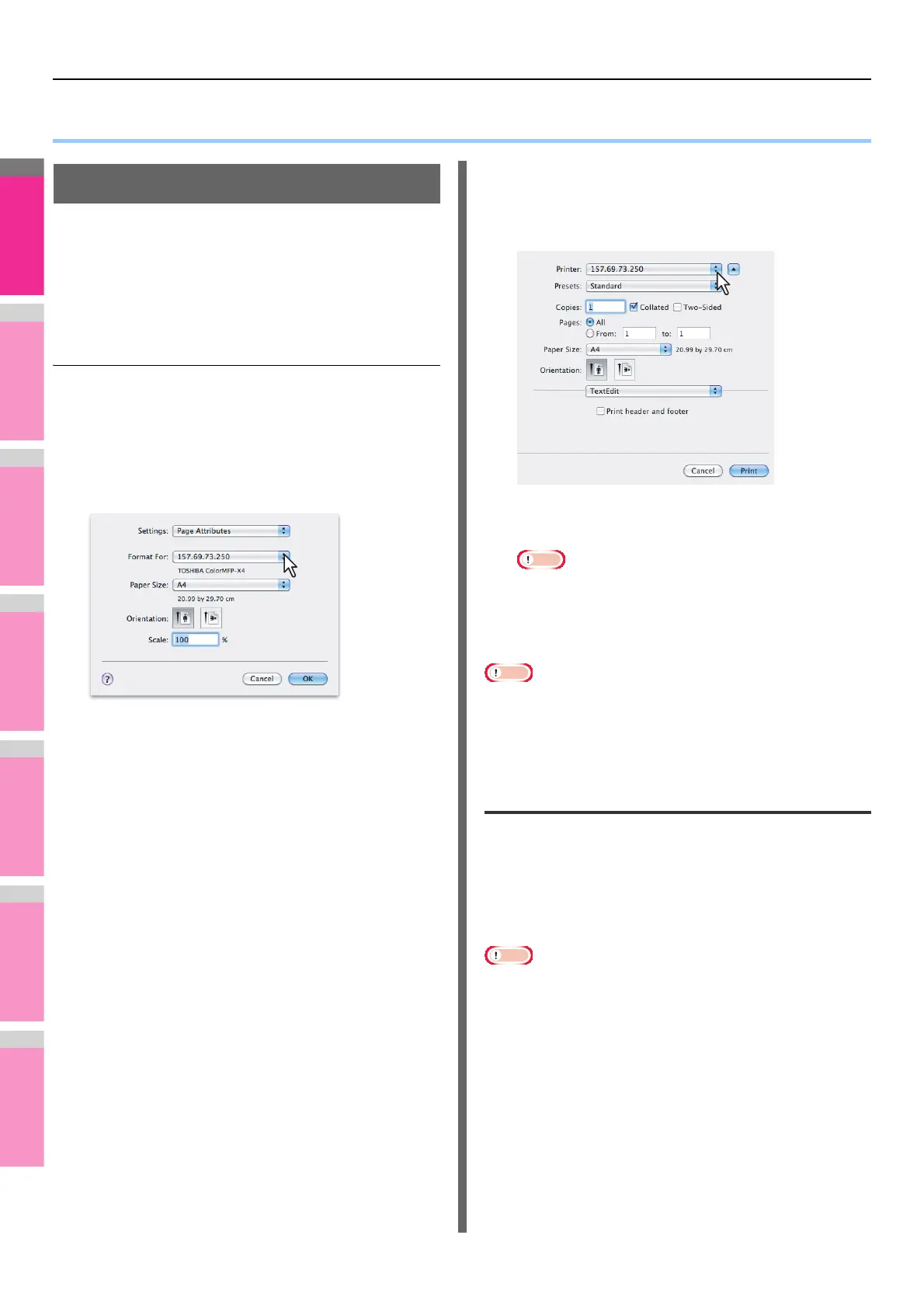
Open a file and select [Page Setup] from the
[File] menu of the application.
2
Select the name of the equipment in the
[Format For] box and specify the Page
Setup settings for your print job.
Setting the Page Setup varies depending on how you
want to print a document.
P.57 "Page Attributes"
3
Click [OK] to save the Page Setup settings.
4
Select [Print] from the [File] menu of the
application.
5
In the dialog box that appears, make sure
the name of the equipment is selected at
the [Printer] box and specify the Print
settings for your print job.
Setting the Print Setup varies depending on how you
want to print a document.
• The [Print] dialog boxes vary depending on
applications.
6
Click [Print] to print a document.
Note
• The content set in the [Print] dialog box can be saved as
[Presets]. Select [Save as] in the [Presets] box and save it
under the desired name. If you use this preset content as a
default setting, select it in the [Presets] box.
Page Setup dialog
The [Page Setup] dialog boxes can be displayed by selecting
the [Page Setup] command from the [File] menu of the
application.
In the [Page Setup] dialog boxes, you can specify the Page
Attributes settings and manage the Custom Page Size
settings.
Note
• The [Page Setup] dialog boxes vary depending on
applications. In some applications, it is not included in the
[File] menu, but in the [Print] dialog boxes.







 To Next Page