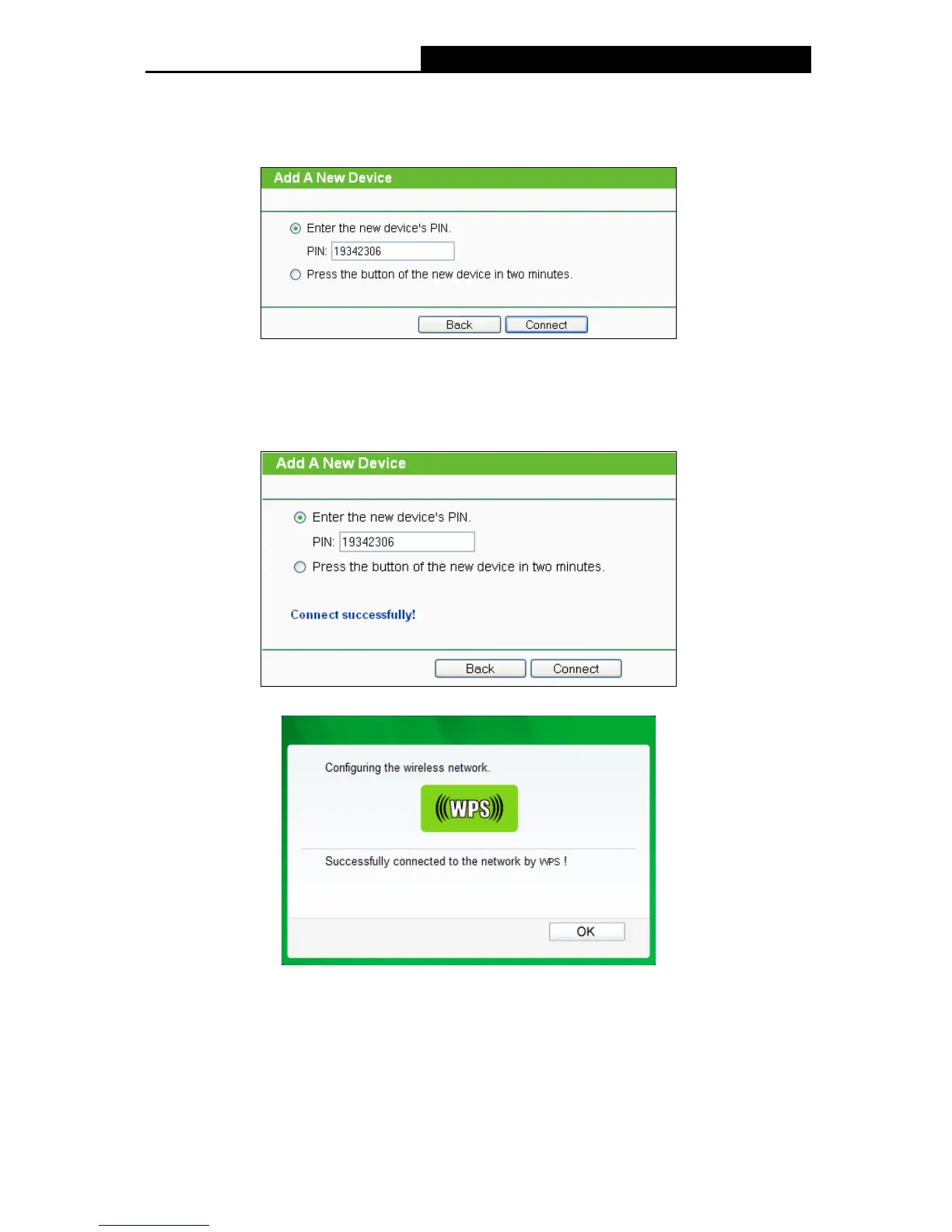
2. Open your Router’s Web-based Utility and click WPS link on the left of the main menu.
Then click Add device and the following figure will appear. Enter the PIN value of the
adapter in the empty field beside PIN and then click Connect.
Figure 3-16
3. When Connect successfully appears on the screen (as shown in Figure 3-17), the WPS
configuration is completed. Or you can view the adapter’s utility page to see whether the
connection has been successful (as shown in Figure 3-18).
Figure 3-17
Figure 3-18
3.3 To connect using Windows built-in wireless utility
3.3.1 In Windows XP
Windows XP users may use the built-in wireless utility. Follow the steps below.
17




 To Next Page