3
Appearance
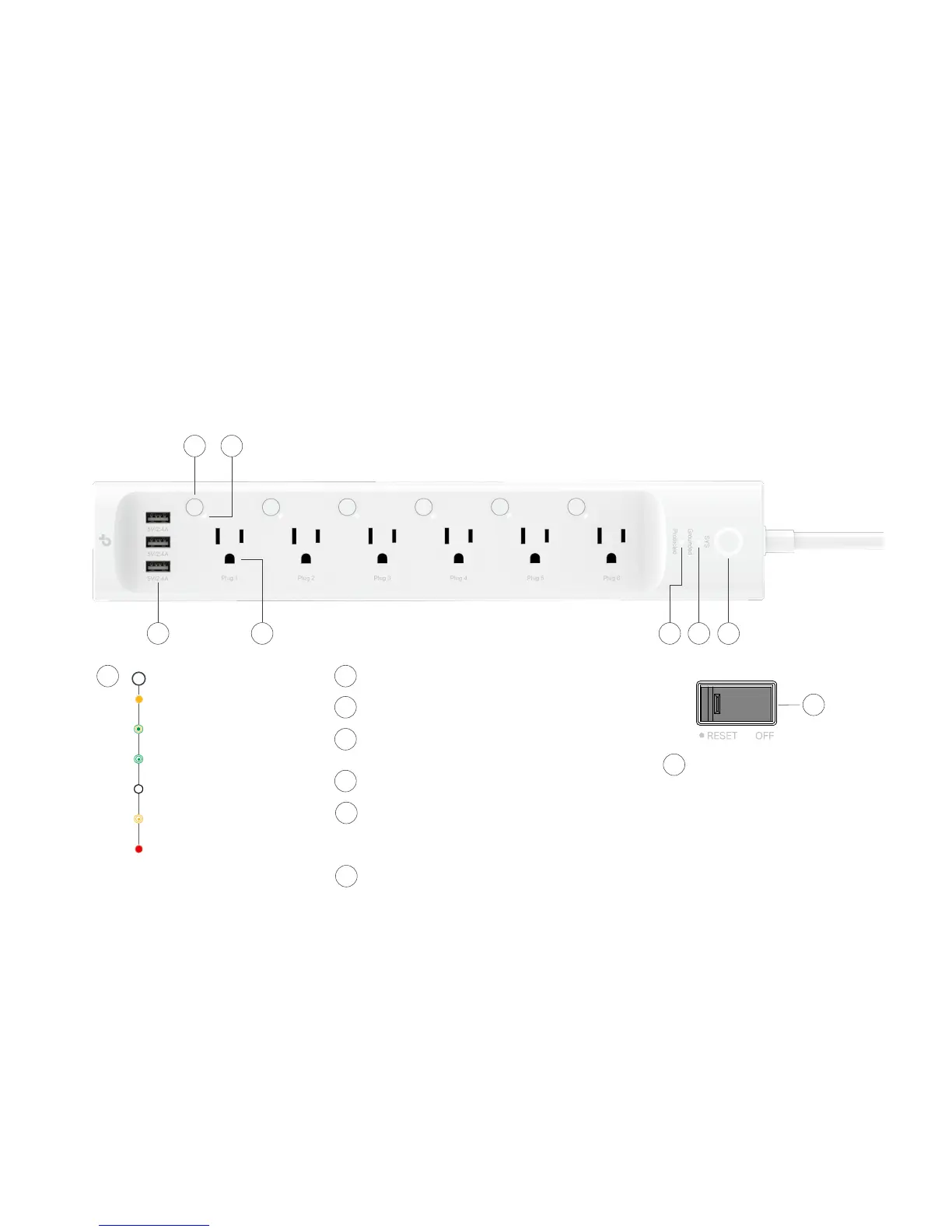
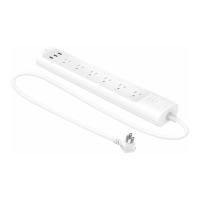
Smart Power Strip has 6 individual smart outlets, with control buttons to turn on/o devices plugged in and LEDs to show you the current status. SYS,
Grounded and Protected LEDs change color according to its status. See the explanation below:
1
237
6 5
4
Grounded LED
Lit up when it is grounded normally.
2
Protected LED
Lit up when it is under surge protection.
3
Smart Outlet (1-6 from left to right)
Plug in your device and control it from your smartphone.
Each outlet is independent.
4
LED of Smart Outlet (1-6 from left to right)
Lit up when the corresponding smart outlet is on.
5
Control Button (1-6 from left to right)
Press the control button to turn on or o the corresponding outlet.
Press and hold a control button for 5s to reenable setup mode.
Press and hold a control button for 10s to restore your Smart Power
Strip to factory default settings.
6
USB Port
Charge your tablet, smartphone or other devices.
Output: 5V/2.4A each; 5V/4A total
7
Blinking Orange
Resetting.
Blinking Green
Searching for Wi-Fi.
Red
No Wi-Fi connection.
Blinking Orange and Green
Setup mode initiated.
SYS Wi-Fi LED
1
Orange
Rebooting.
White
Connected to Wi-Fi network successfully.
Main Switch
Turn on or o your Smart Power Strip.
8
Back Panel
8



 To Next Page