EasyManua.ls Logo

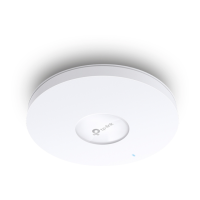
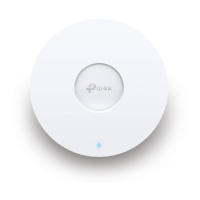
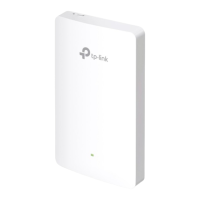
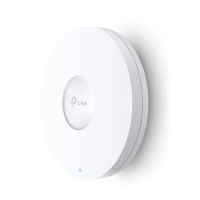
TP-Link Omada EAP620 HD V2 - User Manual

TP-Link Omada EAP620 HD V2
2 pages
Print Icon
To Next Page IconTo Next Page
Loading...
Quick Installation Guide
Wireless Access Point
Setup with videos
Visit https://www.tp-link.com/support/setup-video/ or scan the QR code to search for
the setup video of your product model.
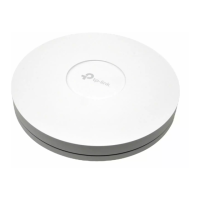
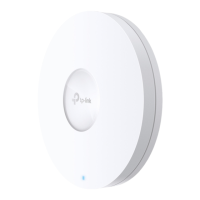
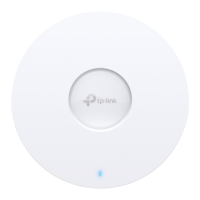
Note: For simplicity, we will take EAP660 HD for example throughout the Guide. The image may dier from the
actual product.
Hardware Overview
1
On:
Working normally/Initializing.
Off:
Working abnormally/Power o/LED is turned o.
Flashing:
Initialization
: The LED ashes twice after initialization is completed.
Upgrade
: The LED ashes once per second while upgrading.
Reset
: The LED ashes quickly during the reset. The EAP will then reboot.
Locate
: When the Locate feature is activated in the Omada controller, the LED ashes quickly to locate and
identify the device. The LED will ash for 10 minutes, or you can disable the feature manually to stop it ashing.
LED Indicator
RESET
With the device powered on, press and hold the button for about 5 seconds until the LED flashes quickly . Then
release the button. The device will restore to factory default settings.
The port is used to connect to a router or a switch to transmit data, or to a PSE (Power Sourcing Equipment), such
as a PoE switch, for both data transmission and Power over Ethernet (PoE) through Ethernet cable. The port
supports transmission speed of 10/100/1000/2500 Mbps for EAP660 HD and 10/100/1000 Mbps for EAP620 HD.
Ethernet Port: 2.5G ETH (PoE) (for EAP660 HD) | ETH (PoE) (for EAP620 HD)
Plug one end of the provided power adapter to this port and the other end to a standard electrical wall outlet to
power the EAP.
Power Port: 12V 2A (for EAP660 HD) | 12V 1A (for EAP620 HD)
2
Insert the plastic wall anchors into the 6 mm
diameter holes.
4
Connect the Ethernet cable to the Ethernet port on
the EAP.
5
Attach the EAP to the mounting bracket, then
rotate the EAP until it locks into place, as shown on
the left.
M3×20 Self-tapping Screws (Qty.4)
M3×28 Plastic Wall Anchors (Qty.4)
1
If your Ethernet cable feeds through the wall, you
can position the mounting bracket below the cable
hole. Mark four positions for the screw holes and
then drill four 6 mm diameter holes at the marked
positions.
3
Secure the mounting bracket to the wall by driving
the self-tapping screws into the anchors. Make
sure that the shoulders of the mounting bracket are
on the outside.
1
Remove the ceiling tile.
2
Place the mounting bracket in the center of the
ceiling tile. Mark four positions for the screw
holes and a position for the Ethernet cable hole.
Drill four 4 mm diameter holes for the screws and
a 25 mm diameter hole for the Ethernet cable at
the marked positions.
3
Secure the mounting bracket to the ceiling tile
using four M3x30 pan-head screws, washers and
wing nuts, as shown on the left.
4
Feed the Ethernet cable through the hole and set
the ceiling tile back into place.
5
Connect the Ethernet cable to the Ethernet port.
Attach the EAP to the mounting bracket, then
rotate the EAP until it locks into place, as shown on
the left.
Note: Make sure that the ceiling tile is bigger than the EAP.
Wing Nuts (Qty.4)Washers (Qty.4) M3×30 Pan-head Screws (Qty.4)
The EAP can be ceiling-mounted or wall-mounted. Choose a mounting method according to your
needs. Follow the steps below for the appropriate installation.
Hardware Installation
2
Drill Hole for Ethernet cable
X4
X4
Front Panel
Rear Panel
Option 1: Ceiling Mounting Option 2: Wall Mounting
Option1: Ceiling Mounting
Option2: Wall Mounting
Question and Answer IconNeed help?

Do you have a question about the TP-Link Omada EAP620 HD V2 and is the answer not in the manual?

Summary

Hardware Overview

Front Panel Overview

Details LED indicator states and the reset button function for the EAP.

Rear Panel Ports

Describes the Ethernet and Power ports on the rear of the EAP.

Hardware Installation

Ceiling Mounting Guide

Step-by-step guide for mounting the EAP onto a ceiling tile.

Wall Mounting Guide

Step-by-step guide for mounting the EAP onto a wall.

Power Supply Options

PoE Switch Power Connection

How to connect the EAP to a PoE switch for power and data.

Power Adapter Connection

How to connect the EAP using the provided power adapter.

Software Configuration

Standalone Mode Setup

Configure EAPs individually via Omada App or web browser.

Controller Mode Setup

Centrally manage EAPs using Omada Software, Hardware, or Cloud Controllers.

Summary

Hardware Overview

Front Panel Overview

Details LED indicator states and the reset button function for the EAP.

Rear Panel Ports

Describes the Ethernet and Power ports on the rear of the EAP.

Hardware Installation

Ceiling Mounting Guide

Step-by-step guide for mounting the EAP onto a ceiling tile.

Wall Mounting Guide

Step-by-step guide for mounting the EAP onto a wall.

Power Supply Options

PoE Switch Power Connection

How to connect the EAP to a PoE switch for power and data.

Power Adapter Connection

How to connect the EAP using the provided power adapter.

Software Configuration

Standalone Mode Setup

Configure EAPs individually via Omada App or web browser.

Controller Mode Setup

Centrally manage EAPs using Omada Software, Hardware, or Cloud Controllers.

Overview

This document outlines the setup and management of a Wireless Access Point, designed for both small-scale and large-scale network deployments. The device functions as a central point for wireless connectivity, allowing users to access a network wirelessly. It supports various deployment scenarios, including ceiling and wall mounting, and offers flexible power options.

Function Description

The Wireless Access Point serves as a crucial component in extending wireless network coverage. It connects to a wired network, typically via an Ethernet port, and broadcasts a wireless signal, enabling client devices such as laptops, smartphones, and tablets to connect to the internet or local network resources. The device is designed to handle data transmission and, in some models, can receive power over Ethernet (PoE), simplifying installation by eliminating the need for a separate power adapter.

The core function revolves around providing reliable and high-speed wireless access. It supports different Ethernet speeds, ensuring compatibility with various network infrastructures. The device can operate in two primary modes: Standalone Mode for individual management, suitable for smaller networks, and Controller Mode for centralized management of multiple Access Points, ideal for larger, more complex environments.

In Standalone Mode, the Access Point can be configured directly via a mobile application or a web browser. This allows for quick setup of basic wireless parameters, such as SSID and password. For advanced configurations, users can access a more comprehensive interface through a web browser.

In Controller Mode, the Access Point integrates with a centralized management system, which can be an Omada Software Controller, an Omada Hardware Controller (like OC200/OC300), or an Omada Cloud-Based Controller. This mode enables administrators to manage multiple Access Points from a single interface, offering features like batch configuration, real-time monitoring, and advanced network settings. The controller can also facilitate remote management through a cloud portal or a dedicated mobile application, providing flexibility for network administrators to oversee their network from anywhere.

Usage Features

The Wireless Access Point offers several features designed to enhance usability and deployment flexibility:

  • Mounting Options: The device supports both ceiling and wall mounting. This adaptability allows for optimal placement to maximize wireless coverage and minimize visual impact. The installation process involves securing a mounting bracket and then attaching the Access Point, which rotates into place for a secure fit. Detailed instructions are provided for drilling holes and securing the bracket, ensuring a stable installation.
  • Power Options: The device can be powered in two ways:
    • PoE Switch: For models compliant with 802.3at, the Access Point can receive power directly through the Ethernet cable from a PoE switch. This eliminates the need for a separate power outlet near the device, simplifying wiring and installation, especially in locations where power outlets are scarce.
    • Power Adapter: Alternatively, the device can be powered using a standard electrical wall outlet via a provided power adapter. This option is useful when a PoE switch is not available or preferred.
  • LED Indicator: A multi-functional LED indicator on the front panel provides visual feedback on the device's status. It can indicate normal operation, initialization, abnormal working conditions, or power off. Specific flashing patterns communicate different states, such as during initialization, firmware upgrades, device resets, or when the "Locate" feature is activated from the Omada controller, helping administrators quickly identify a specific device in a large deployment.
  • Reset Button: A physical reset button allows users to restore the device to its factory default settings. This is a crucial maintenance feature for troubleshooting or reconfiguring the device from scratch.
  • Configuration Modes:
    • Standalone Mode: This mode is ideal for small networks with a limited number of Access Points. Configuration can be done quickly using the Omada App on a mobile device or through a web browser. The Omada App provides a user-friendly interface for basic settings, while the web browser offers access to more advanced configurations.
    • Controller Mode: For larger networks, this mode provides centralized management. The Omada Software Controller, Omada Hardware Controller, or Omada Cloud-Based Controller allows for efficient management of multiple Access Points. This includes batch configuration, firmware upgrades, and comprehensive network monitoring.
  • Omada App Integration: The Omada App simplifies both local and remote management. Users can download the app from the App Store or Google Play. In Standalone Mode, the app guides users through initial setup. In Controller Mode, it allows for managing controllers locally or remotely via a TP-Link ID, providing a convenient way to monitor and configure the network on the go.
  • Cloud Access: For Controller Mode deployments, the Omada Cloud Portal enables remote access to the controller. By binding a TP-Link ID to the controller and enabling cloud access, administrators can manage their network from any location with internet access, enhancing flexibility and responsiveness.

Maintenance Features

The device incorporates features that facilitate maintenance and troubleshooting:

  • LED Status Indicators: As mentioned, the LED provides clear visual cues for various operational states, which is invaluable for quick diagnostics. For instance, a rapidly flashing LED during a reset confirms the action, while a specific flash pattern for the "Locate" feature helps pinpoint a device in a rack or ceiling.
  • Reset Functionality: The physical reset button is a primary maintenance tool. Holding it for a few seconds restores the device to its factory defaults, which is often the first step in troubleshooting connectivity issues or preparing the device for a new configuration.
  • Firmware Upgrades: While not explicitly detailed as a separate feature, the mention of the LED flashing during an upgrade implies that firmware updates are a standard maintenance procedure. These updates typically improve performance, add new features, and address security vulnerabilities. In Controller Mode, firmware upgrades can often be managed centrally for multiple devices.
  • Centralized Management (Controller Mode): For large deployments, the Controller Mode significantly streamlines maintenance. Instead of individually accessing each Access Point, administrators can perform tasks like configuration changes, firmware updates, and monitoring from a single interface. This reduces the time and effort required for routine maintenance.
  • Omada Cloud Portal and App for Remote Management: The ability to manage the network remotely via the Omada Cloud Portal or the Omada App is a key maintenance advantage. Administrators can monitor device status, troubleshoot issues, and make configuration adjustments without needing to be physically present at the network site.
  • Documentation and Support: The manual directs users to online resources such as the TP-Link Community, technical support websites, and download centers for user guides and additional information. This comprehensive support ecosystem is crucial for troubleshooting and ongoing maintenance, providing access to solutions and expert advice.
  • Safety Information: The inclusion of safety guidelines, such as keeping the device away from water, fire, and humidity, and avoiding disassembly, contributes to device longevity and reduces the need for premature maintenance or replacement. It also emphasizes using recommended chargers and ensuring the adapter is easily accessible.

TP-Link Omada EAP620 HD V2 Specifications

General IconGeneral
Frequency Band2.4 GHz and 5 GHz
Wireless StandardsIEEE 802.11ax/ac/n/g/b/a
Antenna TypeInternal
Ethernet Ports1 x Gigabit Ethernet (RJ-45) Port
Power Supply802.3at PoE or 12V/1.5A DC
MountingCeiling / Wall Mounting
ManagementOmada App
Wireless FunctionsMU-MIMO, Beamforming, Band Steering, Airtime Fairness
Wireless SecurityWPA3, WPA2, WPA, 802.1X, MAC Filtering

Related product manuals