37
Step 4 : Under Tunnel, select LAN-to-LAN.
Step 5 : Under IP Address Pool, select “VPN” we have added before.
Step 6 : Under Remote Subnet, enter Router B’s local subnet, we enter “192.168.1.0/24” in
this example.
Step 7 : Look for Status, select Active.
Step 8 : Click on Add and then click on Save.
D. Configuring a PPTP client on TP-LINK Router
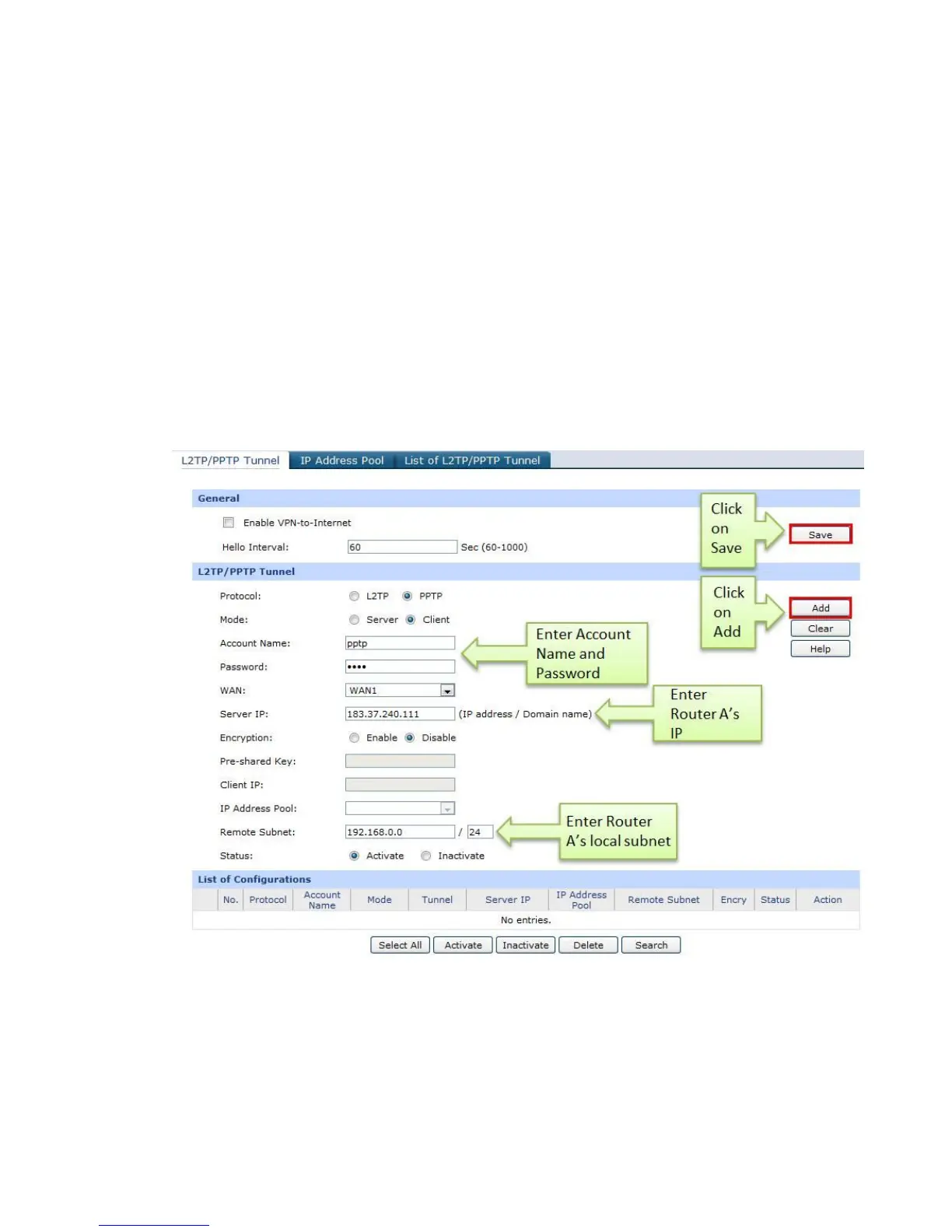
Step 1 : Access Router B’s management page, go to L2TP/PPTP Tunnel, look for protocol,
select PPTP; the Mode should beClient.
Step 2 : Enter “pptp” as Account Name and “pptp” as Password.
Step 3 : Under Server IP, enter Router A’s IP address, which is 183.37.240.111.
Step 4 : Under Remote Subnet, enter Router B’s local subnet, we enter “192.168.1.0/24” in
this example.
Step 5 : Look for Status, select Active.


 To Next Page