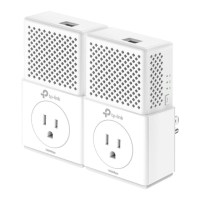
The TP-Link AV1000 Gigabit Passthrough Powerline Adapter (models TL-PA7017P/TL-PA7019P) is designed to extend your existing home network using your home's electrical circuit. This guide serves as a complement to the Quick Installation Guide, offering detailed information on the device's functions and configuration in various scenarios.
Function Description:
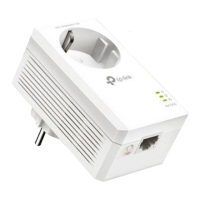
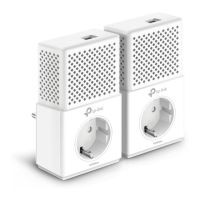
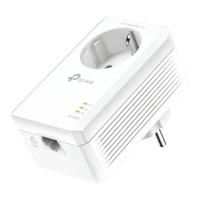
The primary function of the AV1000 Gigabit Passthrough Powerline Adapter is to provide a wired network extension without the need for complex and expensive cabling. It leverages your home's existing electrical wiring to transmit data, effectively turning any power outlet into a network connection. The integrated power socket on the adapter serves as an electrical outlet expansion, allowing other electronic devices or power strips to be plugged in. This integrated socket also features a built-in noise filter, which helps to eliminate electrical signal noise that could otherwise affect powerline performance, thereby guaranteeing high-quality data transmission.
Powerline adapters work in pairs, requiring at least two powerline products to establish a powerline network. They are compatible with all HomePlug AV and AV2 Standard Powerline adapters. However, it's important to note that compatibility may be affected by routers or gateways with altered, open-source, non-standard, or outdated firmware.
Important Technical Specifications:
While specific numerical values for throughput and range are not provided in the general description, the guide clarifies that "Maximum Powerline signal rates are the physical rates derived from HomeplugAV/AV2 specifications." It also states that "Actual Powerline data throughput and Powerline range are not guaranteed and will vary as a result of network conditions and environmental factors, including electrical interference, volume of traffic and network overhead, AFCI circuit breaker, and Powerline being located in a separate circuit."
The device features a Power-Saving Mode, which activates automatically five minutes after the connected device is turned off or becomes inactive. The actual power saving data will vary depending on network conditions and environments.
Environmental Specifications:
- Operating Temperature: 0 °C ~ 40 °C (32°F ~ 104°F)
- Storage Temperature: -20°C ~ 70°C (-4°F ~ 158°F)
- Operating Humidity: 10% ~ 90%RH, Non-condensing
- Storage Humidity: 5% ~ 90%RH, Non-condensing
Usage Features:
The powerline adapter offers several key usage features:
- Plug & Play Setup: To extend your wired network, simply connect one powerline adapter to an available LAN port of your router and plug it into a wall outlet. Then, plug the second powerline adapter into a wall outlet on the same electrical circuit where you desire internet access. Once the Powerline LED turns on, connect your wired device (e.g., computer, game console) to the second adapter via an Ethernet cable.
- Secure Powerline Network by Pairing: For enhanced security, you can pair your powerline adapters to ensure they communicate only with each other. This prevents other powerline devices from joining your network without authorization. To pair, ensure all powerline devices' Power LEDs are solid on. Press the Pair button on any device for 1 second until its Power LED blinks. Within 2 minutes, press the Pair button on another device for 1 second. The Powerline LED will light up solid when a secure network is successfully created. Note that only two devices can be paired at a time.
- Adding More Powerline Adapters: To further extend your network, plug a new powerline adapter into a wall outlet near an existing powerline device. Press the Pair button on an existing device for 1 second, then within 2 minutes, press the Pair button on the new adapter for 1 second. Once the Powerline LED on the new adapter turns on, it's successfully added to the network and can be relocated.
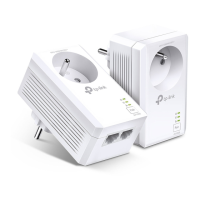
- Integrated Electrical Socket: This feature allows you to plug other electrical devices or power strips directly into the powerline adapter, effectively providing an additional outlet while maintaining powerline functionality. The built-in noise filter helps to prevent interference from these connected devices.
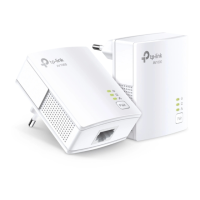
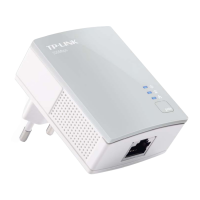
- Gigabit Ethernet Port: The adapter includes a Gigabit Ethernet port for connecting wired devices such as computers, routers, or game consoles, ensuring high-speed data transfer.
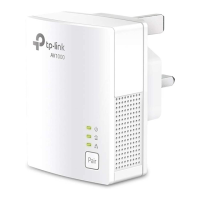
- LED Indicators: The device features LED indicators for Power, Powerline, and Ethernet, providing visual feedback on its operational status.
- Power LED: On/Off indicates power status. Blinking quickly indicates pairing in process. Blinking slowly indicates Power-Saving Mode.
- Powerline LED: On indicates a successful connection to a powerline network. Off indicates no connection to a powerline network.
- Ethernet LED: On indicates the Ethernet port is connected. Off indicates the Ethernet port is not connected.
- Pair Button: This button serves two functions: a short press (1 second) initiates the pairing process, and a long press (more than 6 seconds) resets the powerline adapter to its factory default settings.
Important Usage Guidelines:
- Always plug powerline adapters directly into a wall outlet, avoiding power strips, extension cords, or surge protectors, as these can degrade performance.
- Avoid plugging powerline adapters close to high-powered household devices (e.g., washing machines, refrigerators) to minimize potential interference.
- Ensure all powerline adapters are on the same electrical wiring system for optimal performance.
- Only use the powerline adapter in the specified directions (as illustrated in the manual).
Maintenance Features:
- Resetting the Powerline Adapter: To reset the device, plug it into a wall socket, then press and hold the Pair button for more than 6 seconds until the Power LED momentarily turns off and then comes back on. This restores the adapter to its factory default settings.
- Troubleshooting: The FAQ section provides guidance for common issues, such as the Powerline LED being off or a lack of internet connection. Solutions include trying different wall sockets, ensuring devices are on the same electrical circuit, pairing devices, resetting to factory defaults, and checking for interference from other appliances.
- Firmware and Utility Updates: The latest software, management app, and utility (tpPLC Utility) are available from the TP-Link Download Center. The tpPLC utility allows users to view and manage their powerline network, configure each powerline device, and monitor network status.
- Technical Support: TP-Link provides technical support contact information for further assistance.
- Keep the device away from water, fire, humidity, or hot environments.
- Do not attempt to disassemble, repair, or modify the device.
- The socket-outlet should be installed near the equipment and be easily accessible.
- For passthrough devices, plug power strips into the integrated electrical sockets, but do not stack devices of the same or another type in normal use.
- Plug powerline devices directly into wall outlets with earthing connection.
- In regions requiring specific warnings, the device carries a "Double pole, neutral fusing. Disconnect mains before servicing" caution.
The AV1000 Gigabit Passthrough Powerline Adapter is a robust solution for expanding wired networks, combining ease of use with integrated power passthrough and noise filtering for reliable performance.

 Need help?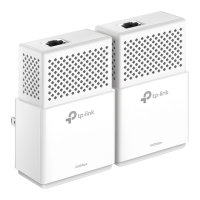




 To Next Page
 General