EasyManua.ls Logo

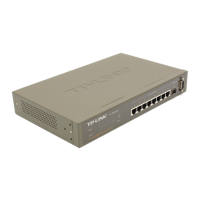
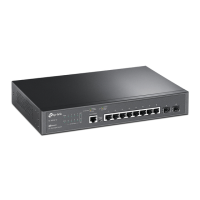
TP-Link TL-SG3109 - Switch - User Manual

TP-Link TL-SG3109 - Switch
120 pages
Print Icon
To Next Page IconTo Next Page
Loading...
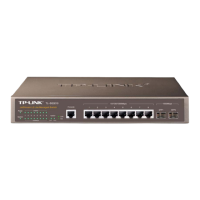
TL-SG3109
Embedded Web System User Guide
TL-SL3428
9-port Gigabit Managed Switch
24+4G Gigabit Managed Switch
TL-SL3452
48+4G Gigabit Managed Switch
Rev: 1.0

Table of Contents

Questions and Answers

  • B
    Brandon WarrenAug 15, 2025
    How to recover lost password on TP-Link TL-SG3109 - Switch?
    • G
      gwyattAug 15, 2025
      To regain access to your TP-Link Switch after a lost password, you can use the Password Recovery Procedure. Reboot the system and when prompted, press Enter to access the Startup Menu. From there, select option 4 within 15 seconds. This will allow you to reset the password to the default setting using the CLI mode.
  • E
    Elizabeth WebbAug 18, 2025
    Why can't I connect to TP-Link TL-SG3109 - management using Telnet, HTTP, or SNMP?
    • J
      Jennifer BatesAug 18, 2025
      If you cannot connect to the management interface of your TP-Link Switch using Telnet, HTTP, or SNMP, ensure the switch has a valid IP address, subnet mask, and default gateway configured. Verify that your cable is properly connected and the port hasn't been disabled. Also, confirm your management station is plugged into the correct VLAN. If using Telnet or the web, the maximum number of connections might be open; try again later.
  • A
    arielchenAug 21, 2025
    What to do if there is no connection and the port LED is off on TP-Link Switch?
    • A
      Amy DiazAug 21, 2025
      If the port LED is off and there is no connection to your TP-Link Switch, inspect the Ethernet cable. Ensure it's the correct type (straight or crossed as needed) and that the pairs are correctly twisted. For fiber optic cables, check the Rx and Tx connections. Verify that 10 Mbps connections use a Cat 5 cable. Also, check the port LED settings in the NMS application if applicable.
  • M
    Matthew LeeAug 25, 2025
    How to connect to TP-Link Switch management using RS-232 serial connection?
    • C
      Courtney RomeroAug 25, 2025
      To establish a connection to the management interface of your TP-Link Switch via RS-232 serial connection, make sure your terminal emulator program is set to VT-100 compatible, 38400 baud rate, no parity, 8 data bits, and one stop bit. Use the included cable, or ensure the pin-out complies with a standard null-modem cable.
  • A
    Anthony WhitakerAug 27, 2025
    What to do if there is no connection and the port LED is on TP-Link Switch?
    • G
      Glenda WatersAug 27, 2025
      If the port LED is on but there's no connection to your TP-Link Switch, configure the network address in the workstation and ensure it is correct. Verify that the workstation is configured with the IP protocol. Try replacing the Ethernet cable and/or the module. You may also need to erase the connection and reconfigure the port.
  • B
    brian06Aug 30, 2025
    How to fix TP-Link TL-SG3109 - when Add and Edit pages do not open?
    • T
      Tara AndersonAug 30, 2025
      If Add and Edit pages are not opening on your TP-Link Switch interface, it is likely that a pop-up blocker is enabled. You should disable any pop-up blockers in your browser settings.
  • N
    Natasha HoganSep 2, 2025
    What causes a TP-Link TL-SG3109 - Switch to be in a reboot loop?
    • A
      April DavisSep 2, 2025
      If your TP-Link Switch is stuck in a reboot loop, it may be due to a software fault. Download and install a working or previous software version from the console.
  • A
    Adam AliSep 5, 2025
    Why is the response from terminal emulation software not readable on TP-Link Switch?
    • H
      hatfieldkimberlySep 5, 2025
      If the terminal emulation software shows unreadable characters when connected to your TP-Link Switch, the serial cable may be faulty, or the software settings may be incorrect. Try replacing the serial cable and reconfiguring the emulation software connection settings.
  • W
    Walter HoustonSep 8, 2025
    What to do if there is no response from the terminal emulation software when connecting to TP-Link Switch?
    • T
      Trevor DavidsonSep 8, 2025
      If you're not getting any response from the terminal emulation software when connecting to your TP-Link Switch, the serial cable might be faulty, or the software settings could be incorrect. Try replacing the serial cable, ensuring it's a pin-to-pin straight/flat cable. Also, reconfigure the emulation software connection settings.
  • C
    Clinton ReevesSep 12, 2025
    What to do if TP-Link Switch self-test exceeds 15 seconds?
    • C
      Cynthia BerrySep 12, 2025
      If the self-test of your TP-Link Switch exceeds 15 seconds, the device may not be correctly installed. Remove and reinstall the device. If the issue persists, consult your technical support representative.

Summary

Preface

Guide Overview

Provides an overview of the TP-Link Embedded Interface User Guide.

Intended Audience

Describes the target audience for the user guide.

Section 1. Getting Started

Configure Embedded Web Interface

Steps to configure the device for accessing the Embedded Web Interface.

Start Embedded Web Interface

Instructions on how to launch and access the Embedded Web Interface.

Understand Embedded Web Interface

Explains the components and navigation of the Embedded Web Interface.

Use Screen and Table Options

Details on adding, modifying, and deleting configuration information via screens and tables.

Resetting the Device

Procedures for resetting the device to its default configuration remotely.

Logging Off from the Device

How to properly log out of the Embedded Web Interface session.

Section 2. Defining Device Information

System Description Page

Configuring general system information like name, location, and contact details.

Section 3. Setting the System Time

Configure Daylight Savings Time

Setting up Daylight Savings Time parameters based on country-specific rules.

Configure SNTP

Configuring the Simple Network Time Protocol for automatic time synchronization.

Section 4. Configuring System Logs

Define General Log Properties

Configuring system log settings globally and defining log properties.

View Memory Logs

Accessing and viewing system logs stored in RAM (Cache).

View Flash Logs

Accessing and viewing system logs stored in Flash memory.

Define System Log Servers

Configuring remote log servers to receive system logs.

Section 5. Configuring Device Security

Configure Management Security

Setting up security parameters for managing the device.

Configure Network Security

Configuring network security features like port-based authentication and storm control.

Section 6. Defining IP Addresses

Define IP Addressing

Configuring IP addresses, subnet masks, and default gateways for interfaces.

Define Domain Name System

Configuring DNS servers and host mappings for name resolution.

Section 7. Configuring Interfaces

Configure Ports

Defining and configuring parameters for individual network ports.

Configure LAGs

Configuring Link Aggregation Groups (LAGs) to combine multiple ports.

Configure VLANs

Configuring Virtual Local Area Networks (VLANs) for network segmentation.

Section 8. Defining the Forwarding Database

Configure Static Addresses

Defining static MAC addresses for specific ports to control forwarding.

Configure Dynamic Forwarding Addresses

Managing the dynamic MAC address table and its aging parameters.

Section 9. Configuring the Spanning Tree Protocol

Configure Classic STP

Defining properties and interface settings for Classic Spanning Tree Protocol.

Configure Rapid STP

Configuring Rapid Spanning Tree Protocol for faster network convergence.

Configure Multiple STP

Configuring Multiple Spanning Tree Protocol for load balancing.

Section 10. Configuring Multicast Forwarding

Enable IGMP Snooping

Enabling and configuring IGMP Snooping for efficient multicast traffic handling.

Define Multicast Bridging Groups

Creating and managing multicast groups for ports and LAGs.

Define Multicast Forward All Parameters

Configuring parameters for forwarding all multicast traffic.

Section 11. Configuring SNMP Management

SNMP v1 and v2 c

Overview of SNMP versions 1 and 2c for network management.

SNMP v3

Overview of SNMP version 3, including security features and models.

Define SNMP Security

Configuring SNMP security parameters, global settings, views, and groups.

Define SNMP Communities

Setting up SNMP communities for access control and authentication.

Section 12. Configuring Quality of Service

Quality of Service Overview

Introduction to Quality of Service (QoS) and its importance in network traffic management.

Enable Quality of Service

Enabling QoS and defining basic settings, including trust modes.

Map Queues

Mapping CoS and DSCP values to traffic queues for prioritization.

Section 13. Managing System Files

Download System Files

Procedures for downloading firmware and configuration files using TFTP.

Upload System Files

Procedures for uploading software images and configuration files to a TFTP server.

Activate Image Files

Selecting and activating firmware image files on the device.

Copy System Files

Copying configuration files and restoring factory defaults.

Section 14. Performing Device Diagnostics

Configure Port Mirroring

Setting up port mirroring to monitor network traffic.

View Integrated Cable Tests

Performing and viewing results of copper cable tests.

View Optical Transceivers

Viewing diagnostic information for fiber-optic transceivers.

Section 15. Viewing Statistics

View Interface Statistics

Displaying statistics for network interfaces, including received and transmitted packets.

Manage RMON Statistics

Configuring and viewing Remote Monitoring (RMON) statistics, history, and alarms.

TP-Link TL-SG3109 - Switch Specifications

General IconGeneral
BrandTP-Link
ModelTL-SG3109 - Switch
CategorySwitch
LanguageEnglish

Related product manuals