EasyManua.ls Logo

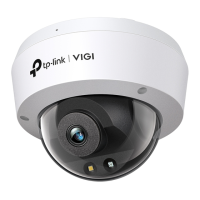
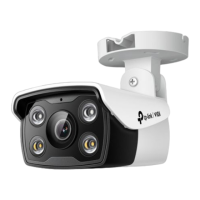
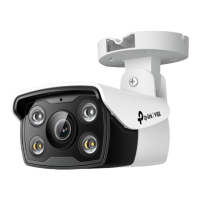
TP-Link vigi C445 - User Manual

TP-Link vigi C445
2 pages
Print Icon
To Next Page IconTo Next Page
Loading...
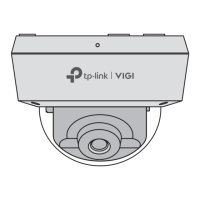
Option 2: Route the cable through the side outlet. Insert anchors into the
holes and use screws to ax the camera base. Identify the groove and
alignment ridge on the camera. Begin by aligning the base's rim with the
camera's groove, attaching the ridge side rst for a correct t. Once aligned,
proceed to snap the rest of the camera onto the base to secure it.
Appearance
Camera Base
Speaker
7
IR LED × 4
6
White LED × 4
5
Built-in Microphone
1
2
Reset
3
microSD Card Slot
Unfasten the two xed screws to
remove the cover. Insert a
microSD card for local storage.
Initialize the SD card via VIGI app
or other management tools
before recording videos.
Power Supply Interface
(12V DC) *
9
RJ45 Network Interface
(supports PoE) *
8
4
1
3
2
5
6
4
8
9
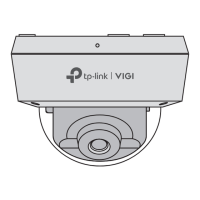
3. Secure the Camera
Option 1: Route the cable through the wall/ceiling. Insert anchors into the
holes and use screws to ax the camera base. Identify the groove and
alignment ridge on the camera. Begin by aligning the base's rim with the
camera's groove, attaching the ridge side rst for a correct t. Once aligned,
proceed to snap the rest of the camera onto the base to secure it.
Stick the mounting template to the desired mounting place. Drill 4 screw
holes and 1 cable hole (for the cable through wall/ceiling) according to the
template.
1. Drill Holes 2. Open the Camera Case
Use the L-shaped hex metal screwdriver to loosen the hex screw, and use a
screwdriver to gently pry open the camera case. .
Quick Start Guide
1
Wall/Ceiling Mounting
4. Adjust the Surveillance Angle
Use the L-shaped hex metal screwdriver to loosen the hex screw on the
base, and adjust the surveillance angle as needed.
Cable Hole
(For the cable through wall/ceiling)
Hex screw
Side Outlet
*Images may dier from actual products.
L-shaped Hex Metal
Screwdriver
Mounting TemplateAnchors & Screws
Network Camera
Quick Start Guide
Quick
Start
Guide
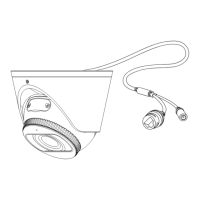
Unfasten the two xed screws to remove the
cover. Press for 5 seconds to reset the
camera to factory settings.
7
*
The camera’s standard power supply is 12V DC or PoE (802.3af/at). The power
source should comply with Power Source Class 2 ( PS2) or Limited Power
Source(LPS) of IEC 62368-1
.
©2023 TP-Link 7106510682 REV1.0.2
Φ6 mm Φ3.5 mm
Waterproof Cable
Attachments
When installing with anchors
Φ = 6 mm (15/64 in.)
When installing with screws only
Φ = 3 mm (1/8 in.)
Appropriate drilling size (Φ)
Waterproof Seal
5
6
Hex screw
Rim
Alignment Ridge
Rim
Alignment Ridge
Installing Waterproof Cable Attachments
Install the waterproof cable attachments for the network interface if needed.
Note: Make sure each part is securely attached and the waterproof rings are ush to keep out water.
1. Route the network cable through the following components in order: x nut,
waterproof ring, and then the waterproof jacket.
2. Fix the O-ring to the network interface of the camera and connect the network
cables.
3. Attach the network interface with the waterproof jacket, then twist to lock.
4. Insert the waterproof ring into the waterproof jacket. Rotate the x nut to
secure it to the waterproof jacket.
Fix Nut
Waterproof
Ring
O-ring
Network
Interface
Waterproof
Jacket
Install the waterproof seal for the power connectors when using a power adapter
to power the camera.
Install Waterproof Seal for Power Connectors
Male Power Connector Waterproof Seal
Female Power Connector
5. Tighten the Hex Screw
Tighten the hex screw to secure the camera to the camera base. Hold the
camera and ensure the camera and base are as close together as possible
when tightening.
Tilt: 0° to 85°
Pan: 0° to 360°
Rotate: 0° to 360°

Question and Answer IconNeed help?

Do you have a question about the TP-Link vigi C445 and is the answer not in the manual?

Overview

This document describes the TP-Link VIGI Quick Start Guide for a network camera, focusing on its appearance, installation, and management.

Function Description

The TP-Link VIGI camera is a network surveillance device designed for monitoring and recording. It can be used standalone or integrated with a Network Video Recorder (NVR) for easier batch access and management. The camera offers various management methods, including a dedicated VIGI Security Manager software, a mobile app (TP-Link VIGI App), and a web browser interface, allowing users to view live video, modify camera settings, and receive instant alerts remotely. It supports local storage via a microSD card and offers flexible power options (12V DC or Power over Ethernet).

Important Technical Specifications

  • Power Supply: 12V DC or PoE (802.3af/at). The power source must comply with Power Source Class 2 (PS2) or Limited Power Source (LPS) of IEC 62368-1.
  • Interfaces: RJ45 Network Interface (supports PoE), Power Supply Interface (12V DC).
  • Storage: microSD Card Slot for local storage (requires initialization via VIGI app or other management tools).
  • Audio: Built-in Microphone and Speaker.
  • Illumination: 4 White LEDs and 4 IR LEDs. The IR LED turns on for 10 seconds upon power-up, serving as a power indicator.
  • Mounting: Wall/Ceiling mounting with adjustable surveillance angles.
  • Drill Hole Sizes: Φ6 mm (15/64 in.) for anchors, Φ3 mm (1/8 in.) for screws only.
  • Cable Hole: Appropriate size for cable through wall/ceiling.
  • Adjustable Angles: Pan: 0° to 360°, Tilt: 0° to 85°, Rotate: 0° to 360°.
  • Operating Temperature: Adapter should be used indoors where the ambient temperature is lower than or equal to 40°C.

Usage Features

  • Installation:
    • Drilling: A mounting template is provided for precise drilling of 4 screw holes and 1 cable hole.
    • Cable Routing: Cables can be routed through the wall/ceiling or via a side outlet on the camera base.
    • Securing: The camera base is affixed using anchors and screws. The camera body attaches to the base by aligning a rim with a groove and snapping it into place.
    • Angle Adjustment: Surveillance angle can be adjusted using an L-shaped hex metal screwdriver for pan, tilt, and rotate movements.
    • Waterproof Attachments: Waterproof cable attachments are provided for the network interface and power connectors to ensure weather resistance. These include a fix nut, waterproof ring, waterproof jacket, and O-ring, which must be securely attached and flush to prevent water ingress.
  • Camera Management:
    • NVR Integration: The camera can be connected to an NVR for centralized management. Users connect cameras to the same network as the NVR, power them on, and then add them via the NVR's interface (e.g., "Add Camera" option on the Live View screen). If Plug and Play is disabled, a password must be set.
    • VIGI Security Manager (Windows): A desktop application for viewing live video and modifying camera settings. It automatically discovers cameras on the same network.
    • TP-Link VIGI App (Mobile): A mobile application for remote viewing, camera management, and instant alerts. Users log in with a TP-Link ID and add cameras via the app.
    • Web Browser: Access camera settings and live video by entering the camera's IP address in a web browser. Requires setting a password to activate the camera.
  • Reset Functionality: The camera can be reset to factory settings by unfastening the cover, pressing the reset button for 5 seconds.
  • Power-on Indicator: The IR LED turns on for 10 seconds when the camera is powered on. Users can cover the lens to check if the IR LED turns on, or check the Ethernet port LED status on the network device.

Maintenance Features

  • Waterproof Seals: The design incorporates waterproof cable attachments and seals for the network and power connectors, crucial for outdoor use. Regular inspection of these seals is recommended to ensure they remain flush and secure.
  • Firmware Updates: While not explicitly detailed as a maintenance feature, the various management methods (VIGI Security Manager, TP-Link VIGI App, Web Browser) typically facilitate firmware updates to ensure optimal performance and security.
  • Troubleshooting: The guide provides a FAQ section for common issues like cameras not being discovered. Solutions include refreshing, checking power, ensuring the camera and NVR/computer are in the same subnet, manual addition, and activating cameras with a password for other NVR brands.
  • Safety Guidelines: Users are advised not to use damaged chargers or USB cables, not to disassemble, repair, or modify the device, and to keep it away from fire or hot environments. The adapter should be easily accessible and used indoors within the specified temperature range.
  • Support: TP-Link provides technical support, replacement services, user guides, and more information via their website (https://www.tp-link.com/support) or QR code.

TP-Link vigi C445 Specifications

General IconGeneral
BrandTP-Link
Modelvigi C445
CategorySecurity Camera
LanguageEnglish

Related product manuals