See training videos at TrackMyOps.com Page 14
©Output Technology, Inc. Jan15.—All rights reserved. Specifications subject to change. TRACKER™ Real-Time, Real Results
Tracker Menu
Use this menu to update the TR units with changes you modified or created in the System Settings menu.
Please note: Changes will not update on TR units until End Job has been clicked from the TR unit. The
system waits for END JOB mode so the changes do not interrupt any data collection or reporting while
operating. If the TR unit is already in END JOB mode, click the End Job button again to update changes.
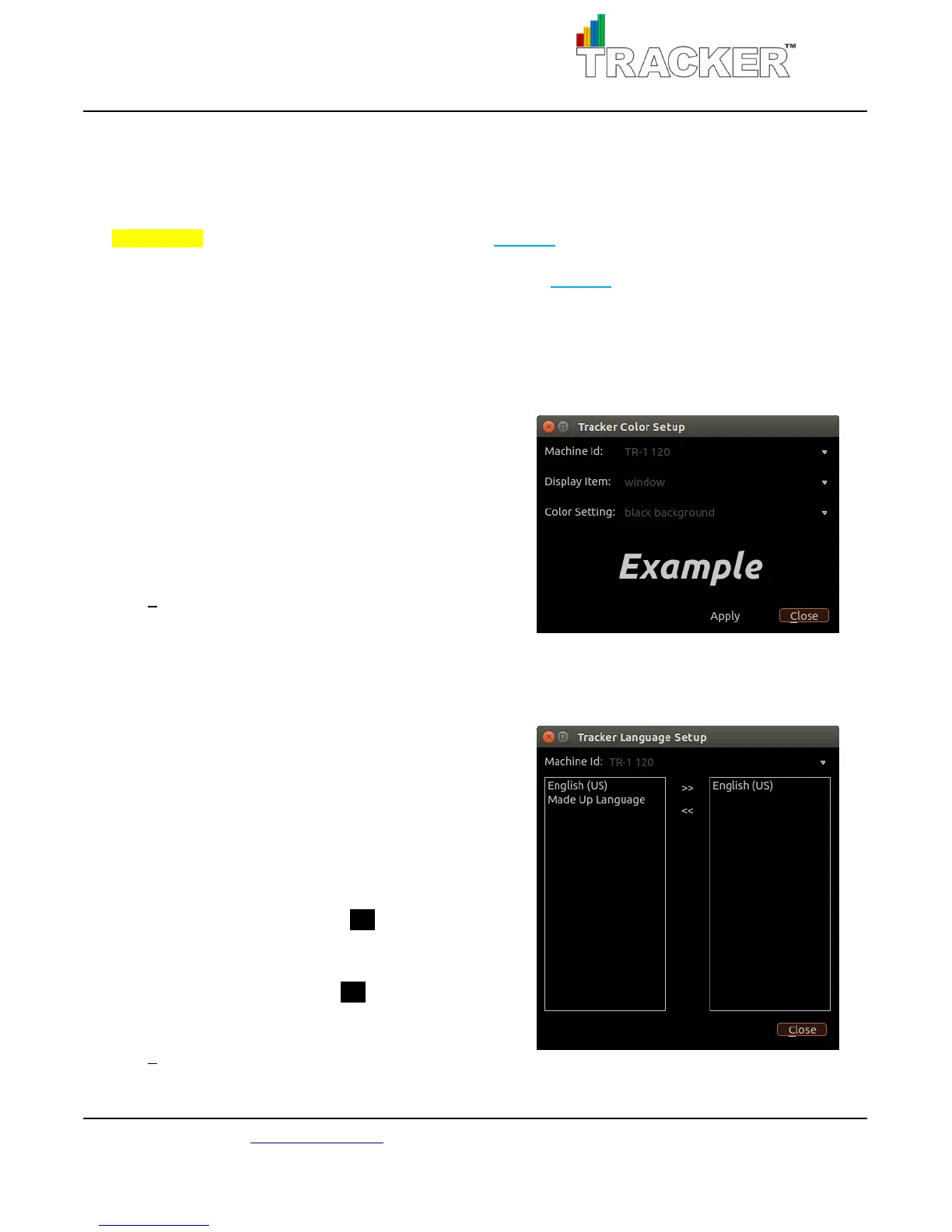
Color: change the look of a TR’s Display Items.
Choose the “Machine ID” of the TR unit you would like to
make changes to, and then select the “Display Item” you
would like to change. You can pick one of the default
Color Settings or one of the templates you created in the
Systems > Color Types submenu. The new color setting
will preview in the Example section.
Click Apply after each change to save changes.
Click Close to exit the dialog box.
Language: add/remove languages from a TR.
Select the Machine ID of the TR unit you would like to
modify from the drop-down list. The left column displays
all available languages on the HUB, including the default
English (US) language and any other languages created in
the Systems > Languages submenu. The right column
displays the languages on the selected TR.
To add a language highlight a language in the left column
and click on the move right arrow >> . The selected
language will now display in the right column. To remove
a language highlight a language in the right column box
and click on the move left arrow << . The selected
language will be removed from the right column.
Click Close to exit the dialog box.



 To Next Page