See training videos at TrackMyOps.com Page 8
©Output Technology, Inc. Jan15.—All rights reserved. Specifications subject to change. TRACKER™ Real-Time, Real Results
Tracker Settings: change Job Information and Tracker Setting from the HUB.
The top line item, “Tracker” contains a drop-down list of currently connected TRs. The TRs name is the
“Machine Id” entered in the TR’s “Tracker Settings” screen. Select which TR unit to which changes will
be made. Select the fields you would like to make changes to and enter the new values. See TR user’s
manual for a complete description of each field at TrackMyOps.com.
Please note: Do NOT change the “HUB IP Address” field.
When done with making changes, click on Apply to save, and then click Close to exit the dialog box.
Changes will not update on the TR unit until End Job has been clicked from the TR unit. The system
waits for END JOB mode so the changes do not interrupt any data collection or reporting while
operating. If the TR unit is already in END JOB mode, click the End Job button again to update changes.
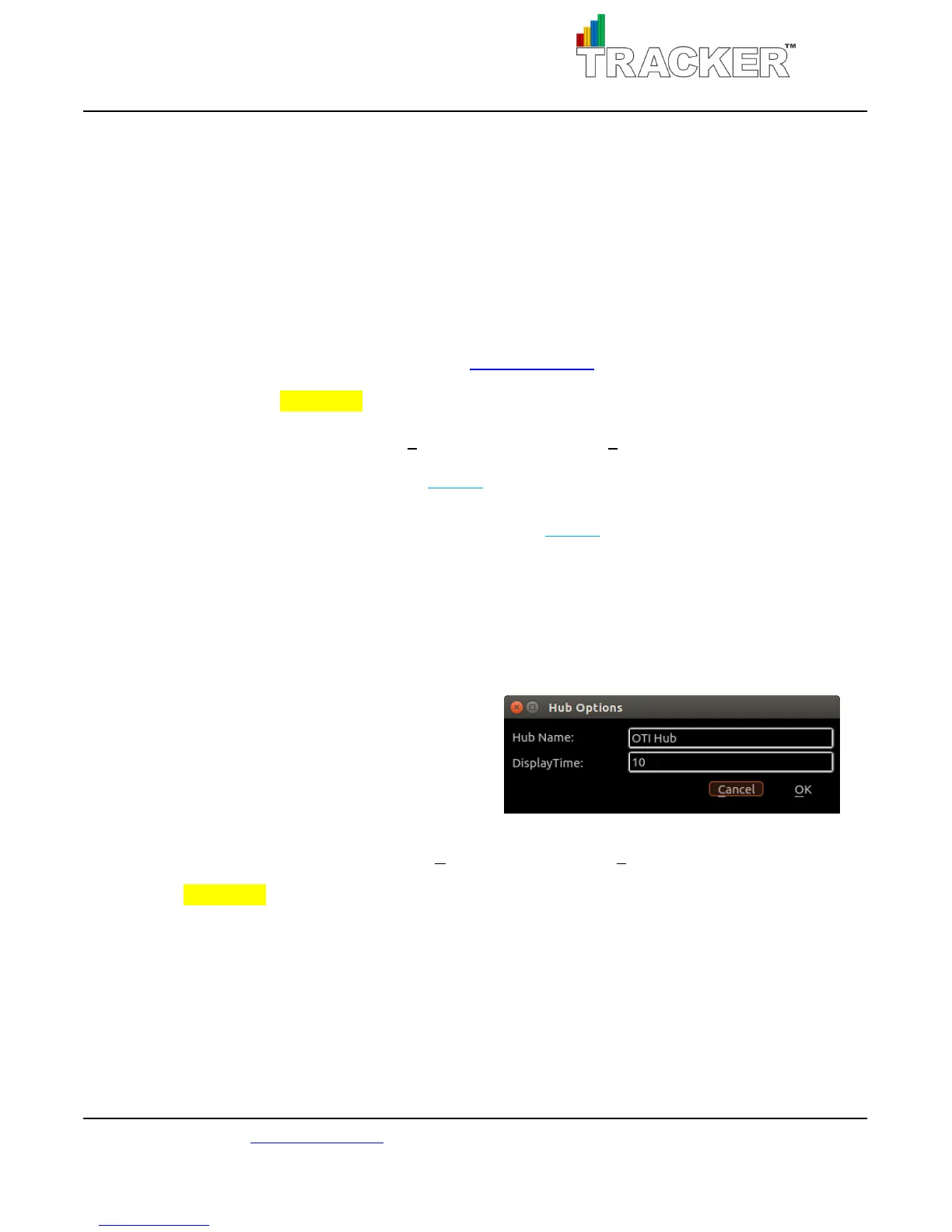
HUB Options: change HUB Name and Display Time.
The HUB Name can be any combination of alpha-
numeric characters. The HUB Name will change
automatically on the Tracker WEB Server.
Display Time is the number of seconds that the HUB
will display each screen, Screen #1 with TRs 1-8, and
Screen #2 with TRs 9-16. To display each screen for a longer time, increase the value; to display each
screen for less time, decrease the value. Click OK to save changes. Click Cancel to discard changes.
Please note: If there are not at least nine TR units active, only Screen #1 will display.



 To Next Page