See training videos at TrackMyOps.com Page 9
©Output Technology, Inc. Jan15.—All rights reserved. Specifications subject to change. TRACKER™ Real-Time, Real Results
System Menu
Changes made in the Systems menu are saved as templates; update TR units in the Tracker menu.
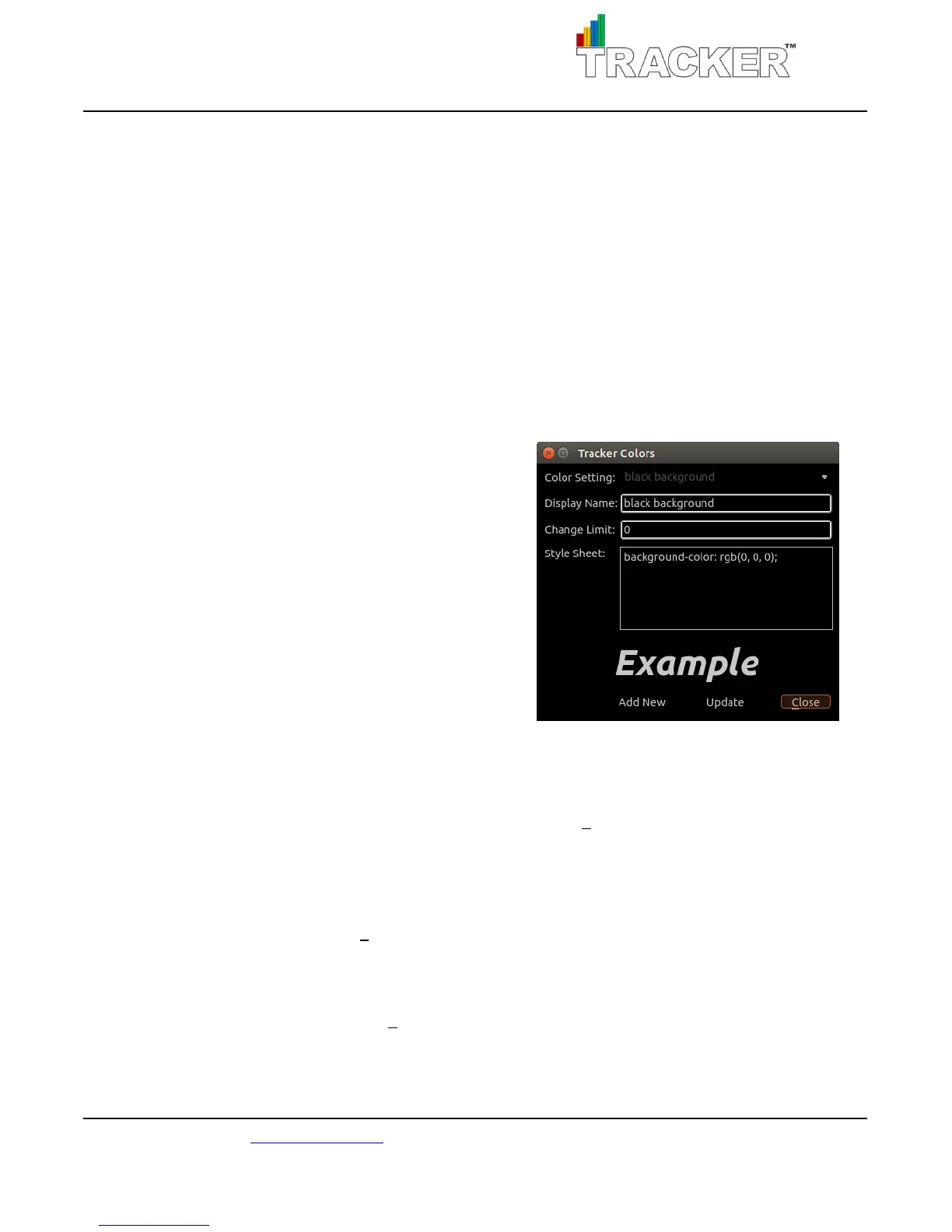
Color Types: change the colors and appearance of the TR units.
Colors are configured with the RGB color model. Use any web browser to look up an RGB table for
reference. Use the three values provided (red, blue, green) in the style sheet.
Color Setting: currently selected color template.
Display Name: title of the template.
Change Limit: set the values when the background color
changes in the percentage fields. This field only applies
to the count, speed, and job percentage display items.
Style Sheet: change text color [color: rgb(0,0,0)],
background color [background-color: rgb(0,0,0)],
border width [border 0px solid color: rgb(0,0,0)]
suggested range of 1-10px, and border radius
[border-radius: 0px], suggested range of 0-30px.
EXAMPLE: preview changes made to the stylesheet.
Make changes to a color type.
Select the color template from the drop-down list you intend to change. Do not change the display
name. Make the changes to the style sheet and click Update. Click Close to exit the dialog box.
Make changes to a color type, but keep the original.
Select the color type from the drop-down list you intend to change and change the display name to
something different than the current name and click Add New. Make the changes to the template and
click Update to save changes. Click Close to exit the dialog box.
Add a new color type.
Enter a title for the new color type template in the display name and click Add New. Make the changes
to the template and click Update. Click Close to exit the dialog box.



 To Next Page