See training videos at TrackMyOps.com Page 7
©Output Technology, Inc. Jan15.—All rights reserved. Specifications subject to change. TRACKER™ Real-Time, Real Results
Tools Menu
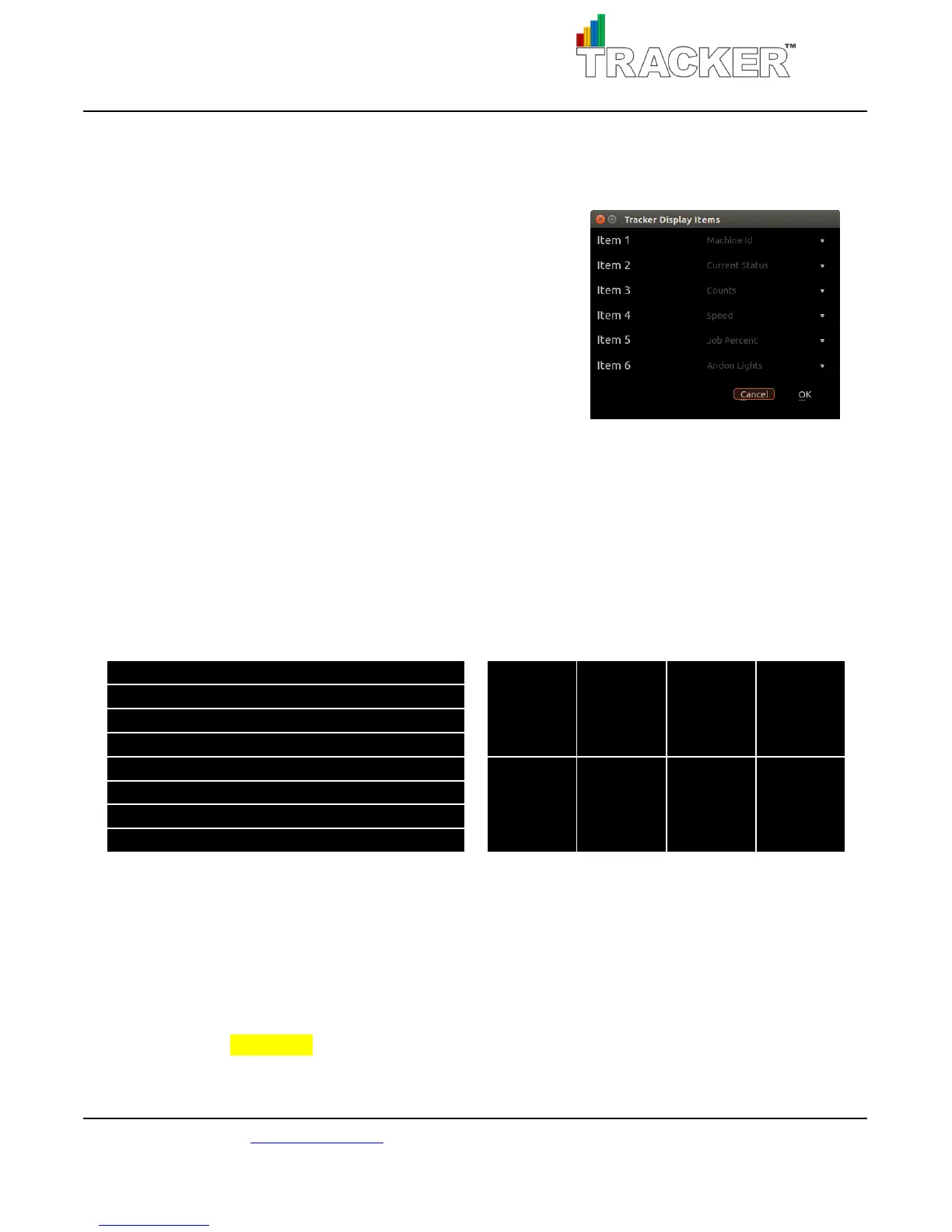
Display Items: select the information to display.
There are six total fields to display for TR units on the HUB. Go to
each line item and select from the drop-down list which field to
display. These settings will apply to all of the TR units onscreen
and can be changed at any time. Click OK to save changes and
close menu. Click Cancel to discard changes.
Linear Display: toggle between linear and grid displays.
16 TR units can be connected to a HUB. The first 8 selected TRs will appear on Screen #1, and 9-16 on
Screen #2. In Linear Display, the first selected TR unit will display at the top of screen then fill down the
screen from 1-8 in rows. In Grid Display, the first selected TR unit will appear in upper left, then 2-4 will
fill in from left to right across top row, and 5-8 across bottom. Pattern repeats for 9-16 on screen #2.
Trackers: select which connected TR units to display on the HUB.
When TR units are powered on, you will see a list of TR units the HUB has communicated with. Click the
checkbox of the TR units to display on the HUB screen. The order of the TR units is the order in which
they will display on the HUB Screen. To change the order in which the TRs appear, click on the intended
TR and click Move Up or Move Down to change its position. Click Close to save when done.
Please note: TRs removed from the network will still display as offline.



 To Next Page