Step 2: Basic Operation
Setting QUAD Display
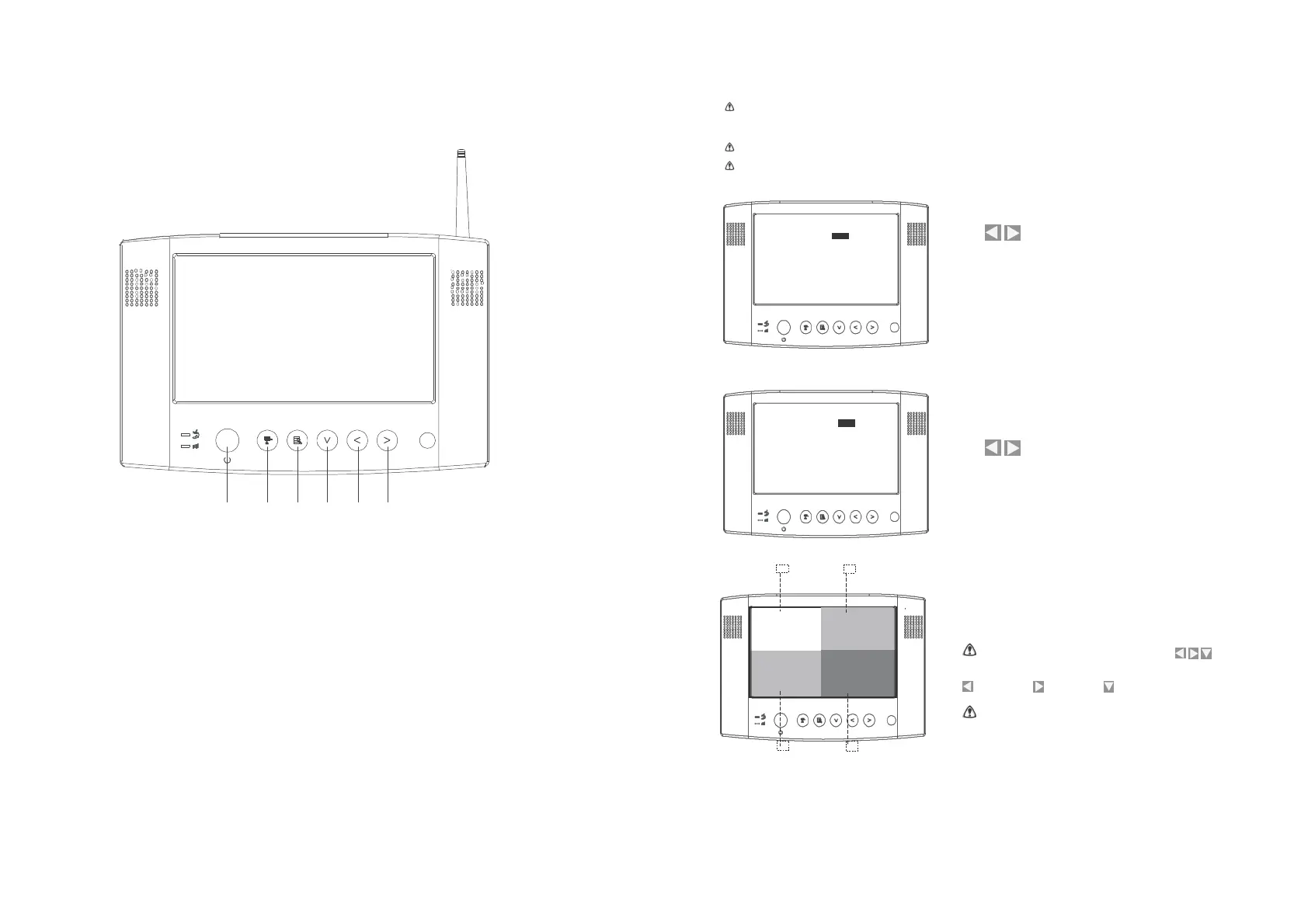
Monitor Function Buttons and Indicators
This function is available for multi cameras use. Before setting QUAD display, make sure all cameras are
paired to
assigned channels. See [Advance Operation – Pair Camera] section as a guide.
QUAD display will be restored to one camera display after pressing the directional keys for manual scan.
To ensure correct display, turn all available channels ON PRIOR to entering QUAD mode.
R e s olution Q VG A
QUAD OFF
C A M 1 ON
C A M 2 O N
C A M 3 O N
CAM 4 O N
Pair CAM 1 2 3 4
System Se t u p
Factory R e s e t
A. Use to turn all available channels ON.
R e s olution Q VG A
QUAD ON
C AM1 O N
C AM2 ON
C AM3 O N
C AM4 O N
Pair CAM 1 2 3 4
Syste m S e tup
Factory Reset
B. Use to turn QUAD Mode on.
1 2 3 4 5 6
1. [Power Button]
Press th e button to power ON, hold it down to switch power OFF. CH1 CH2
2. (View Mode) [Scan Channels] / (Menu Mode) [Pair Camera]
In View mode, manually scan available camera channels. In Pair
mode, assign and pair a camera to a specified channel.
3. (Menu Mode) [Menu / Enter Button]
4. (Menu Mode) [Cursor DOWN] / (QUAD View Mode)
5. (Menu Mode) [Cursor Left] / (QUAD View Mode)
C. QUAD display as shown. Unavailable channels will be
displayed as a blank screen.
To leave Q UAD displa y, sim ply
press to go
to a
specific
channel.
=
CAM 4
= CAM 3 = CAM 2
In
QUAD display
/
[Pair] functions are
not available.
6. (Menu Mode) [Cursor Right] / (QUAD View Mode)
CH3
CH4


 To Next Page