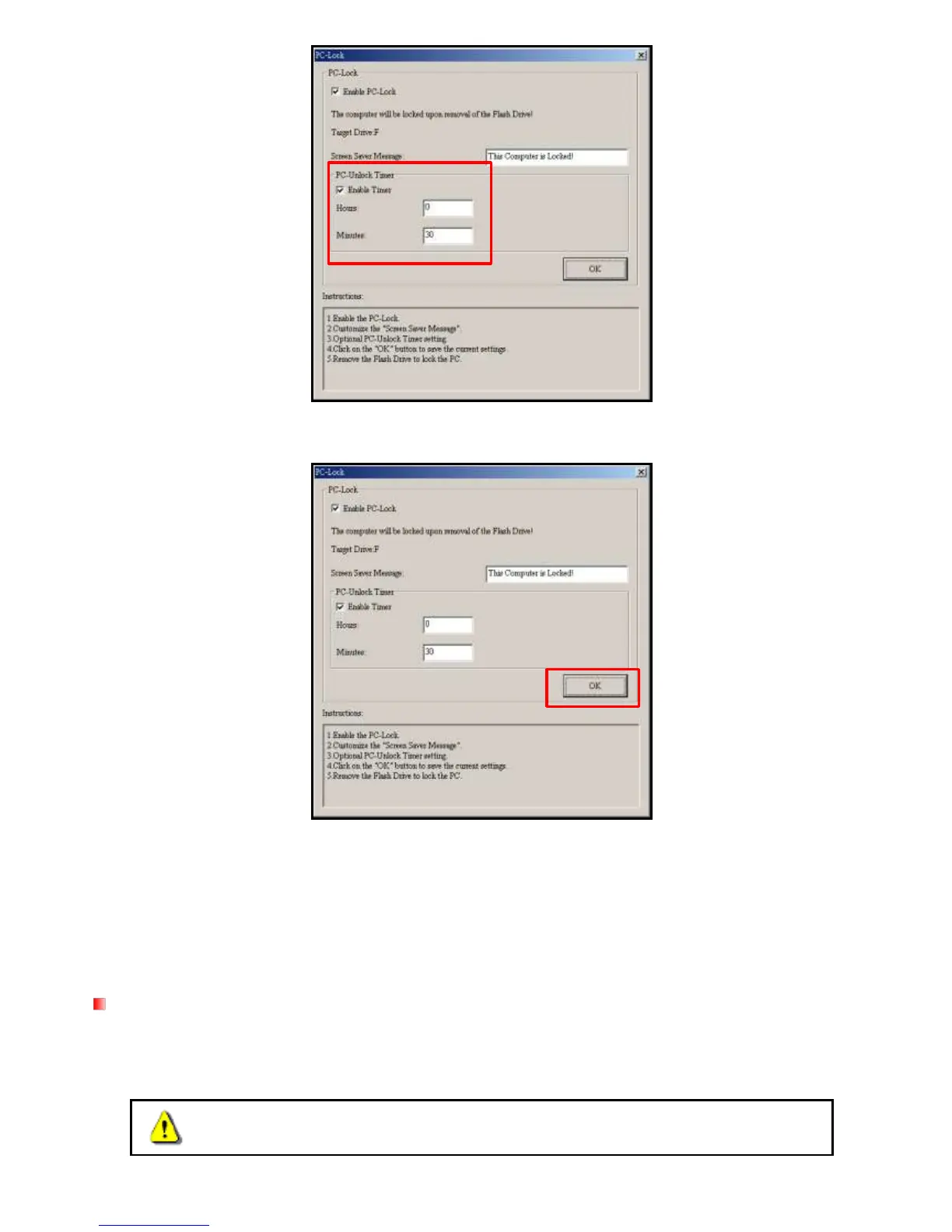
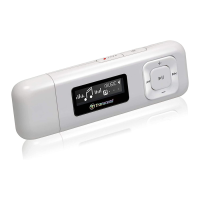
Figure 17. Start PC-Lock
When PC-Lock is enabled, your computer will be locked when the MP320 is unplugged
While your computer is locked, the screen will display the “Screen Saver Message” text
To unlock the computer, you must reconnect your MP320 to your computer. The PC-Lock message text
will disappear and you will be free to use your computer again. The computer will also unlock itself
automatically when the lock timer expires.
Partition
This feature allows you to create a secure password-protected area on the MP320 for your personal files. You
can adjust the size of Public and Private areas, and add a password to protect the Private area. Data stored in
the Private area will be kept secure and can only be accessed with your password.
WARNING! Creating a Private area or adjusting the partition size will erase all
data on MP320! Please back up your data before using this feature.


 To Next Page