4 IQView8 Touch Screen Display Data Sheet TA201232 Issue 2, 10-Jul-2012
IQView8 Data Sheet
Graphs
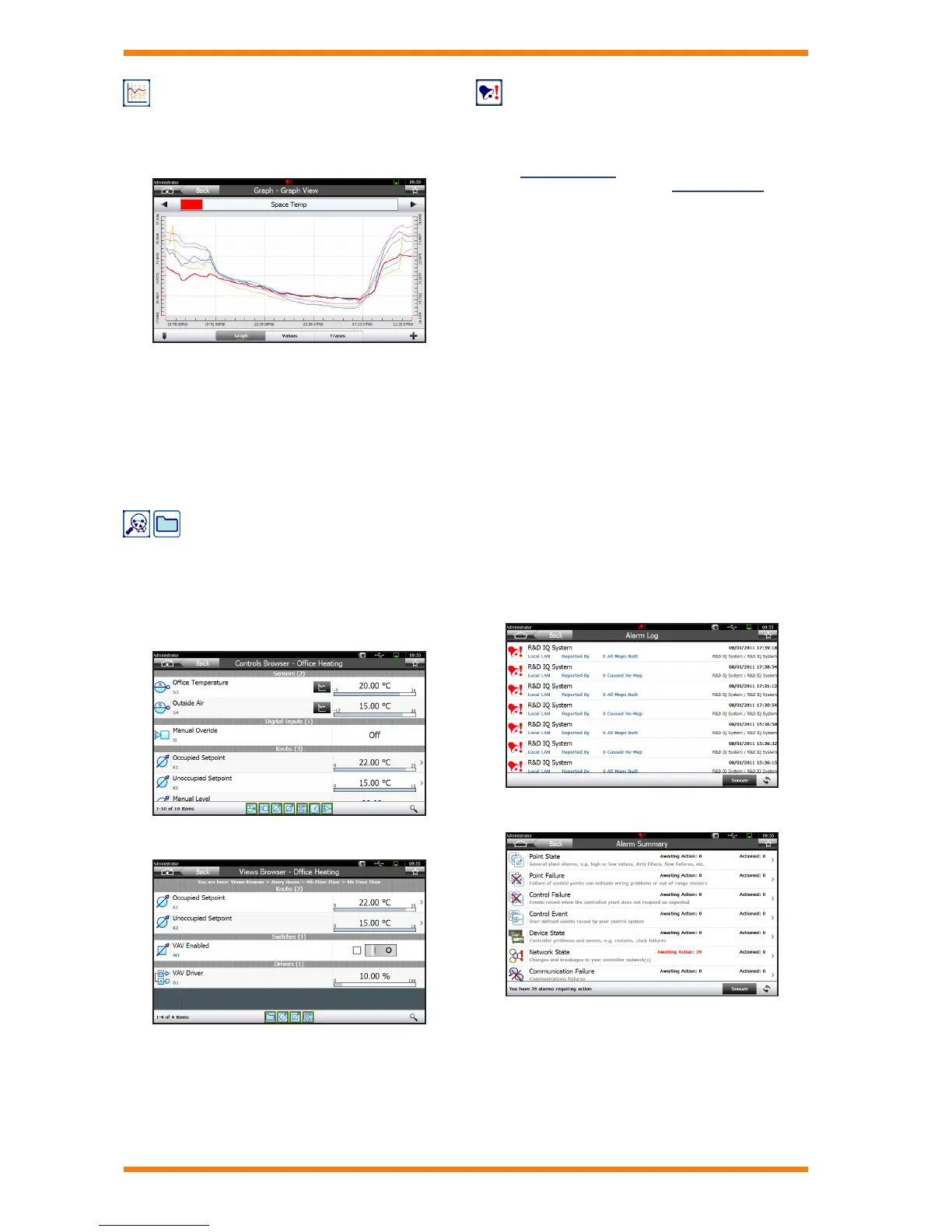
IQView8 is able to display logged data from IQ controllers in
multi-trace graphs. A single graph can contain multiple traces
from different controllers enabling easy comparison of data.
Any point logged in a controller can be graphed.
Graphs can accessed from the schematic pages, from a list of
values on the system (Controls Browser), or from the display
and directory navigation (Views Browser). It is possible to zoom
in on selected parts of the graph, display spot values, or view
the underlying data.
The conguration of a graph can be saved and viewed again
(with the latest data). Saved graphs allow quick access to
regularly used graphs; each saved graph view can have multiple
traces, and can be set up to look as required.
View Controller Data
Values of module parameters from presentation modules (i.e.
sensors, digital inputs, critical alarms (IQ1 and IQ2), knobs,
switches, loops, time zones, and drivers) from devices on the
system to which the IQView8 is connected can be viewed using
either the Controls Browser, or the Views Browser.
Controls Browser
Views Browser
The Controls Browser displays a list of sensor, digital input,
critical alarm, knob, switch, timezone, driver, and loop modules
Once the values are displayed they can be viewed, adjusted, or
graphed as appropriate depending on the type of value.
The Views Browser enables the display and directory modules
in the selected controller to be accessed, and provides the
facility to view the GraphIQs (where available).
Alarm Handling
IQView8’s alarm handling features available in the Alarm
Browser notify the user of alarms that have occurred.
IQView8 is able to receive alarms from devices on the Trend
system (Received Alarms) or the user can browse the network
to view alarms in a particular device (Alarm Browsing).
Received Alarms
IQView8 provides a rolling alarm log of 200 entries. The alarm
log is not maintained through a power cycle. When an alarm
is received IQView8 can perform one or more of the following
actions:
log receipt
ash the screen
sound the internal beeper
activate the on-board relay
ash the front-panel LED.
A ashing alarm icon in the Title Bar indicates that an alarm has
been received. In addition the alarm icon on the Task Launcher
Screen indicates the number of unacknowledged alarms.
Alarms are grouped into categories. The alarm actions for each
category can be congured.
The alarm actions will continue until all the alarms have been
actioned by the user. The user can snooze the alarms which will
temporarily stop all alarm actions.
The received alarms can be viewed in two different ways:
as a list (Alarm Log Screen)
grouped by category (Alarms Summary Screen)
Alarm Log Screen
Alarms Summary Screen
Unactioned alarms can be viewed, and actioned, or snoozed
from the Unactioned Alarms Screen.


 To Next Page