Note: This step saves all configuration changes to the NV-RAM to ensure that if the
switch is rebooted or power cycled, the configuration changes will still be applied.
DSCP Mapping
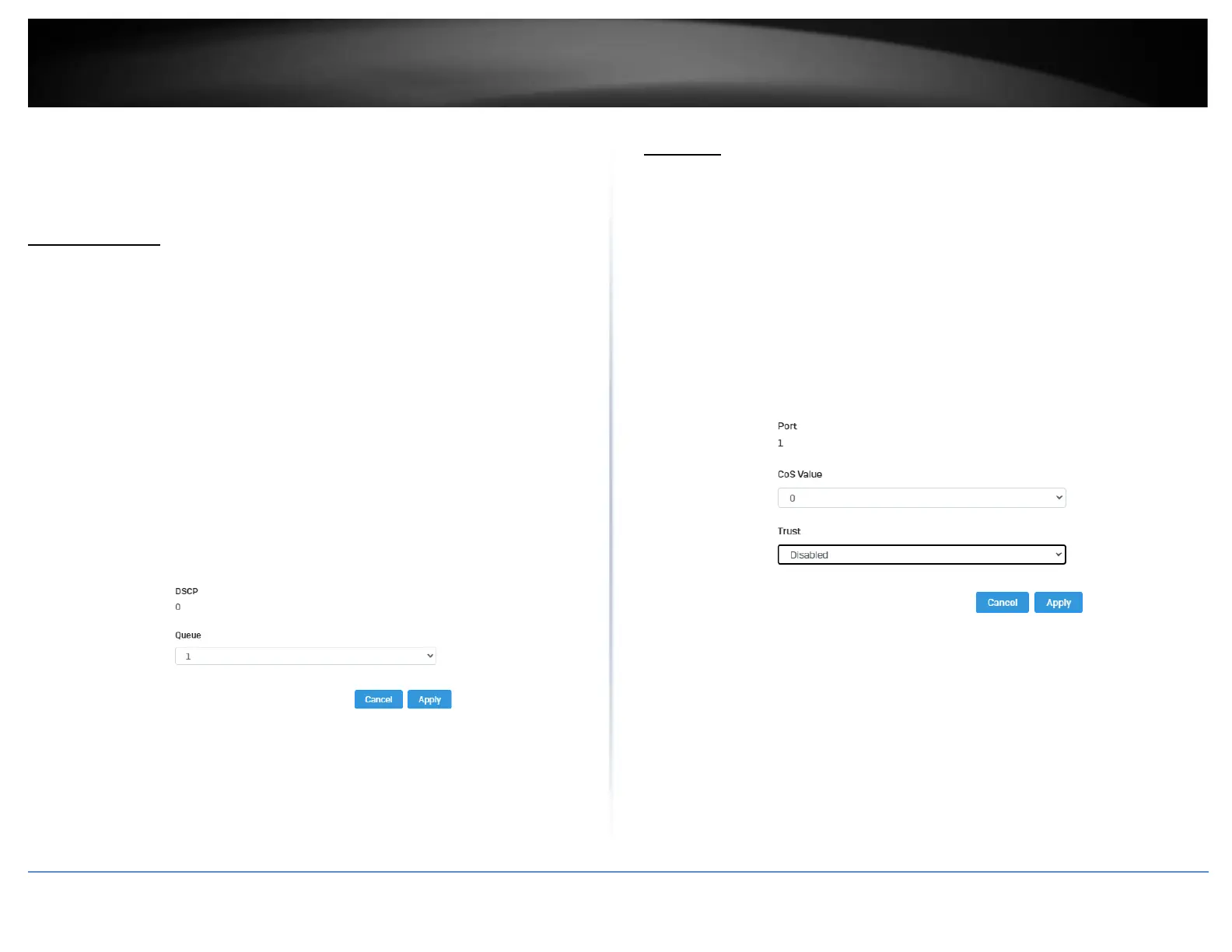
Set DSCP (Differentiated Services Code Point) Class Mapping settings
QoS > DSCP Mapping
If you choose to use the DSCP tags in your Access Control policy configuration, each
DSCP value (0-63) that is relevant to your configuration needs to be mapped to one of
the four egress queues (Low, Medium, High, or Highest). The default queue for all DSCP
values is 0. To assign the queue mappings to the DSCP values, perform the following
procedure.
1. Log into your switch management page (see “Access your switch management page”
on page 5).
2. Click on QoS and click on DSCP Mapping.
3. Select the relevant DSCP value to configure and click Edit to modify the Queue ID for
the selected DSCP value. Click Apply to save the settings.
Note: This step saves all configuration changes to the NV-RAM to ensure that if the
switch is rebooted or power cycled, the configuration changes will still be applied.
Port CoS
Set Port Priority
QoS > Port CoS
The Port Priority values are assigned to an untagged frame at ingress for internal
processing in the switch. This procedure explains how to change the default mappings of
port priorities to the User Priority. This is set at the switch level. You cannot set this at
the per-port level. To change the port priority mappings, perform the following
procedure.
1. Log into your switch management page (see “Access your switch management page”
on page 5).
2. Click on QoS and click on Port CoS.
3. For each port whose priority you want to change, select a priority (0-7, Ignore) in the
CoS Value. Click Apply to save the settings.
4. At the bottom of the left hand panel, click Apply.
.








 To Next Page