© Copyright 2012 TRENDnet. All Rights Reserved.
TRENDnet User’s Guide
TEW-659BRV
41
Note: For the VPN client computer, you will require a third party L2TP VPN software to
be installed configured matching the L2TP VPN settings on your router. Typically, L2TP
VPN over IPsec is pre-installed with most operating systems which your router does not
support. See Appendix.
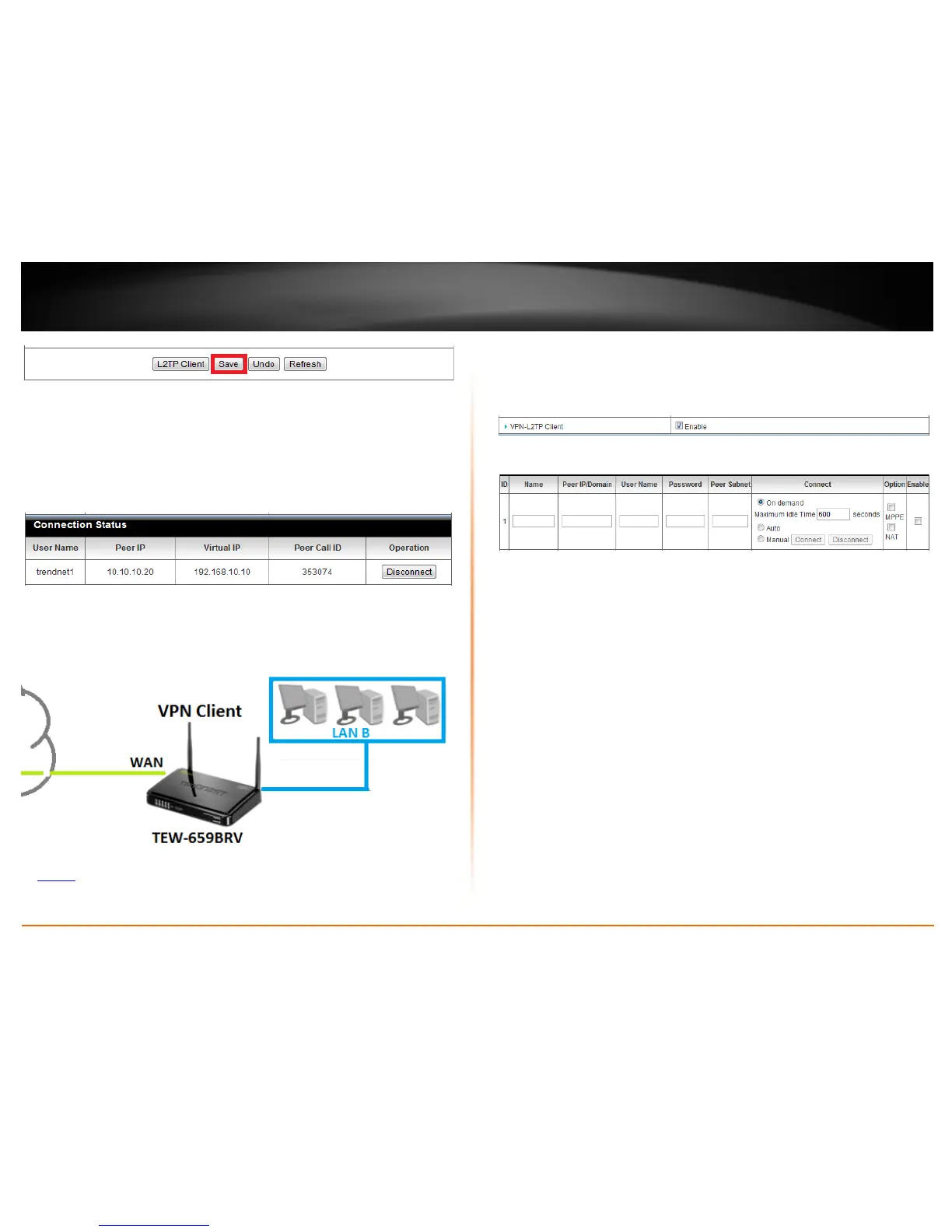
To view the status of connected L2TP VPN clients, check the Connection Status section.
When a L2TP VPN client is connected, they will be listed under Connection Status. You
can click Disconnect to disconnect the L2TP VPN client.
VPN Router B Configuration (Client Mode)
Configuration > Security Setting >VPN-L2TP Client
1. Log into your router management page (see “Access your router management page”
on
page 50).
Note: If you changed router LAN IP address, you will need to log into the remote router
using the new IP address instead of the default 192.168.10.1.
2. Click on Configuration at the top of the page, click on Security Setting, and click on
VPN-L2TP Client.
3. Next to VPN-L2TP Client, check the Enable option to enable the L2TP client.
4. Review the settings below.
• Name – Enter a name for the tunnel. (e.g. Tunnel 1)
• Peer IP/Domain – The remote WAN (Internet) IP address of your remote VPN
router. (e.g. 10.10.10.10) Note: If the remote router is using dynamic DNS, you
can enter domain for the remote gateway instead of the WAN IP address.
• Username – Enter the user name account info required by the remote VPN
router. (e.g. trendnet1)
• Password – Enter the password account info required by the remote VPN
router (e.g. trendnet1)
• Peer Subnet – The remote LAN IP subnet/netmask in CIDR (Classless Inter-
Domain Routing) notation or network of your remote router. (e.g.
192.168.10.0/24 where the /24 represents 255.255.255.0 subnet mask)
• Connect – The mode which the VPN tunnel should be connected.
o On demand – (Recommended) This mode will connect only when the
traffic is sent through VPN tunnel and disconnect automatically after
the Maximum Idle Time specified is reached.
o Auto – This mode will keep the tunnel always established.
o Manual – This mode will allow you to manually control if the VPN
connection is established or disconnected by clicking Connect or
Disconnect buttons.
• Option
o MPPE (Microsoft Point-to-Point Encryption) – This will enable MPPE if
required by the PPTP server.





 To Next Page