© Copyright 2012 TRENDnet. All Rights Reserved.
TRENDnet User’s Guide
TEW-659BRV
77
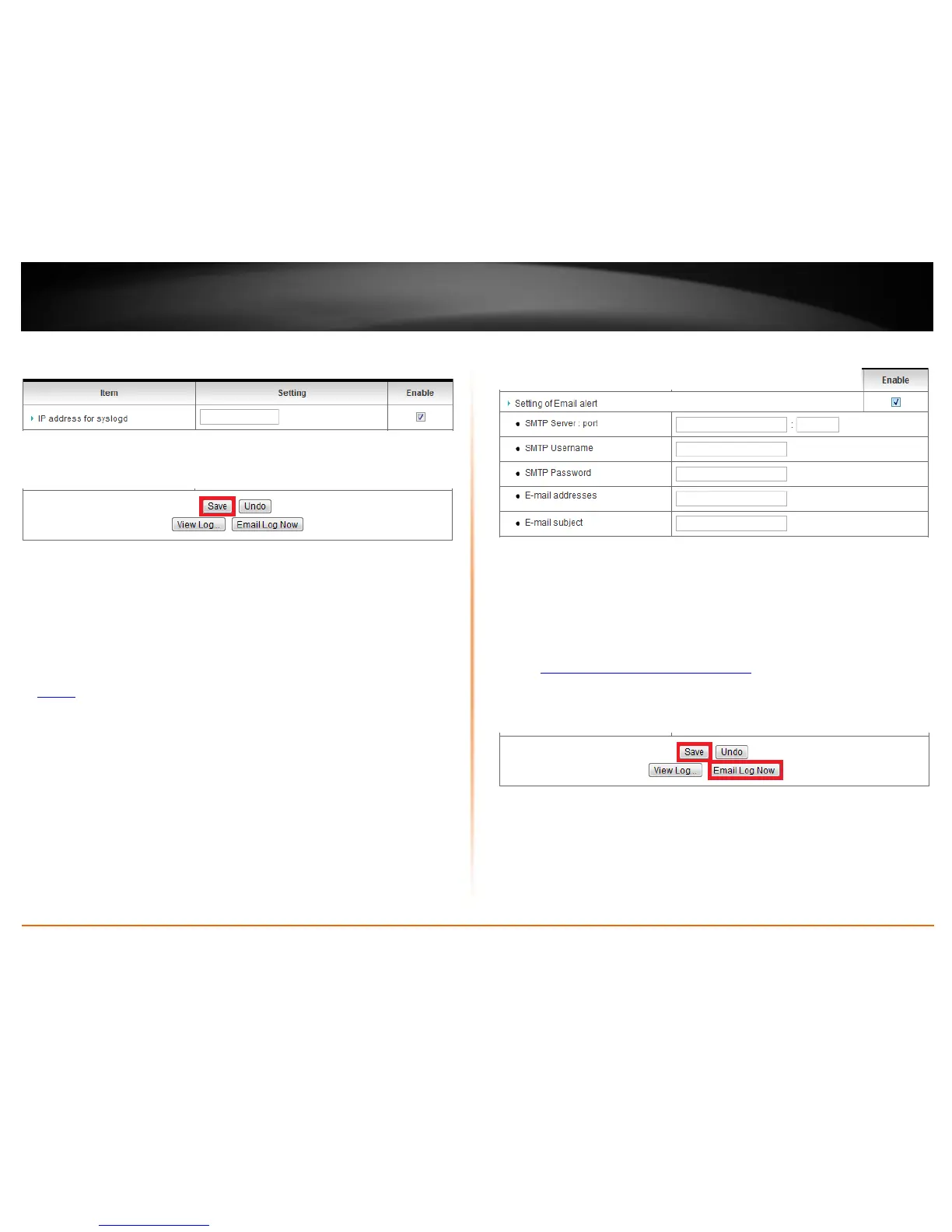
3. Next to IP address for syslogd, enter the IP address (e.g. 192.168.10.250) of the
external log server to send router logging and check the Enable option.
3. Click Save to save the changes.
Note: If you would like to discard the changes, click Undo before you click Save.
Clicking View Log will bring you to log page (Configuration > Toolbox > System
Information). See the “View your router log” section.
Send router logs to your e-mail address
1. Log into your router management page (see “Access your router management page”
on
page 50).
2. Click on Configuration at the top of the page, click on Advanced Setting, and click on
System Log.
3. Review the e-mail log settings.
• SMTP Server : port – Enter the IP address (e.g. 10.10.10.10) or domain name
(e.g. mail.trendnet.com) of your e-mail server. Enter the port used by your e-
mail service. (e.g. Default SMTP Server Port: 25)
• SMTP Username – Enter your account user name for your e-mail service.
• SMTP Password – Enter your password for your e-mail service.
• E-mail addresses – Enter the e-mail addresses to send the log file. (e.g.
user1@trendnet.com,user2@trendnet.com)
4. Click Save to save the changes.
Note: If you would like to discard the changes, click Undo before you click Save.
5. Click Email Log Now to send an e-mail of the current router log using your email alert
settings.
Clicking View Log will bring you to log page (Configuration > Toolbox > System
Information). See the “View your router log” section.



 To Next Page