© Copyright 2013 TRENDnet. All Rights Reserved.
TRENDnet User’s Guide
TEW752DRU
Restore To Factory Default Settings: Click the Restore Factory Defaults
button to remove all the settings configured on this router and return the settings
to the factory defaults.
Reboot The Device: Click the Reboot the Device button to reboot the router. All
unsaved configurations will be discarded.
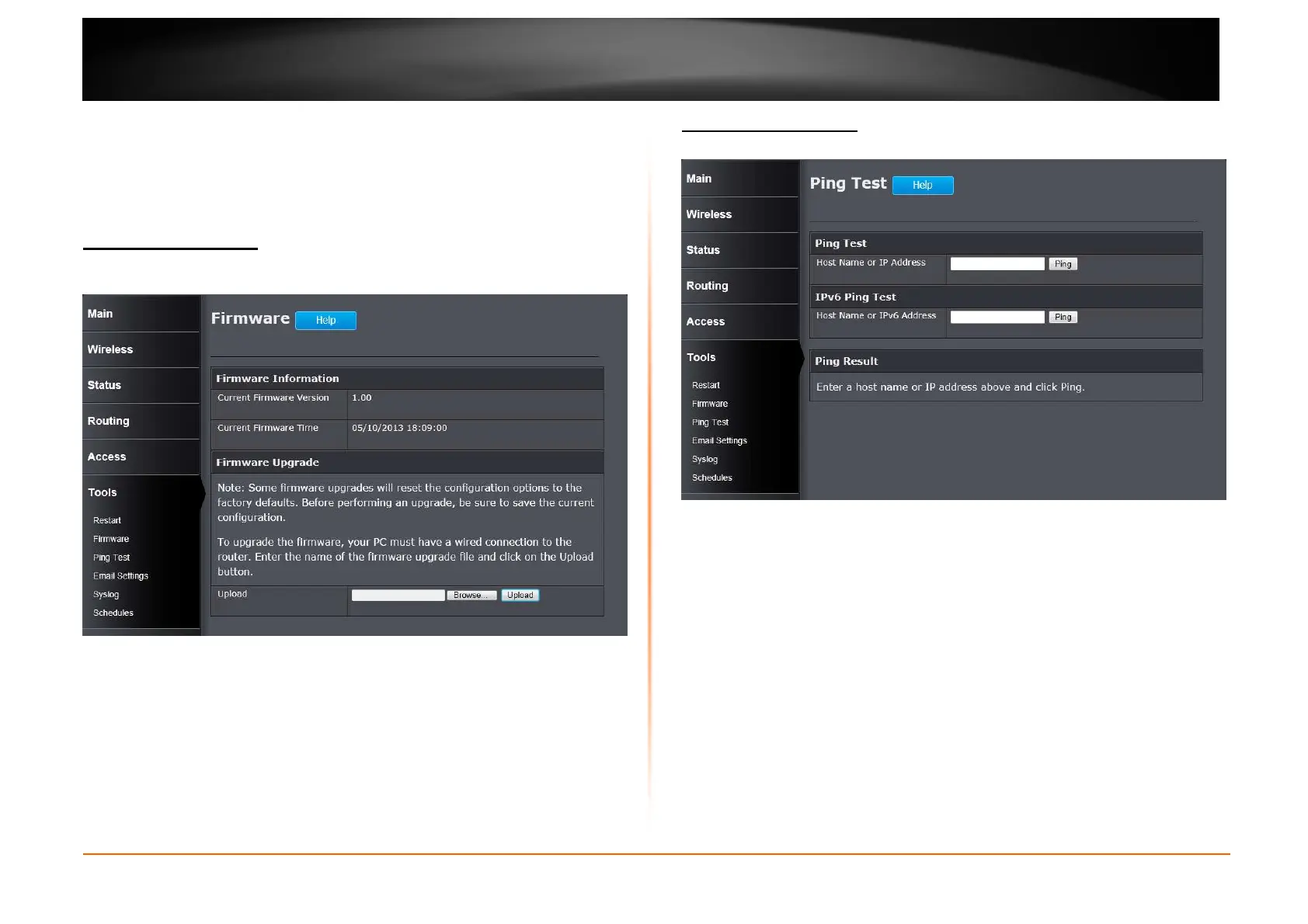
Tools > Firmware
This window is used to display the current firmware information and initiate a
firmware upgrade for the Router.
Upload: Click the Browse button to navigate to the new firmware file located on
the management computers, and click the Upload button to initiate the firmware
upgrade procedure. The firmware upgrades sometimes will reset the
configuration to the factory defaults. Make sure to save the current configuration
to the management computer, before performing firmware upgrade.
Tools > Ping Test
This window is used to initiate a ping test to IPv4 and IPv6 address.
Ping Test
Host Name or IP Address: Enter the IPv4 address or host name of the target in
the text box and click the Ping button to initiate the Ping test.
IPv6 Ping Test
Host Name or IPv6 Address: Enter the IPv6 address or host name of the target
in the text box and click the Ping button to initiate the Ping test.
Ping Result
The ping result will display in this section.








 To Next Page