© Copyright 2018 TRENDnet. All Rights Reserved.
WPA-PSK/WPA2-PSK vs. WPA-EAP/WPA2-EAP: WPA & WPA2 support two security
mechanisms, one using a pre-shared key (PSK) and the other using extensible
authentication protocol (EAP). PSK is much easier to setup and configure and
requires manually specifying the encryption key/pre-shared key (PSK) required for
all wireless client devices to connect to your wireless network. EAP requires the use
of an external authentication server and complex configuration to setup
authentication and authorization your wireless client devices outside the scope of
the router. Several types of EAP that can be configured from secured password +
certificate that require more in-depth knowledge of security configuration.
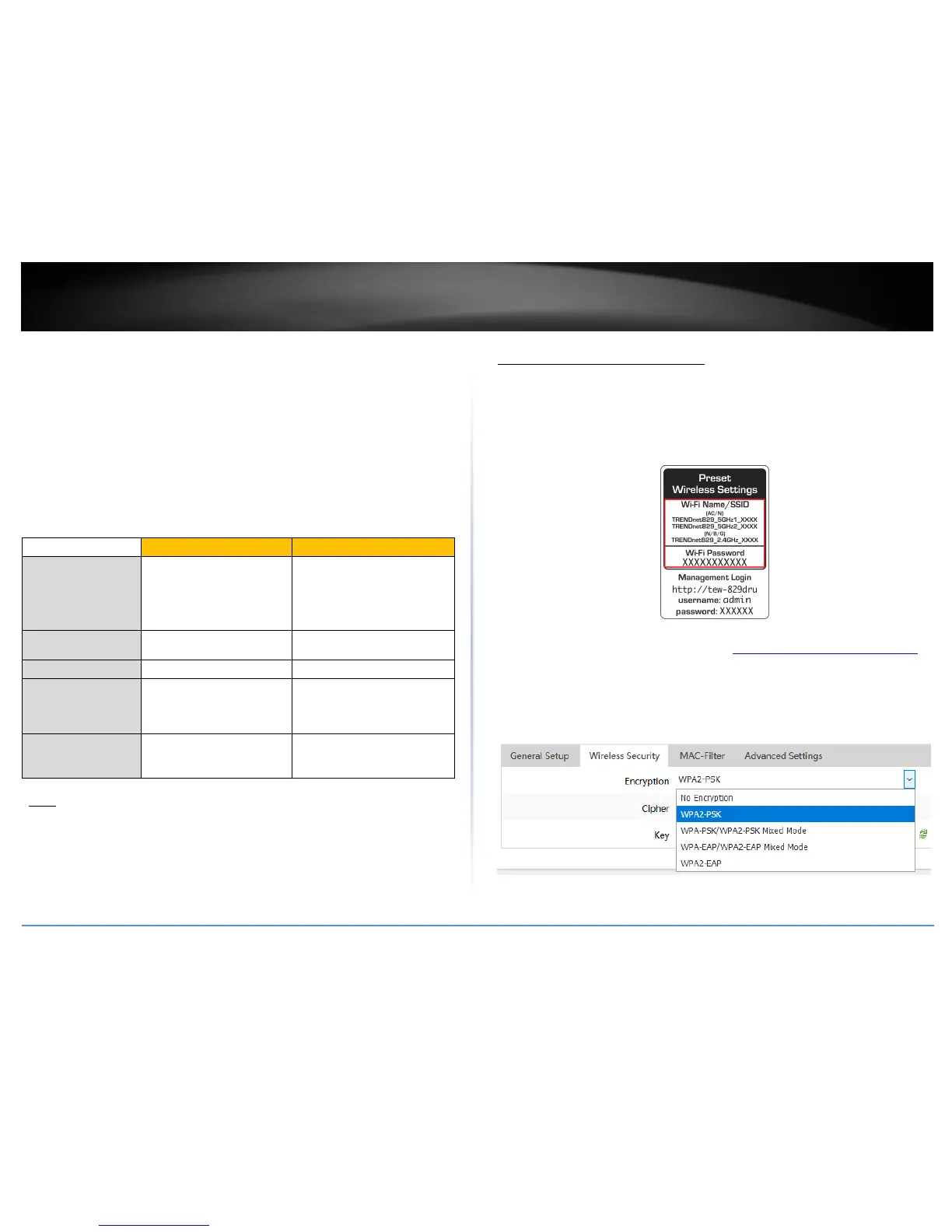
Note: Check the specifications of your wireless network adapters and wireless
appliances to verify the highest level of encryption supported. Below is brief
comparison chart of the wireless security types and the recommended configuration
depending on which type you choose for your wireless network.
Compatible Wireless
Standards
802.11a/b/g
(802.11ac/802.11n devices
will operate at
802.11g/802.11a to connect
using this standard)
Highest Performance
Under This Setting
Highest data rate supported
by wireless device
TKIP or AES,
Preshared Key or RADIUS
TKIP or AES,
Preshared Key or RADIUS
Recommended
Configuration
TKIP
Preshared Key
8-63 characters
AES
Preshared Key
8-63 characters
Note: It is recommended to use WPA2 CCMP (AES) encryption whenever possible as it
the most secure option and supports the highest data rates supported by the wireless
network device.
Secure your wireless network
Network > Wireless 2.4GHz / 5GHz1 / 5GHz2
By default, your router is pre-configured with wireless network names (SSIDs) and a
wireless encryption key using WPA2-PSK (AES). The predefined wireless network name
and security can be found on the sticker on the side of the router or on the device label
at the bottom of the router. The following sections involve changing the default wireless
security settings and encryption key.
1. Log into your router management page (see “Access your router management page”
on page 8).
2. Click on Network and click on the wireless band you would like to configure, Wireless
2.4GHz / 5GHz1 / 5GHz2.
3. Under Interface Configuration and in the Wireless Security tab, click on the
Encryption drop-down list to select your wireless security type.






 To Next Page