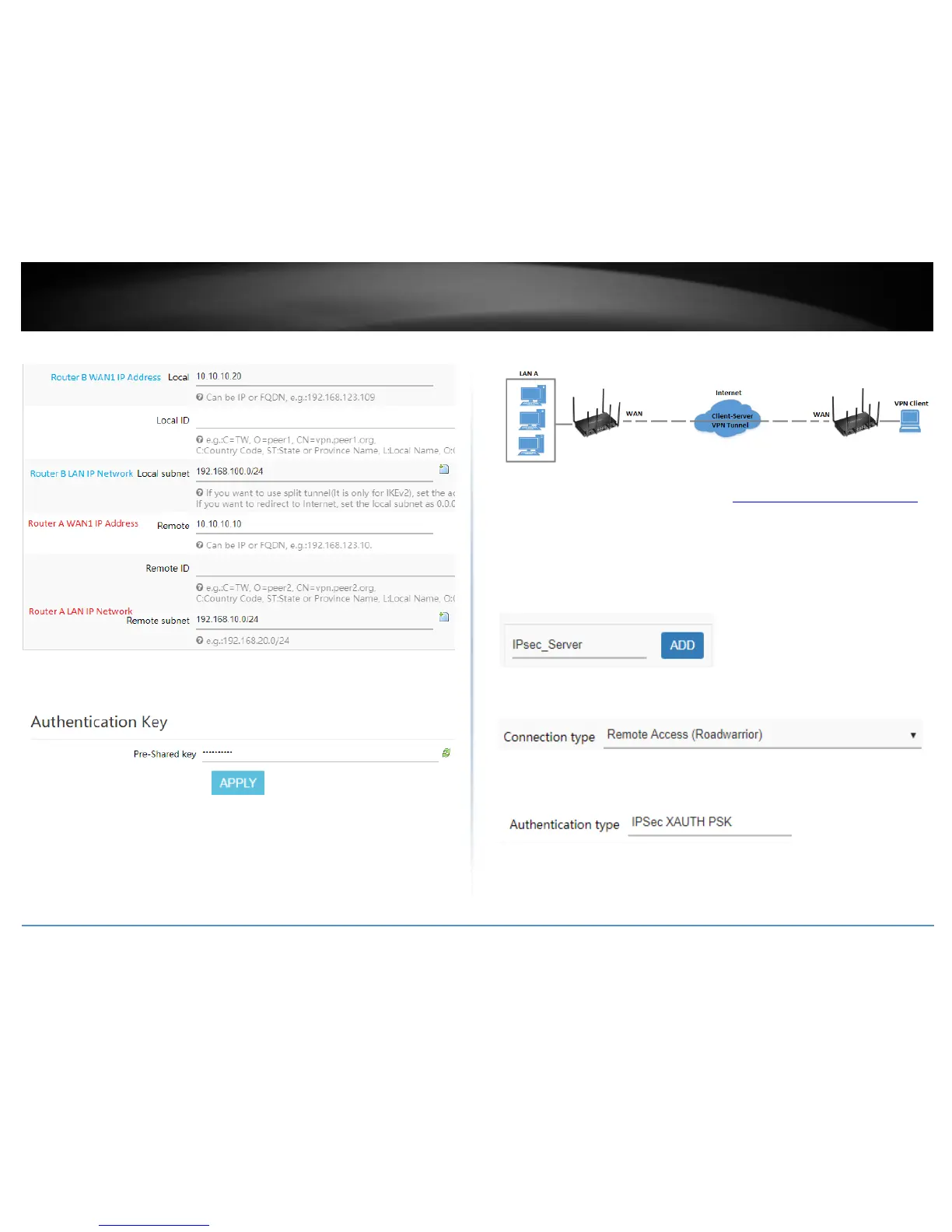
Based on the example, the network settings will be the following:
10. Under Authentication Key, enter the Pre-Shared Key (PSK) for the IPsec VPN tunnel
and click Apply. (e.g. 1234567890)
Setting up IPsec server VPN (PSK with xAUTH)
1. Log into your router management page (see “Access your router management page”
on page 8).
2. Click on Network, click VPN, and click the IPsec tab.
3. Under Overview, enter a tunnel name and click Add. (e.g. IPsec_Server)
4. Click the Connection type drop-down list and select Remote Access (Roadwarrior).
5. For the Authentication type drop-down list and select IPSec XAUTH PSK.











 To Next Page