©Copyright2015TRENDnet.AllRightsReserved.
TRENDnetUser’sGuide
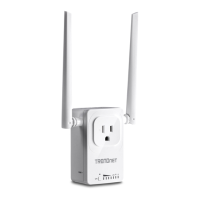
THA‐103AC
4
SettingupTHA‐103AC
Thereare3waystosetuptheTHA‐103ACswitchtoconnectwithyourexistingwireless
network;WPS,usingamobileapp,orgoingthroughdevice’swebconfigurationpage.
When using a mobile app to setup the device manually, the mobile device needs to
support either wireless N or wireless
AC connection. If your mobile device does not
supportwirelessACconnection,youwillonly see THA‐103_24G_1234SSIDinsteadof
bothSSIDs.
WPSSetup
1. Plugthedeviceneararouterandwaitforthedevicetobootup.
2. PresstheWPSbuttonontherouterandpresstheWPSbuttononTHA‐103AC
toinitiatetheconnection
3. Onceconnectedsuccessfully,unplugTHA‐103ACandmovetothefinal
destination.
Note:
IfyouuseWPStoconnectto2.4Ghznetwork,bothbandsonTHA‐103ACwilluse
router’s 2.4Ghz wireless encryption. If you use WPS to connect to the 5Ghz on the
router,bothbands onTHA‐103ACwilluse router’s 5Ghzwirelessencryption.Youcan
manually change them by going
into the configuration page of THA‐103AC. And also
pleasemakesuretheswitchiswithintherangeofyourwirelessnetwork.
WebBrowserSetup
PleaserefertoBrowserManagementsectionforbrowserinstallationandformoreapp
features,pleaserefertoManagingtheAppsection.
iOSSetup
Asmartphoneisrequiredtoproceedwiththissetup.
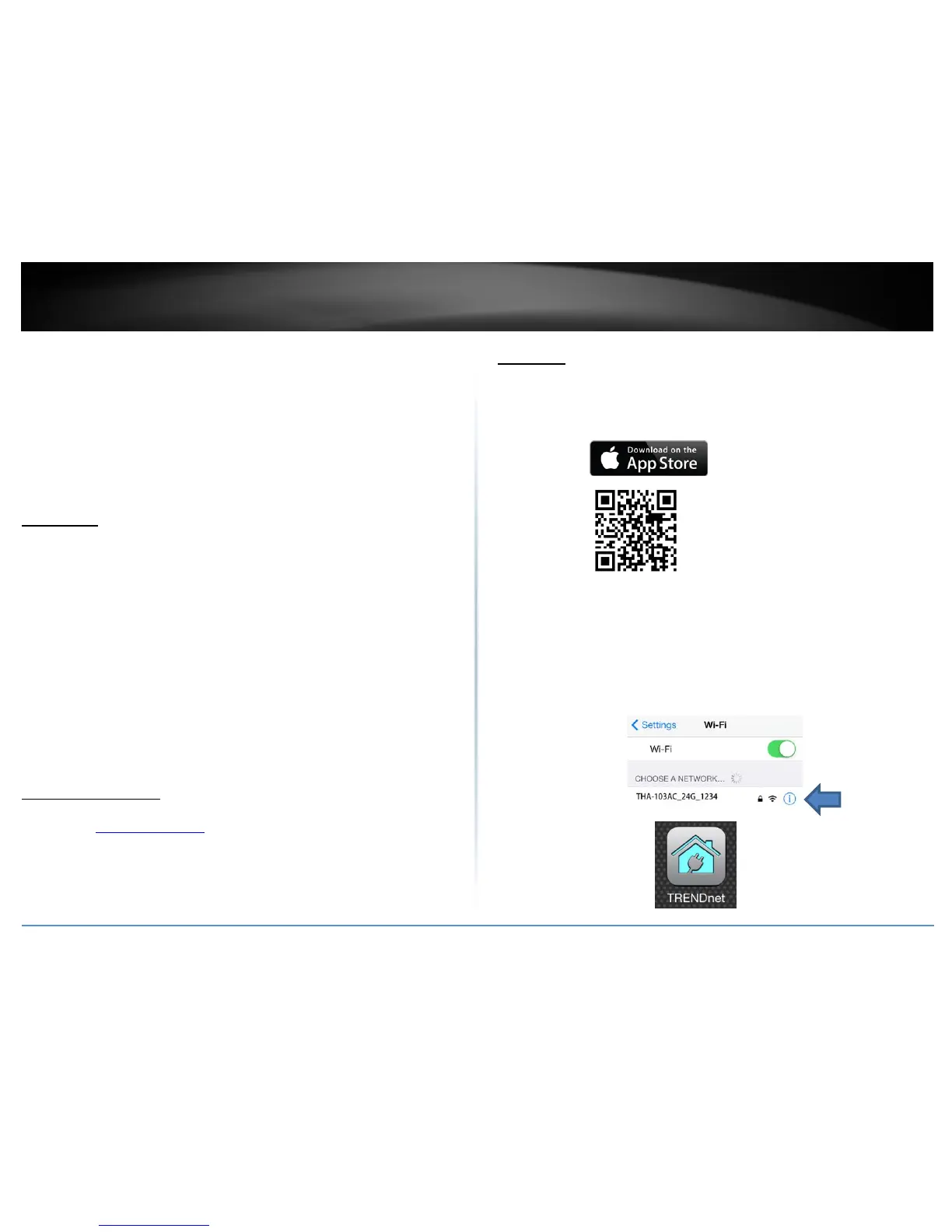
1. DownloadTRENDnetSmartHomeappfromGooglePlayorAppleStore.
2. PlugtheTHA‐103ACtoapoweroutletandpoweronthedevice.
3. ConnectyourmobilephonetoTHA‐103ACviawireless;youshouldbeableto
see a Network Name similar to THA‐103AC_24G_1234 for 2.4 GHz wireless
band or THA‐103AC_5G_1234 for 5 GHz wireless band under the available
wirelessnetworklist.Connecttooneofitdependingonyourmobilephone’s
support (default wireless key is password). Once connected, open the
TRENDnetSmartHomeapp.


 To Next Page