6
Rev. 05 - 2011 - B
Basics
Status LED’s
There is a status LED on the front of each module. The LED indicates wheth-
er the module functions according to its purpose or fails.
Configuration
of system
In order to set up and configure the input and output modules within the
headend system you have to connect your laptop (Windows based) to the
RJ45 socket on the main headend unit using a Cat5 cable.
The module has not been configured yet.
Green - flashing
No errors and everything is valid.
Green
Error.
Red
Power has not been switched on.
No colour
When you update the software of a module the status LED provides you with
information about the updating process.
Boot loader state.
Orange
Initiation of the software update.
Temporary off
Every time the modules receives a valid data package.
Repeated until the update is completed without errors.
Temporary green
Software update failed.
Red
7
Rev. 05 - 2011 - B
TDX Service Tool
Log in
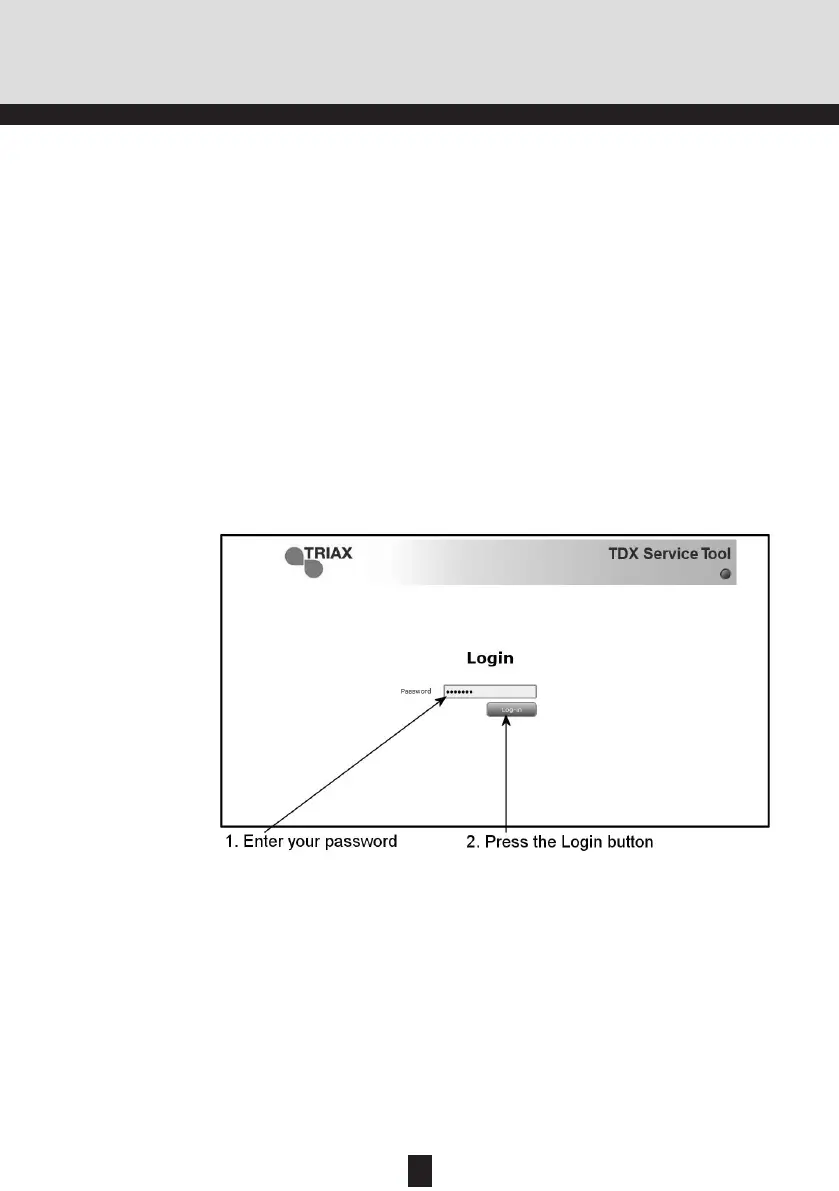
When you have loaded the TDX Service Tool from the headend system to
your laptop/computer the Login window of TDX Service Tool is displayed.
The first time you want to log in to your TDX headend system you have to
enter the default password. The default password is: triax1234
You can change the default password as soon as you have logged in to your
headend system. For more information about changing passwords, see “Ad-
ministration window” on page 9.
Every time you set up a new headend system you have to start
from scratch in the TDX Service Tool, meaning that you will
have change the default password, select which language you
want to use in the TDX Service Tool and change the IP address
if your TDX headend system is part of a distribution network.
When you have pressed the Log in button the System window is displayed.
Note
To access the TDX Service Tool, open your web browser on your com-
puter and input the following IP address in the web address bar
http://192.168.0.100 and press enter.
The Triax TDX Digital Headend system uses the programmes below and in
addition to access the TDX Service Tool Microsoft© Silverlight Runtime ver-
sion 3.0 is required.
Recommendations:
Operating system: Windows XP or above.
Browser: Windows Internet Explorer version 6.0 or above.
Additional software: Microsoft© Silverlight Runtime version 3.0 or above.
Your laptop has to use a static IP address in order to access
the TDX Service Tool using the above mentioned IP address.
Note


 To Next Page