R-3
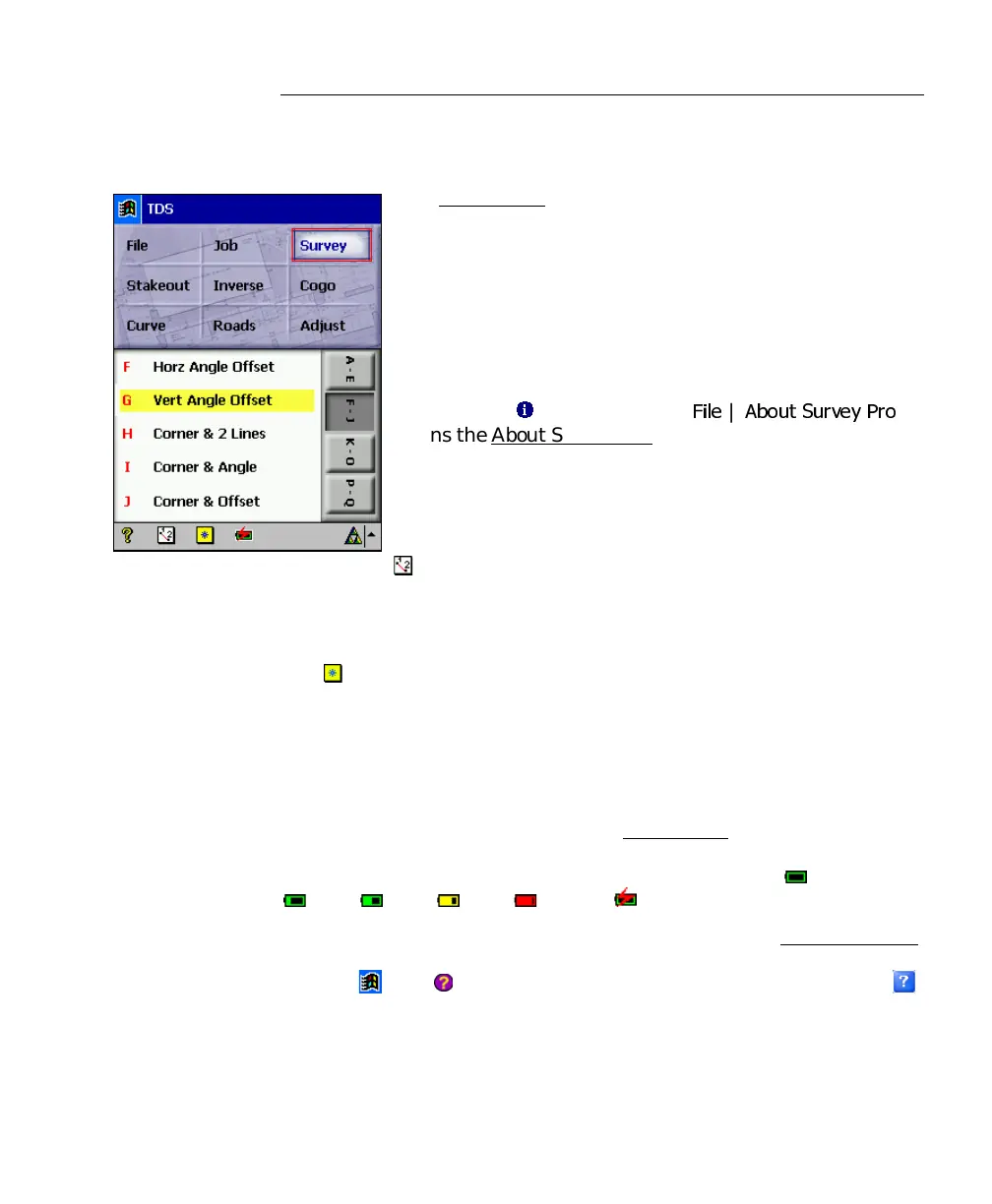
Main Menu
The Main Menu is the starting point where all the other
Survey Pro screens described in this manual are
accessed.
The small buttons at the bottom of the screen are used as
follows:
About Survey Pro
Tapping the icon or selecting
|
opens the About Survey Pro
screen. See Page R-26.
Map View
A map view of the current job can be displayed by
tapping the
button. This screen is described on Page R-246.
Quick Pick
The button is used to quickly access any of a variety of commonly
used Survey Pro screens and is explained in detail in the User’s
Manual.
Battery Level
The battery icon at the bottom of the Main Menu displays the
condition of the Survey Pro’s rechargeable battery. The icon has five
variations depending on the level of charge remaining:
100%,
75%, 50%, 25%, 5% and charging.
Tapping the battery icon is a shortcut to the Microsoft Power Settings
screen. You can get more information while viewing this screen by
tapping
then if using the Pocket PC operating system, or tap
if using CE .NET.



 To Next Page