28
Before starting, obtain Key Code to unlock software from Trisan Australia.
1. This software has been tested to run under Windows OS 7, 8 and 10.
2 Computer administrative privileges will be required during installation.
3 Unzip supplied software into folder of your choice. e.g. C:\Downloader
4 Create shortcut on the desktop for Downloader.
5 Run Downloader. (Files and Folders will be created in chosen folder).
6. Connect computer and tester using USB cable (centre connector on tester).
7. Accept driver installation messages.
8. Enter Key Code in box.
9. Click on “Key Code”. “CODE SAVED” appears.
10. Apply power to tester if not already powdered up.
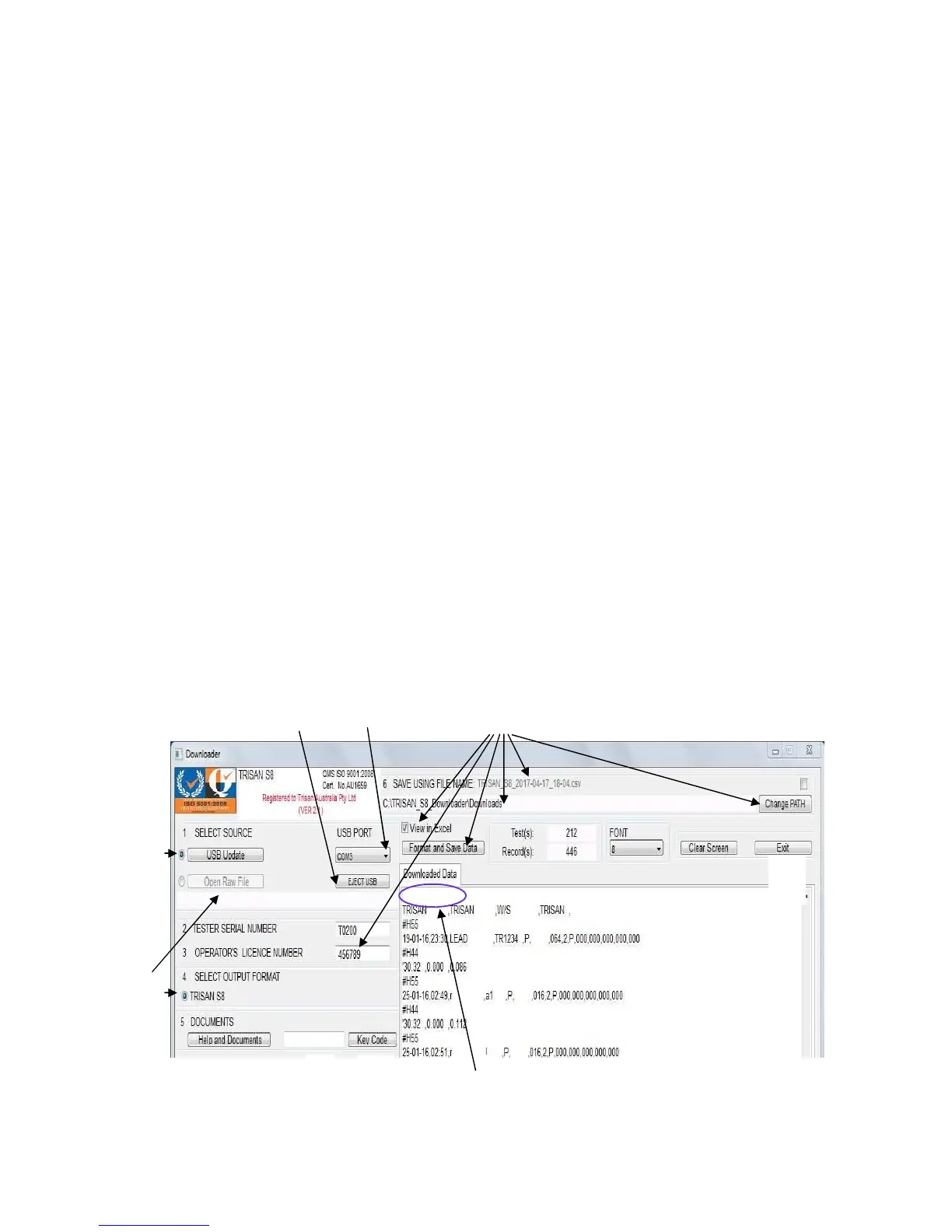
11. In section (1) of downloader screen, click on “USB Update”.
12. To view available COM ports, click on pull-down menu and select tester’s port.
13. If communication is successful, the message “USB PORT OPEN” will appear on downloader screen.
14. You are now ready to upload data. Use F2 menu on tester to select “Upload test results”. Press
“START”. (Please ensure there is data in tester)
15. Data being transferred will be visible on downloader screen.
16. When data transfer is complete, the “Format and Save Data” button becomes active.
An operator’s licence or approval number must be entered before saving.
Click on this button to save data in both “Raw” and spreadsheet format.
Raw files will be found in the installation folder, “RawFiles” sub-folder.
CSV. Files for spreadsheet use will be found in the folder selected using “Change PATH”.
The path maybe changed but the filename is not user changeable.
17. In this release of the software, “Select Output Format” is fixed at “TRISAN S8”.
To view Raw Formatted Data, use button marked “Open Raw File”.
18. When downloading from two or more testers use the “EJECT USB” button or “Exit” to quit program.
16
8
18
15
11
9
18
13
12
17
USB PORT OPEN
TRISAN S8
Quick Start Guide to Downloader software


 To Next Page