Programming Instructions
7
MicroIQ Electronic Lock Programming Guide
Deleting Access Codes
Warning: This will erase all Access Codes & reset the lock back to the
1-1-1-1-1 Access Code under User ID 1-1 when complete.
It will not change the Master Code.
To delete all Access Codes:
1.
2.
With the lock in either the locked or unlocked position, press
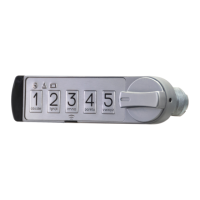
and hold the Program Button (located below the #3 button) for
5 seconds.
3.
Enter the valid 5-digit Master Code.
4.
Press and hold the Program Button for 5 seconds again
Enter 1-2-3-4-5.
Changing Access Codes
Each Access Code is saved under a User ID location. This procedure
will replace an existing Access Code based on the code’s User ID
location, making the original Access Code located under that User ID
permanently obsolete.
To change an Access Code:
1.
2.
With the lock in either the locked or unlocked position, press and
hold the Program Button (located below the #3 button) for 5
seconds.
3.
Enter the valid 5-digit Master Code.
4.
Enter the 2-digit User ID location* you wish to replace/change
(found in the table on page 6).
Enter the new 5-digit Access Code.
Repeat steps 1 - 4 to change additional Access Codes.
*Reference the User ID found in the table on page 6.


 To Next Page