EasyManua.ls Logo

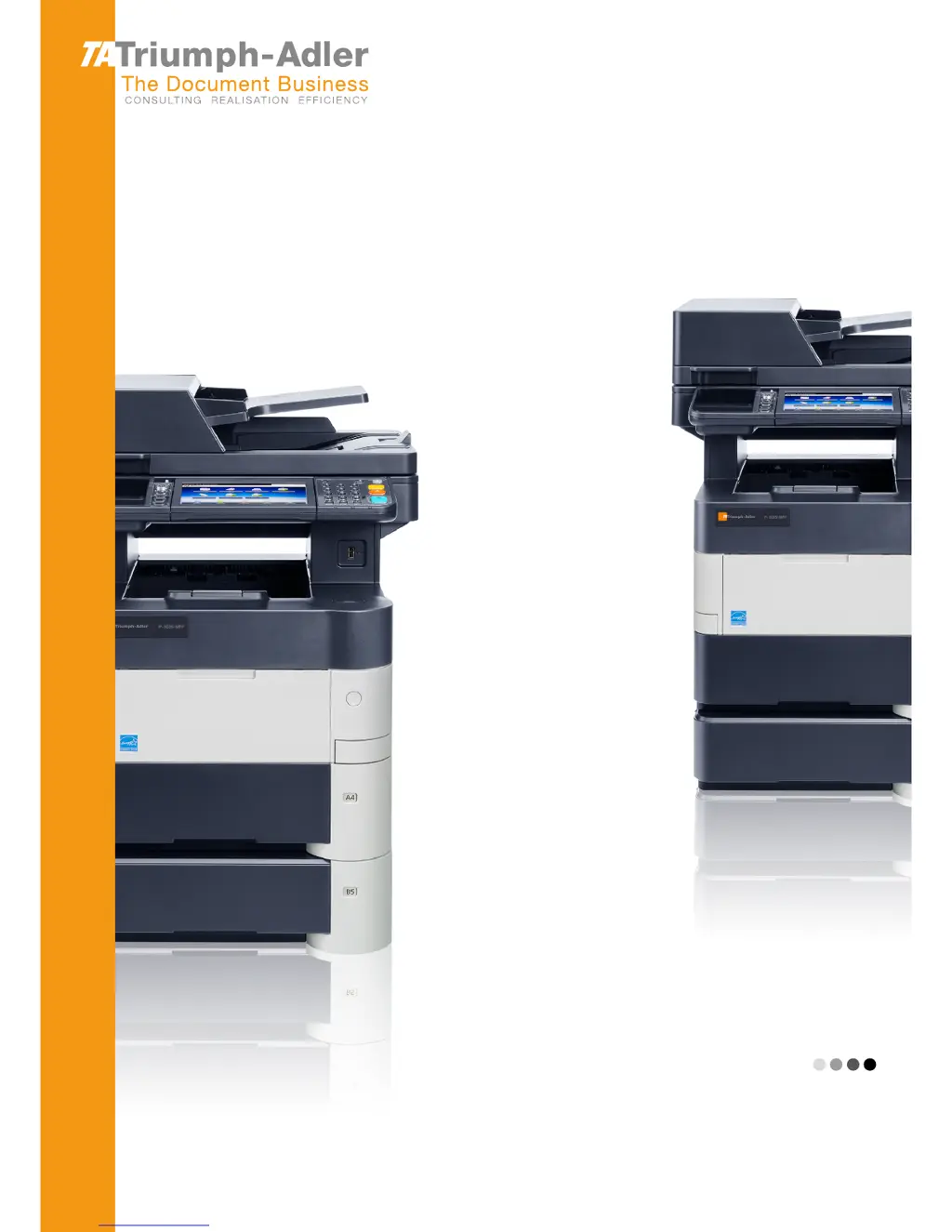
Triumph Adler P-5035i MFP - User Manual

Triumph Adler P-5035i MFP
204 pages
Print Icon
To Next Page IconTo Next Page
Loading...
User Manual
Fax System
P-4035i/P-5035i MFP/P-6035i MFP
P-4035i MFP / P-5035i MFP /P-6035i MFP
Fax System
Copy/Print/Scan/Fax
A4
EN

Table of Contents

Questions and Answers

  • U
    upattersonAug 12, 2025
    Why can't I send a fax from my Triumph Adler P-5035i MFP All in One Printer?
    • J
      Jamie KnightAug 12, 2025
      There could be several reasons why you can't send a fax. First, ensure the modular cord is correctly connected. Also, verify that the Permitted FAX No. or Permitted ID No. are registered correctly. If a communication error occurred, check error codes in the TX/RX Result Report and Activity Report and perform the corresponding procedure if the error code starts with 'U' or 'E'. The destination FAX line might be busy, or the destination FAX machine might not be responding, so try sending again. If none of these solve the issue, contact your Service Representative.
  • B
    Brandon ColemanAug 16, 2025
    What to do if my Triumph Adler All in One Printer cannot send document?
    • K
      Katherine MitchellAug 16, 2025
      If your printer cannot send a document, first ensure the modular cord is connected correctly. If a 'Send error' is displayed, remedy the cause of the error and try sending again. Also, check if TX (transmission) restriction is activated and, if so, cancel the TX restriction.
  • M
    Melissa MooreAug 20, 2025
    What to do if my Triumph Adler P-5035i MFP cannot receive document?
    • J
      johnsonkevinAug 20, 2025
      If your printer isn't receiving documents, start by checking that the modular cord is correctly connected. If a 'Communication error' is displayed, remedy the cause of the error and ask the sender to retry. Also, verify whether RX (reception) restriction is activated and, if it is, cancel the RX restriction.
  • K
    Kelly BlackAug 25, 2025
    Why can't I perform sub address transmission on my Triumph Adler P-5035i MFP?
    • L
      latoyaporterAug 25, 2025
      Sub address transmission cannot be performed unless the recipient fax machine has a similar sub address transmission feature. If the recipient's machine does have this feature, ensure that the entered sub address or sub address password is identical to the one registered in the recipient fax machine. If your entry is correct, check with the recipient. Note that this machine does not use a sub address password for reception. Also, verify with the recipient that there is free space available in the memory of their fax machine.
  • M
    marissalewisAug 27, 2025
    Why can't I perform memory reception on my Triumph Adler P-5035i MFP?
    • J
      Joshua AlvarezAug 28, 2025
      If you cannot perform memory reception, it might be due to insufficient free space in the memory. To resolve this, either receive after the memory has free space, or create free space in the memory.
  • L
    Lindsay HernandezAug 31, 2025
    How to fix memory forwarding issues on Triumph Adler All in One Printer?
    • V
      Victoria CollierAug 31, 2025
      If you're experiencing issues with memory forwarding, verify that memory forwarding is set to [On]. Check the memory forwarding setting to ensure it is enabled.
  • A
    Amber GonzalezSep 4, 2025
    What to do if my Triumph Adler P-5035i MFP cannot use sub address bulletin board communication?
    • S
      sandra30Sep 4, 2025
      Sub address bulletin board communication may fail if the other party’s fax machine does not have the same sort of sub address bulletin board communication function. Check with the recipient to ensure their machine has this capability. Also, ensure that the entered sub address or sub address password is correct. If your entry is correct, check with the recipient.
  • K
    Kerry Stewart MDSep 8, 2025
    What to do if my Triumph Adler P-5035i MFP All in One Printer cannot output from a Sub Address Box?
    • A
      Alejandra GregorySep 8, 2025
      If you cannot output from a Sub Address Box, ensure that you have entered the correct box password.

Summary

Legal and Safety Information

Safety Conventions in This Guide

Explains safety warning symbols and conventions used in the manual for user protection.

IMPORTANT SAFETY INSTRUCTIONS

Provides essential safety precautions for operating the machine to prevent fire, shock, or injury.

Before Using the Fax Machine

Part Names and Functions

Identifies and describes the main components of the fax machine and their roles.

Registering Destinations in the Address Book

Details how to save frequently used fax numbers and contacts for efficient sending.

Sending Faxes

Basic transmission procedure

Outlines the fundamental steps for sending a fax, including placing originals and starting.

Methods For Entering the Destination

Explains various ways to specify fax destinations, such as numeric keys or address book.

Fax transmission functions

Lists and describes various transmission settings like resolution, duplex, and quiet mode.

Receiving Faxes

FAX Automatic Reception

Describes how the machine automatically receives faxes without manual intervention.

Manual Reception

Explains the procedure to manually initiate fax reception when a call is received.

Fax reception functions

Details settings for received faxes, such as duplex printing, batch print, and date/time stamps.

Using Convenient Fax Functions

Forward Settings

Configures automatic forwarding of received faxes to other destinations or email.

Sub Address Box Function

Manages sub address boxes for storing and organizing received fax documents.

Polling Communication

Enables control of fax transmission and reception by the receiving machine.

Encryption

Secures fax communication by encrypting and decrypting transmitted data.

Sending Faxes from PC

Installing the Fax Driver

Step-by-step guide for installing the necessary software driver on a computer.

Basic Transmission

Explains the process of sending faxes from a PC, including document creation and destination setup.

Configuring the Driver Default Settings

Customizes default transmission parameters for the fax driver for recurring use.

Managing Jobs

Checking FAX Job History

Displays logs of recent fax transmission and reception activities for monitoring.

Printing Administrative Reports (Result Report Setting)

Configures and prints various reports on machine status and transmission results.

Fax Settings

Default fax settings

Explains how to configure the machine's default operational parameters via the system menu.

Transmission Restriction

Sets rules to control which parties can send or receive faxes based on registered numbers.

Troubleshooting

Responding to an Attention Indicator Flashes

Guides users on how to diagnose and resolve issues indicated by attention lights.

Messages

Lists common error messages and their corrective actions for problem resolution.

Error Code List

Provides a detailed list of error codes and their possible causes and solutions.

Appendix

Character Entry Method

Explains how to input characters for names and other fields using the on-screen keyboard.

Specifications

Lists the technical specifications for the fax machine's functions and hardware.

Menu Map

Provides a visual overview of the machine's menu structure and function navigation.

Triumph Adler P-5035i MFP Specifications

General IconGeneral
CategoryAll in One Printer
TypeMonochrome Laser
FunctionsPrint, Copy, Scan, Fax
Print TechnologyLaser
Print Speed (Black, A4)35 ppm
Print Resolution1200 x 1200 dpi
Copy Speed (Black)35 cpm
Copy Resolution600 x 600 dpi
Scan Resolution600 x 600 dpi
Fax Transmission Speed33.6 kbps
Duplex PrintingYes
ConnectivityUSB, Ethernet
InterfaceUSB 2.0, Ethernet 10/100/1000 Base-TX
Mobile printing supportYes
Paper Capacity500 sheets
Operating System CompatibilityWindows, Mac, Linux

Related product manuals