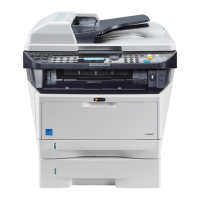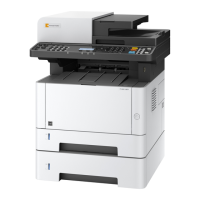
EasyManua.ls Logo

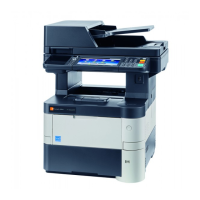
Triumph Adler P-3520 MFP - User Manual

Triumph Adler P-3520 MFP
481 pages
Print Icon
To Next Page IconTo Next Page
Loading...
P-3020 MFP/P-3025 MFP
P-3520 MFP/P-3525 MFP
User Manual
P-3020 MFP / P-3025 MFP / P-3520 MFP / P-3525 MFP
Digital Multifunctional System
Copy / Print / Scan / Fax
A4
EN

Table of Contents

Questions and Answers

  • S
    sandersdorothySep 9, 2025
    What does it mean if pressing the Start key on my Triumph Adler P-3520 MFP All in One Printer does not produce copies?
    • A
      Amy TuckerSep 9, 2025
      If pressing the Start key on your Triumph Adler All in One Printer does not produce copies, the machine may be in Sleep mode. Press any key on the operation panel to recover the machine from Sleep mode. The machine will be ready to copy within 15 seconds.
  • E
    Edward WareAug 25, 2025
    What to do if my Triumph Adler All in One Printer paper often jams?
    • S
      Samantha AndersonAug 25, 2025
      If your Triumph Adler All in One Printer paper often jams, make sure you load the paper correctly. Also, if the paper is of the supported type but is in poor condition, remove the paper, turn it over, and reload it. Replace the paper with new paper if it is curled, folded, or wrinkled. Finally, remove any jammed paper from the machine.
  • R
    Ryan HumphreyAug 25, 2025
    What to do if my Triumph Adler P-3520 MFP All in One Printer cannot print?
    • C
      Christie GriffithAug 26, 2025
      If your Triumph Adler All in One Printer cannot print, ensure that the power cord is plugged into an AC outlet and the power switch is turned on. Check that the printer cable is securely connected and that the machine was powered on after connecting the printer cable. If the print job is paused, press [Resume] (the Left Select key) to resume printing. If there is an error message displayed, follow the corresponding procedure.
  • K
    Kristi GainesSep 23, 2025
    Why my Triumph Adler P-3520 MFP cannot send fax?
    • E
      ebrownSep 23, 2025
      You cannot send a fax from your Triumph Adler All in One Printer because the modular cord is not connected correctly (connect the modular cord correctly) or the destination FAX line is busy (send again).
  • M
    Michael GrossSep 10, 2025
    Why is an image size shrunk vertically or horizontally when displaying an image sent from my Triumph Adler P-3520 MFP on the PC?
    • J
      Jonathan NunezSep 12, 2025
      When displaying an image sent from your Triumph Adler All in One Printer on the PC, an image size is shrunk vertically or horizontally because you have selected 200×100dpi Normal or 200×400dpi Super Fine for the scan resolution. Select a scan resolution other than 200 × 100dpi Normal or 200 × 400dpi Super Fine when sending an image.
  • O
    ortizjamieSep 16, 2025
    What does it mean when my Triumph Adler P-3520 MFP All in One Printer displays 'Polling box limit exceeded. Job is canceled.'?
    • L
      Lisa BrockSep 16, 2025
      If your Triumph Adler All in One Printer displays 'Polling box limit exceeded. Job is canceled.', the job is canceled. Press the OK key.
  • C
    Christopher ManningSep 4, 2025
    What does it mean when my Triumph Adler All in One Printer says 'Check cassette 1'?
    • S
      Sean RamirezSep 4, 2025
      If your Triumph Adler All in One Printer displays 'Check cassette 1', a paper lift error has occurred in the paper source's cassette. Pull out the cassette for the paper source displayed (either the paper cassettes or optional paper feeders) and check if the paper is loaded correctly.
  • K
    Kelly LongSep 5, 2025
    What does it mean when my Triumph Adler All in One Printer says 'Close front cover'?
    • J
      Jordan CampbellSep 5, 2025
      If your Triumph Adler All in One Printer displays 'Close front cover', there is a cover that is open. Close the cover indicated on the operation panel.
  • A
    Alexander TaylorSep 23, 2025
    What to do if a paper jam occurs on my Triumph Adler P-3520 MFP All in One Printer?
    • A
      Angela WeberSep 23, 2025
      If a paper jam occurs on your Triumph Adler All in One Printer, a message will be displayed about the jam and copying or printing will stop. Leave the power switch on and to remove the jammed paper refer to the following information below.
  • D
    deboraharmstrongAug 30, 2025
    What to do if my Triumph Adler P-3520 MFP printouts are wrinkled or curled?
    • B
      Brian BallardAug 30, 2025
      If printouts from your Triumph Adler All in One Printer are wrinkled or curled, the paper may be damp. Replace the paper with new paper.

Summary

Part Names

Operation Panel Overview

Details the keys and functions of the machine's operation panel.

Machine Components

Identifies the main physical parts of the machine.

Document Processor Overview

Explains the components and function of the document processor.

Preparation before Use

Connecting Cables

Step-by-step instructions for connecting the machine to a PC or network.

Network Setup via LAN Cable

Configures network parameters for LAN interface connection.

Installing Software on DVD

Guides for installing printer driver and other utilities from the included DVD.

Loading Paper into Cassettes and Trays

Instructions for loading paper into the machine's cassettes and multi-purpose tray.

Loading Originals for Scanning

Procedures for placing originals on the platen or in the document processor.

Basic Operation

Basic Copying Procedure

Step-by-step guide for performing basic copying operations.

Printing from Applications

Instructions for printing documents from application software.

Basic Sending Operations

Overview of basic functions for sending scanned documents.

Specifying Destination for Sending

Methods for selecting or registering destinations for sending.

Checking Toner and Paper Status

How to check the remaining levels of toner and paper.

Copying Functions

Setting Original Size for Copying

Specifies the size of originals to be scanned for copying.

Paper Selection for Copying

How to select the paper source for copying from available cassettes and trays.

Combine Mode for Copying

Allows combining 2 or 4 originals onto a single page.

Adjusting Copy Sharpness

Adjusts the sharpness of image outlines for copies.

Sending Functions

Selecting File Format for Sending

Specifies the file format (PDF, TIFF, XPS, JPEG) for scanned images.

Selecting Scan Resolution for Sending

Sets the fineness of scanning resolution for sending scanned images.

Selecting Color Mode for Sending

Chooses the color mode (e.g., Full Color, Grayscale) for sending scanned images.

FTP Encrypted Transmission

Enables encryption for documents sent via FTP.

Document Box Functions

Printing Documents from USB Memory

Prints files directly from a USB memory device without a computer.

Saving Scanned Documents to USB Memory

Stores scanned image files in USB memory connected to the machine.

Safely Removing USB Memory

Procedure to safely remove USB memory to prevent data loss.

Status and Job Control

Checking Job Status

Displays status of print, send, store, and scheduled jobs.

Checking Job History

Reviews the history of completed print, send, and store jobs.

Pause and Resume Jobs

Pauses and resumes all printing jobs in printing or waiting status.

Checking Device and Communication Status

Checks the status of scanner, printer, and FAX devices.

Default Setting (System Menu)

Common Settings Configuration

Configures general machine settings like language, sound, and display.

Network Setup via LAN Cable

Configures network parameters for LAN interface connection.

Printer Settings Configuration

Customizes machine defaults for printing functions.

Duplex Copying Settings

Selects binding orientation for duplex mode.

Error Handling Settings

Specifies how to handle duplexing and paper mismatch errors.

Maintenance

Machine Cleaning Procedures

Regular cleaning of the glass platen and document processor for optimal quality.

Toner Container Replacement Procedure

Step-by-step guide for replacing the toner container.

Troubleshooting

Solving Common Malfunctions

Provides guidelines for diagnosing and correcting common machine problems.

Responding to Error Messages

Instructions for handling specific error messages displayed on the control panel.

Clearing Paper Jams

Procedures for removing jammed paper from various locations in the machine.

Management

User Login Administration Setup

Configures user access and authentication methods for the machine.

Job Accounting Configuration

Manages copy/print counts by assigning IDs to accounts.

Managing User Accounts

Procedures for adding, changing, and deleting user accounts.

Printing Accounting Reports

Generates reports on copying, printing, and scanning usage.

Appendix

Optional Equipment Overview

Details available optional hardware like memory and network kits.

Paper Specifications and Guidelines

Information on supported paper types, sizes, and handling for the machine.

Technical Specifications

Lists key technical specifications of the machine's hardware and functions.

Glossary of Terms

Defines technical terms used throughout the manual.

Triumph Adler P-3520 MFP Specifications

General IconGeneral
FunctionsPrint, Copy, Scan, Fax
Print Resolution1200 x 1200 dpi
Copy Resolution600 x 600 dpi
Scan Resolution600 x 600 dpi
Fax Transmission Speed33.6 Kbps
Standard Output Capacity150 sheets
Maximum Output Capacity150 sheets
Internal Memory256 MB
Processor Frequency800 MHz
TypeMultifunction
Print TechnologyLaser
Print Speed (Black, A4/US Letter)35 ppm
Copy Speed (Black, A4)35 cpm
Scanner TypeFlatbed, ADF
Duplex PrintingYes
Standard Input Capacity250 sheets
Standard Media SizesA4, A5, A6, B5, Letter, Legal
ConnectivityUSB 2.0, Ethernet
Standard InterfacesUSB, Ethernet
Operating System CompatibilityWindows, Linux
Standard Printer LanguagesPCL6, PostScript 3
Duplex Media Weight60-163 g/m²

Related product manuals