EasyManua.ls Logo

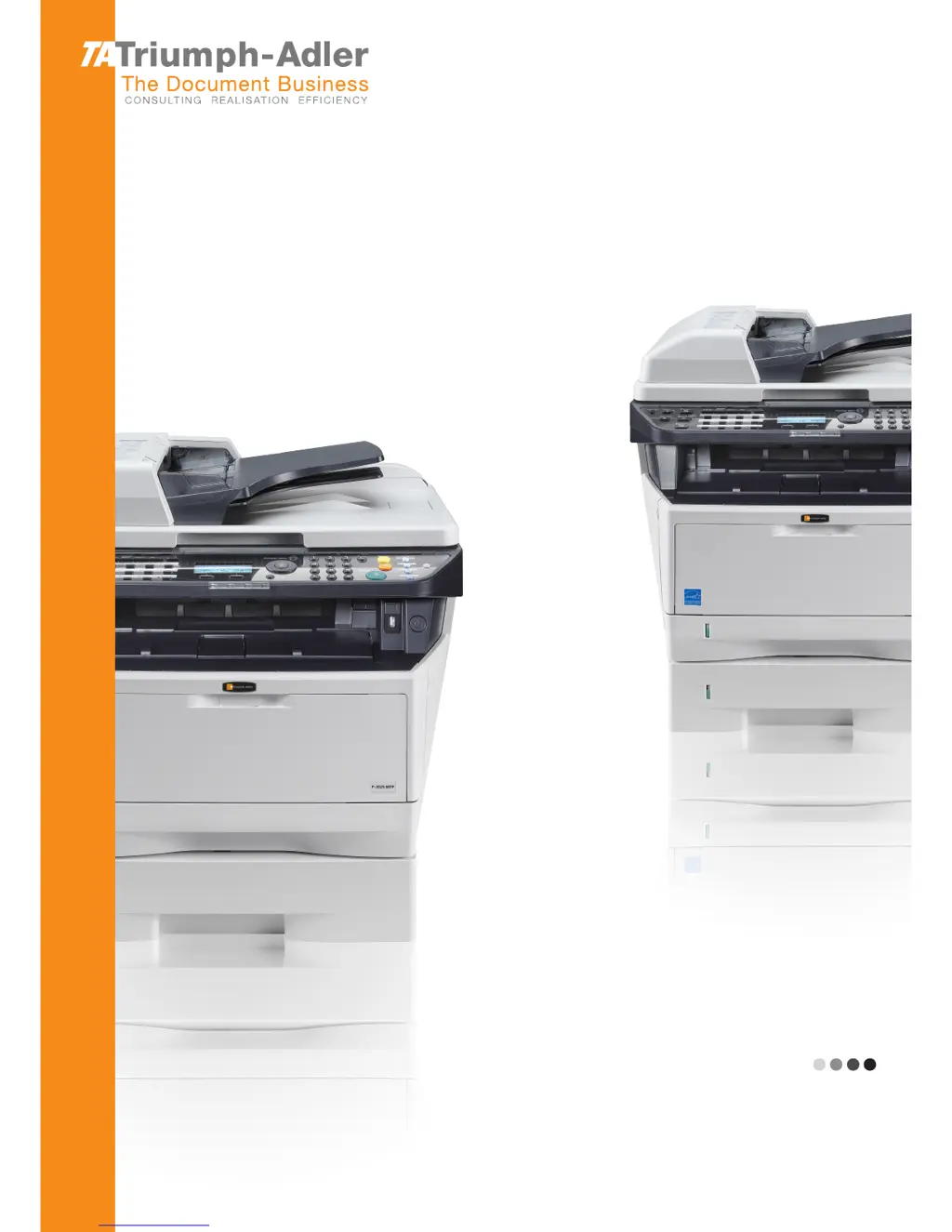
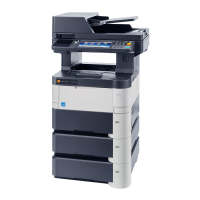
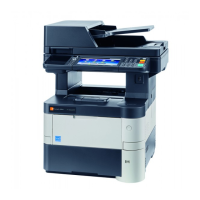
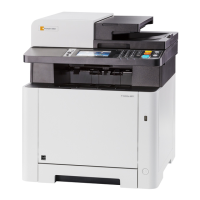
Triumph Adler P-3525 MFP - User Manual

Triumph Adler P-3525 MFP
481 pages
Print Icon
To Next Page IconTo Next Page
Loading...
P-3020 MFP/P-3025 MFP
P-3520 MFP/P-3525 MFP
User Manual
P-3020 MFP / P-3025 MFP / P-3520 MFP / P-3525 MFP
Digital Multifunctional System
Copy / Print / Scan / Fax
A4
EN

Table of Contents

Questions and Answers

  • A
    Annette AyersSep 4, 2025
    What does it mean if pressing the Start key on my Triumph Adler All in One Printer does not produce copies?
    • I
      iprestonSep 5, 2025
      If pressing the Start key on your Triumph Adler All in One Printer does not produce copies, the machine may be in Sleep mode. Press any key on the operation panel to recover the machine from Sleep mode. The machine will be ready to copy within 15 seconds.
  • D
    Daniel LopezAug 25, 2025
    What to do if my Triumph Adler P-3525 MFP paper often jams?
    • F
      fsmithAug 25, 2025
      If your Triumph Adler All in One Printer paper often jams, make sure you load the paper correctly. Also, if the paper is of the supported type but is in poor condition, remove the paper, turn it over, and reload it. Replace the paper with new paper if it is curled, folded, or wrinkled. Finally, remove any jammed paper from the machine.
  • E
    Emily LewisAug 25, 2025
    What to do if my Triumph Adler P-3525 MFP All in One Printer cannot print?
    • G
      Gregory LeeAug 26, 2025
      If your Triumph Adler All in One Printer cannot print, ensure that the power cord is plugged into an AC outlet and the power switch is turned on. Check that the printer cable is securely connected and that the machine was powered on after connecting the printer cable. If the print job is paused, press [Resume] (the Left Select key) to resume printing. If there is an error message displayed, follow the corresponding procedure.
  • J
    John PadillaSep 12, 2025
    What does it mean when my Triumph Adler P-3525 MFP displays 'USB memory error. Job is canceled.'?
    • N
      natalienixonSep 12, 2025
      If your Triumph Adler All in One Printer displays 'USB memory error. Job is canceled.', this job is canceled. Press the OK key.
  • A
    Amy CarrollSep 23, 2025
    Why Triumph Adler P-3525 MFP cannot perform memory reception?
    • J
      Jorge ReedSep 23, 2025
      If your Triumph Adler All in One Printer cannot perform memory reception, ensure there is free space available in the memory. Receive after creating free space in the memory.
  • A
    andersoncarrieSep 9, 2025
    What does it mean when my Triumph Adler P-3525 MFP displays 'Polling box limit exceeded. Job is canceled.'?
    • F
      franciscoacostaSep 9, 2025
      If your Triumph Adler All in One Printer displays 'Polling box limit exceeded. Job is canceled.', the job is canceled. Press the OK key.
  • M
    Melanie BestSep 1, 2025
    What does it mean when my Triumph Adler P-3525 MFP says 'Check cassette 1'?
    • C
      Christopher TaylorSep 1, 2025
      If your Triumph Adler All in One Printer displays 'Check cassette 1', a paper lift error has occurred in the paper source's cassette. Pull out the cassette for the paper source displayed (either the paper cassettes or optional paper feeders) and check if the paper is loaded correctly.
  • M
    Matthew OwensSep 23, 2025
    Why I cannot use polling reception on Triumph Adler All in One Printer?
    • C
      Charles BeckSep 23, 2025
      If you cannot use polling reception on your Triumph Adler All in One Printer, verify with the recipient that polling transmission is being used correctly on the sending machine.
  • M
    Mr. Brian Lewis Jr.Sep 16, 2025
    Why Triumph Adler All in One Printer shows 'Job Accounting restriction exceeded. Cannot scan'?
    • G
      Gary ThompsonSep 16, 2025
      If your Triumph Adler All in One Printer displays 'Job Accounting restriction exceeded. Cannot scan', it means fax transmission is prohibited by Job Accounting. Press the OK key to cancel the job and then check the settings for Job Accounting.
  • N
    Natalie HicksAug 28, 2025
    What to do if my Triumph Adler P-3525 MFP All in One Printer printouts are wrinkled or curled?
    • C
      Carlos ButlerAug 28, 2025
      If printouts from your Triumph Adler All in One Printer are wrinkled or curled, the paper may be damp. Replace the paper with new paper.

Summary

Part Names

Operation Panel Overview

Details the machine's operation panel keys and functions for navigation and control.

Machine Components

Identifies the main parts and external components of the machine.

Document Processor Parts

Details the components and parts of the document processor unit.

Preparation Before Use

Connection Setup Guide

Guides on selecting connection methods and preparing necessary cables.

Initial Machine Setup

Basic steps for initial machine setup, including power, language, and date/time.

Software and Network Configuration

Steps for network connectivity, software installation, and web server access.

Loading Paper and Originals

Procedures for loading paper into cassettes/trays and placing originals for scanning.

Basic Operation

Login and Logout Procedures

How to log in to the machine using credentials and log out.

Performing Basic Copying

Step-by-step instructions for performing basic copying operations.

Printing from Applications

Instructions for printing documents from computer applications.

Sending Scanned Documents

Procedures for sending scanned documents via E-mail, PC, or FTP.

Copying Functions

Specifying Original Size for Copying

Specifies the size of originals for scanning before starting the copying process.

Paper Selection for Copying

Selects the paper source that contains the required paper size.

Combine Mode for Copying

Allows combining 2 or 4 originals onto a single page for copying.

EcoPrint Functionality

Function to save toner by reducing print quality for non-critical copies.

Sending Functions

Specifying Original Size for Sending

Selects the original size for scanning before starting the sending process.

Sending Size Configuration

Selects the size of the image to be sent.

Zoom Functionality for Sending

Scans originals by automatically zooming depending on the sending size.

Duplex Sending Options

Selects the type and binding of original for duplex sending.

Document Box Functions

Printing from USB Memory

Prints files stored in USB memory directly without using a computer.

Saving Documents to USB Memory

Stores scanned image files in USB memory connected to the machine.

Removing USB Memory Safely

Procedure to safely remove USB memory to avoid data damage.

Printing from Job Box

Prints data stored on the machine's RAM disk from the operation panel.

Status and Job Cancellation

Checking Job Status

Checks the status of jobs being processed or waiting to be printed.

Checking Job History

Checks the history of completed jobs.

Pausing and Resuming Jobs

Pauses and resumes printing or waiting jobs.

Canceling Jobs

How to cancel any print or send job that is currently being executed.

Default Settings (System Menu)

Common Settings Configuration

Includes settings for display, sound, date/time, and function defaults.

Printer Settings Customization

Settings for printer emulation, EcoPrint, and orientation.

Sending Settings Configuration

Options for sending functions like key set and destination check.

Document Box Settings Management

Settings for Job Box features such as Quick Copy Jobs and retention.

Maintenance Procedures

Machine Cleaning Instructions

Instructions for cleaning the machine's glass platen and document processor.

Toner Container Replacement Guide

Procedure for replacing the toner container when it is empty.

Troubleshooting Guide

Solving Common Malfunctions

General guidelines for identifying and resolving common machine problems.

Responding to Error Messages

How to interpret and respond to error messages displayed on the control panel.

Clearing Paper Jams

Step-by-step instructions for clearing paper jams in various locations.

Management Functions

User Login Administration

Specifies how user access is administered and enables/disables user login.

Job Accounting Setup

Manages copy/print counts by assigning IDs to accounts.

Checking Page Counts

Checks the number of pages printed and scanned by various criteria.

Triumph Adler P-3525 MFP Specifications

General IconGeneral
BrandTriumph Adler
ModelP-3525 MFP
CategoryAll in One Printer
LanguageEnglish

Related product manuals