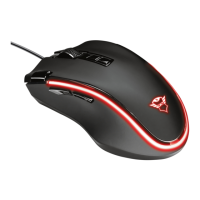
MI-2450E Optical Combi Mouse
(TRUST 450L MOUSE OPTICAL)
4
UK
6.2 Software
The software enables you to assign specific functions to your buttons A, B, D, and E
from figure 2. This may be a single function per button, or multiple functions per
button. The middle mouse button (D, figure 2) is assigned multiple functions by
default. When you press the mouse button, the ‘lucky jump’ menu will open, in which
a selection of functions is presented. By clicking on any one of the icons, the related
function will be executed. By double-clicking on the Trust icon in the Windows
Taskbar, a window with tabs will be opened. See figure 3.
6.2.1 Assign single function.
1. Double-click on the Trust icon, below right in the Windows Taskbar.
2. A window will open similar to that in figure 3.
3. Select the button (2, 3, 4 or 5) that you wish to program.
4. Click on the pull-down menu and select a function.
5. Click on ‘Apply’ (B, figure 3) to apply the selection.
6. Next click on ‘OK’(C, figure 3).
A single function has now been assigned to the selected mouse button.
6.2.2 Assign multiple functions to single mouse button
You can assign multiple functions at the same time to a single mouse button, by
means of two shortcut menus. By default, two menus have been pre-programmed:
the “Lucky Jump” and the “Net “jump” menu. The “Lucky jump” menu includes mainly
standard Windows commands. The “Net jump” menu includes mainly Internet
functions. Both menus can also be individually modified.
Tip: The “Lucky jump” menu is already assigned by default to the third
mouse button.
6.2.2.1 To assign Net- or Lucky jump menu.
1. Double-click on the Trust icon, below right in the Windows Taskbar.
2. A window will open similar to that in figure 3.
3. Select the button (2,3,4 or 5) that you wish to program.
4. Click on the pull-down menu (for example, A in figure 3) and select ‘NetJump’
or ‘LuckyJump’.
5. Click on ‘Apply’ (B, figure 3) to apply the selection.
6. Next click on ‘OK’(C, figure 3).
You have now assigned the ‘Net jump’ or ‘Lucky jump’ menu to one of the buttons.
By clicking on the relevant button during use of the computer, a menu will appear,
showing a number of icons; by clicking on the appropriate icon, you can activate the
function you wish.
6.2.2.2 To modify the Net- or Lucky jump menu
You can, if you wish, modify the Net- or Lucky jump menu contents. Proceed as
follows:
1. Double-click on the Trust icon, below right in the Windows Taskbar.
2. A window will open similar to that in figure 3.
3. Select the tab ‘settings’. See figure 4.
4. Select a desired function from the window (C, figure 4).
5. Click on one of the cells in A (figure 4) to add the selected function (from C,
figure 4) to the Net jump menu; or a cell in B (figure 4) to add the function to
the Lucky jump menu.
6. Click on ‘Apply’ (D, figure 4) to apply the modification made.



 To Next Page