Trust Ami Mouse Wireless 200
14
8.6 'Orientation' tab
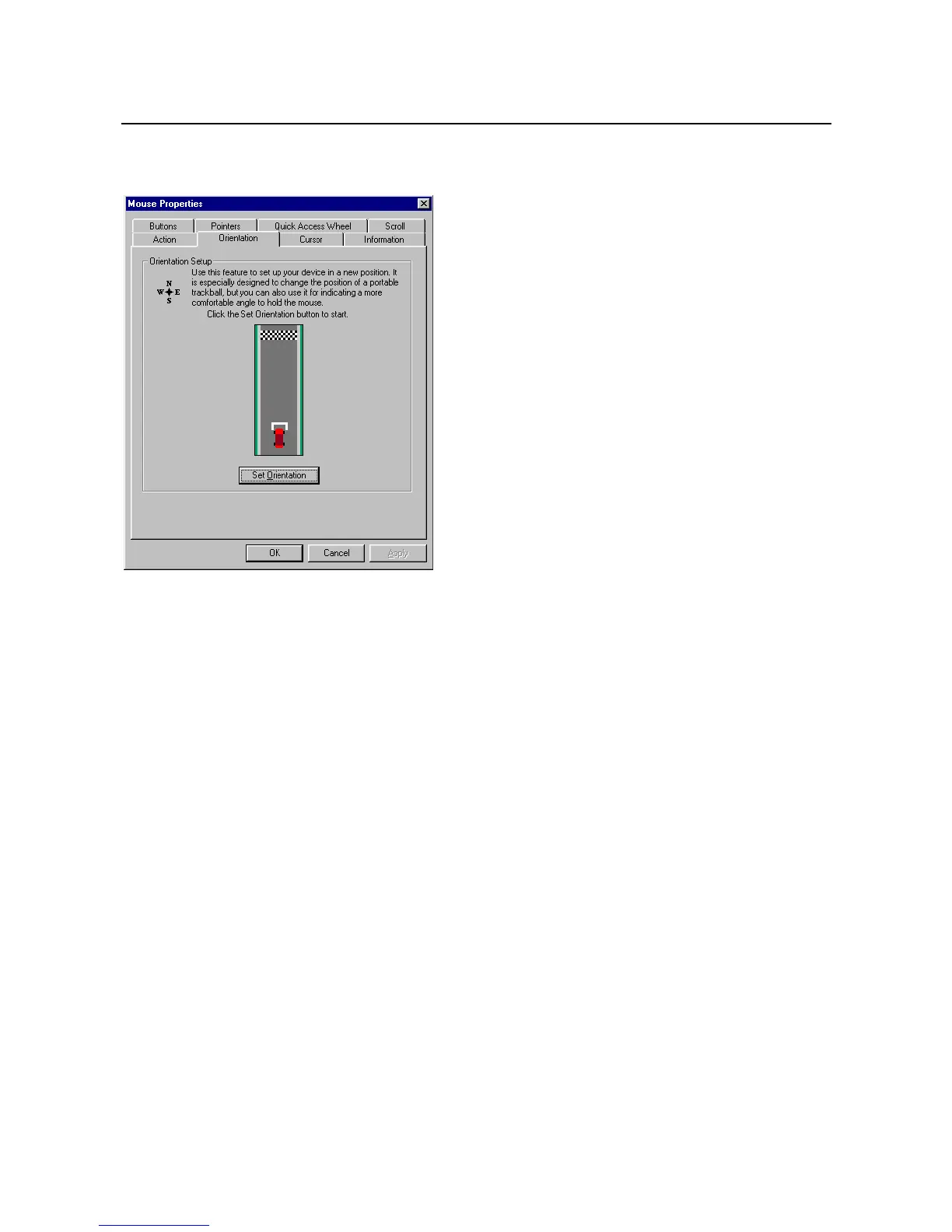
Select the 'Orientation' tab to calibrate the mouse (see figure 19).
Figure 19: Mouse Properties - Orientation
Follow the instructions below to set the mouse to the desired position in your hand or to move the mouse in a
more natural position.
1. Click on ‘Set Orientation’.
2. Move the mouse in a straight line in the direction of the finish line until the racing car reaches the finish
line.
3. Click on 'Apply' to keep these settings.
Click on 'Cancel' to delete the new settings.
Note: A message will be displayed on the screen if you have not moved the mouse in a straight line.
Click on 'Retry' to carry out the calibration again.



 To Next Page