SETTINGS SCREEN
From the Home screen, you may access the Settings screen by tapping the Gear icon
at the top of the Right Navigation Bar.
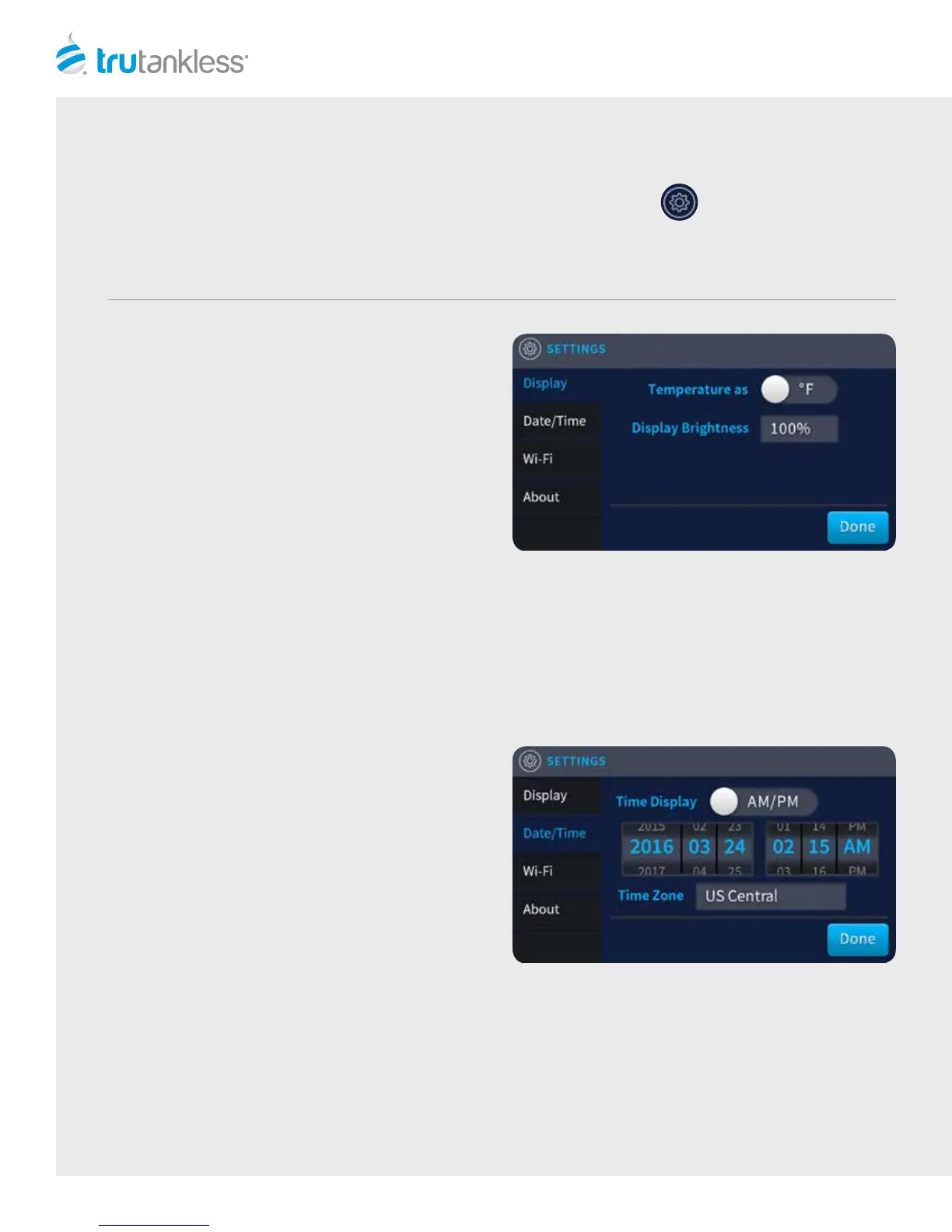
When you enter the Settings window, by default the Display window is visible at the top level.
DISPLAY
Tap the “Temperature as” switch to toggle between
Fahrenheit and Celsius as they will be displayed on the
Home screen.
Touch the “Display Brightness” field to bring up the
percentage menu and scroll to the desired backlight
percentage for the LCD screen.
The characters will become highlighted and larger when
they are selected.
DATE/TIME
From the Settings screen, tap “Date/Time” in the le
navigation menu to bring up the Date/Time window.
Tap the “Time Display” switch to toggle between AM/PM
or 24-Hour time display options.
Touch and drag in the Year, Month and Day fields to
scroll to go through the figures and set the desired date.
The characters will become highlighted and larger when
they are selected.
Touch and drag the Hour and Minute fields to scroll
through the figures and set the desired time. The
characters will become highlighted and larger when they
are selected.
NOTE: The AM/PM field is dynamic and will only be
present when AM/PM is the selected Time Display.
Touch the “Time Zone” field to reveal a drop down menu
of time zones and drag to scroll through the menu to the
desired zone. The characters will become highlighted
and larger when they are selected.
NOTE: Setting the correct Date/Time and Time Zone
iscritical to utilizing the Peak/O-Peak Energy Saving
features, and for proper reporting when connected to
the Bollente Monitoring Service.
6


 To Next Page