Using InO-Bot (Windows 7, 8.1 and 10)
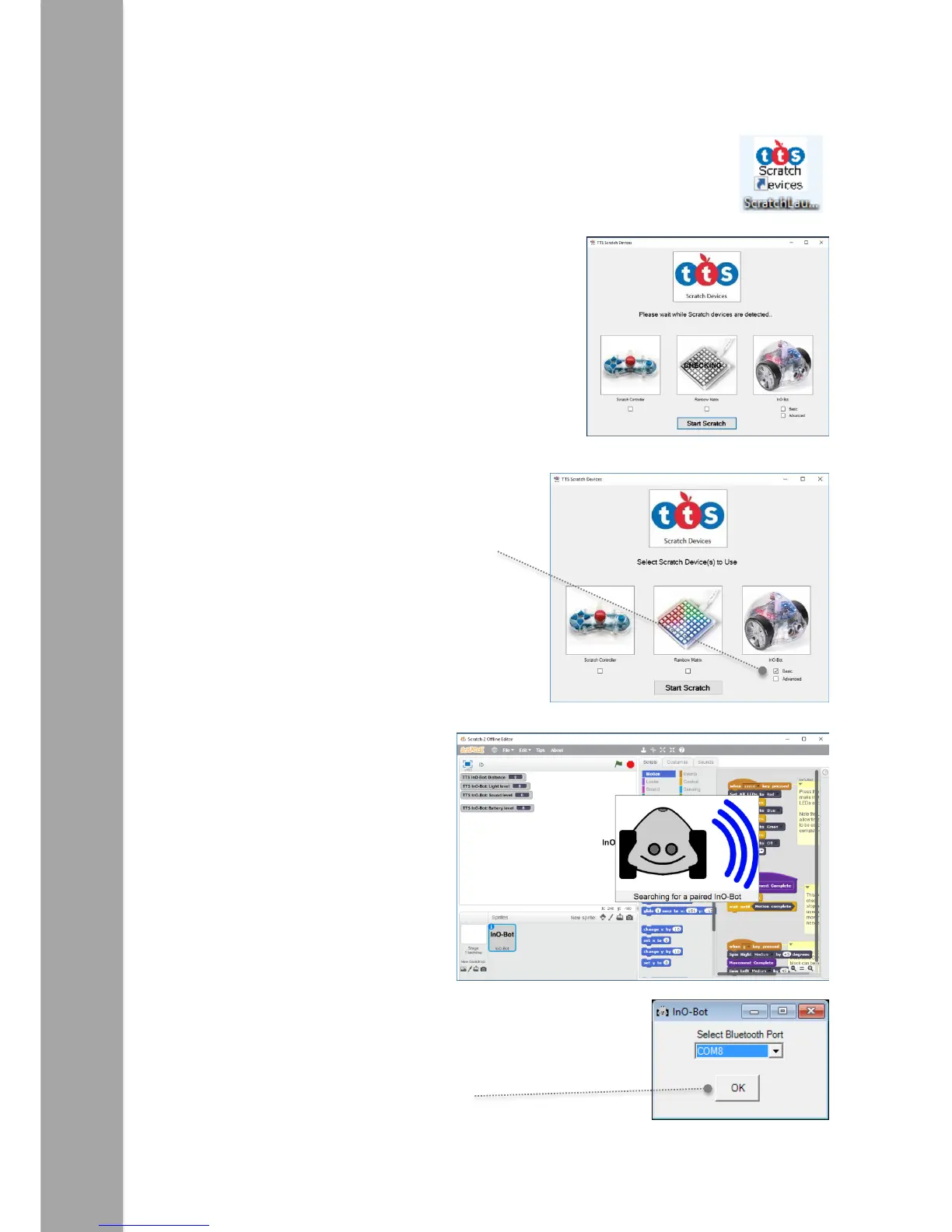
1. Double click on the Scratch Launcher icon
2. The TTS Scratch Launcher will open and try to detect
if a Scratch Controller or Rainbow Matrix is
connected. If either is detected a tick will appear in
the box underneath the icon.
3. Tick the ‘Basic’ or ‘Advanced’ box underneath
the InO-Bot icon. Basic is a more limited set of
Scratch Blocks for InO-Bot and Advanced
contains all blocks available for InO-Bot.
Click on ‘Start Scratch’.
4. Scratch will open and a graphic will
appear which indicates the PC is
searching for InO-Bots that have
been paired with that machine.
5. If an InO-Bot is detected a dialogue box should appear which
indicates the COM port an InO-Bot is connected to (COM
ports can vary from machine to machine).
6. Click on ‘OK’ to close the dialogue box.


 To Next Page