9
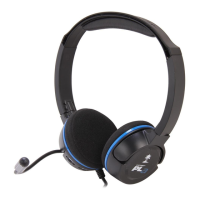
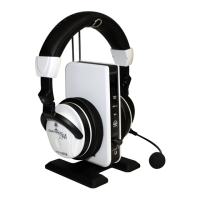
Using your PX51 Headset on PS3™
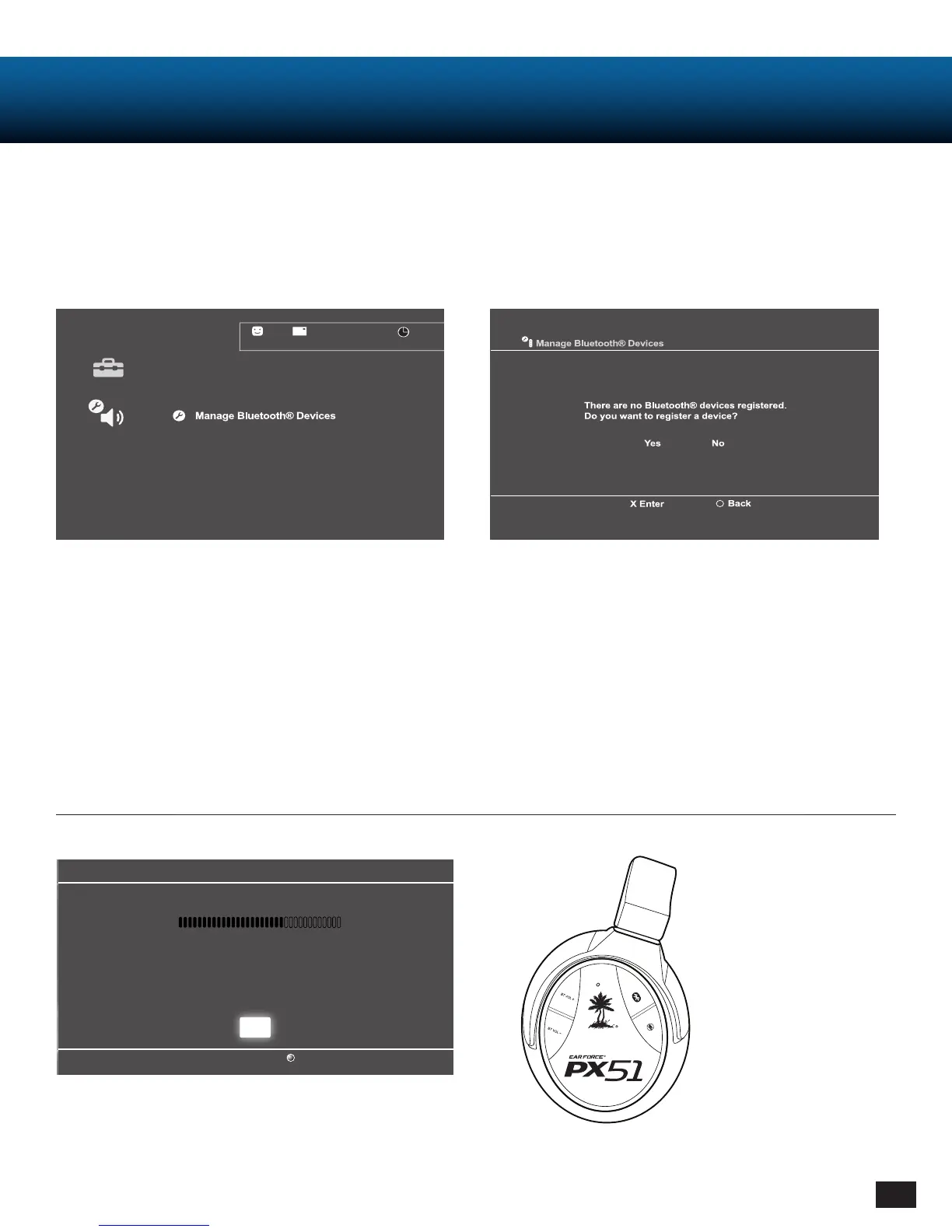
PS3 Bluetooth Confi guration
2. Go to PS3 Settings
- Choose “Accessory Settings”
- Choose “Manage Bluetooth Devices”
3. Scan for Bluetooth Devices by selecting “Yes”
4. Power PX51 ON:
- Press and Hold Bluetooth Button until Bluetooth
LED flashes blue and red. (Voice prompts will
announce “Bluetooth powering on”, then “Pairing
Bluetooth”.) Release
- Wait for the PS3 to detect the headset on screen.
- Select “Turtle Beach PX51”
- When prompted for a passcode, enter “0000.” LED will
fl ash blue once per second
- You are now paired with PS3 for chat
Your Turtle Beach PX51 headset is designed to work with PS3 game consoles. In order to get ideal functionality from your
headset, follow the directions below.
12/14 12:15 PM
0
Register to manage Bluetooth® devices such as
headsets, keyboards and mouse devices.
1. Adjust microphone volume level
- Adjust PSN chat volume using Bluetooth Volume
buttons on the right ear cup
PS3 Microphone Settings
1. Go to PS3 Settings
- Choose “Accessory Settings”
- Set “Input Device” to “Turtle Beach PX51”
- Set “Output Device” to “Turtle Beach PX51”
Note: You will not be able to set the
PX51 as your Input or Output Device
until you follow the steps under “PS3
Bluetooth Confi guration”.
2. Set Microphone Level to 3 or 4
Audio Device Settings
Microphone Level 3
Input Device TURTLE BEACH PX51
Output Device TURTLE BEACH PX51
Back
X Enter
OK




 To Next Page