- 6 -
1. Tuya App Installation and Account Registration
1.1. Download the “Tuya Smart” App from Google play store or Apple store.
2.2. Install and register an account with your phone number or email.
Note:
The App supports Android 4.3 / IOS7.0 version and above.
Scan the QR code to
download the App
You can also add the lock manually: Open App - click “Add device” – “Security & Video
Surveillance” under “Electrical” bar – click the icon “Lock(BLE)” – “Next” and activate
the keyboard of lock– click icon and click “Done” - the lock added successfully.
2. Pair the lock with Tuya App
2.1. Turn on the Bluetooth on your phone.
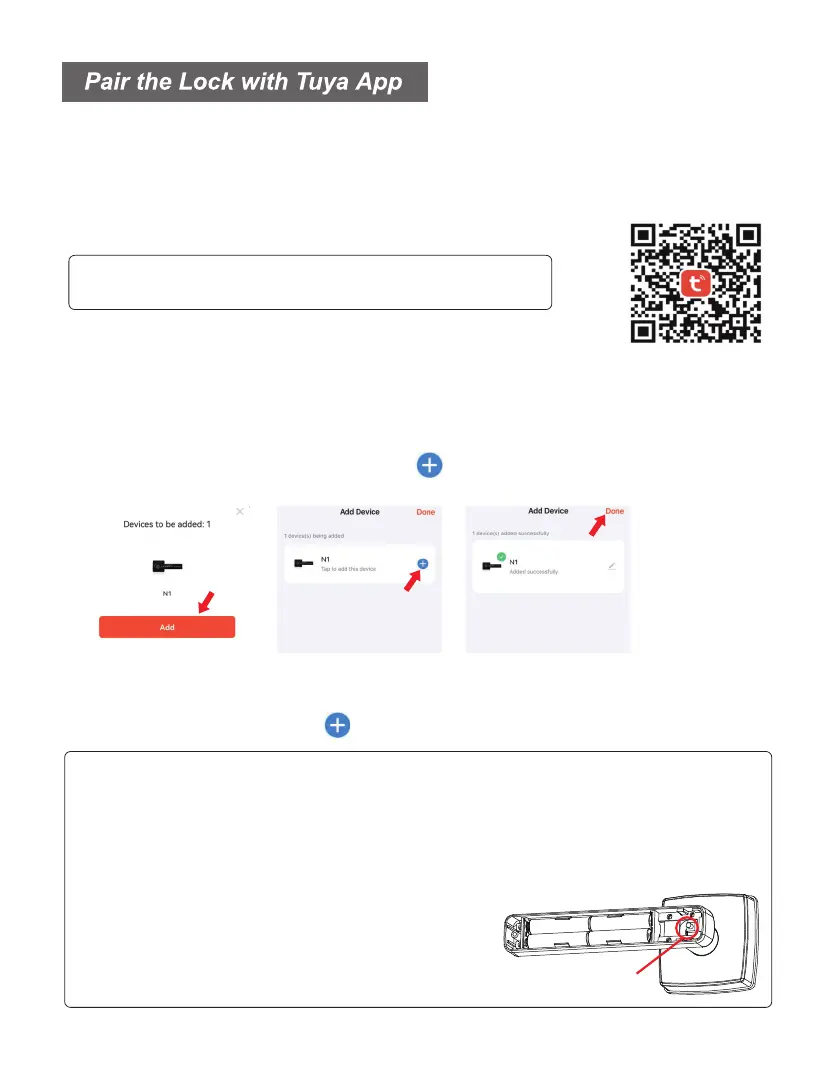
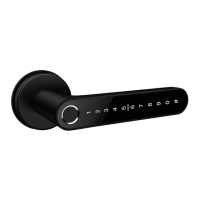
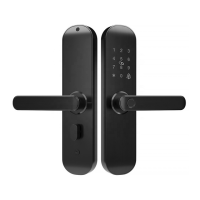
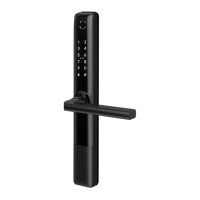
2.2. Open Tuya Smart App on your phone, touch and activate the keyboard of lock.
App will automatically search and display device that can be added. When you see the
device (named “N1”), click “Add”, click icon and click “Done”, the lock will be added
successfully. You can rename the lock.
Note:
1. After successfully pairing, Tuya App on your phone becomes Administrator of the lock.
2. If you do not find the lock on App when pairing, please reset the lock first: Remove
the battery cover on indoor lock body, keep pressing the reset button for about 6 seconds,
keyboard lights up and system prompts long “Beep” once. Then you can pair the lock by
following the steps above.
3. Once you pair the lock with your App account,
the lock will not be able to link to other accounts,
unless you remove the lock from your App.
Reset button
Under initialization mode, the lock can be unlocked by any fingerprint or the initial code 123456.
Please pair your lock with Tuya App by following below steps before using the lock.



 To Next Page