54
3.2.9 Hardware Health Configuration Sub-Menu
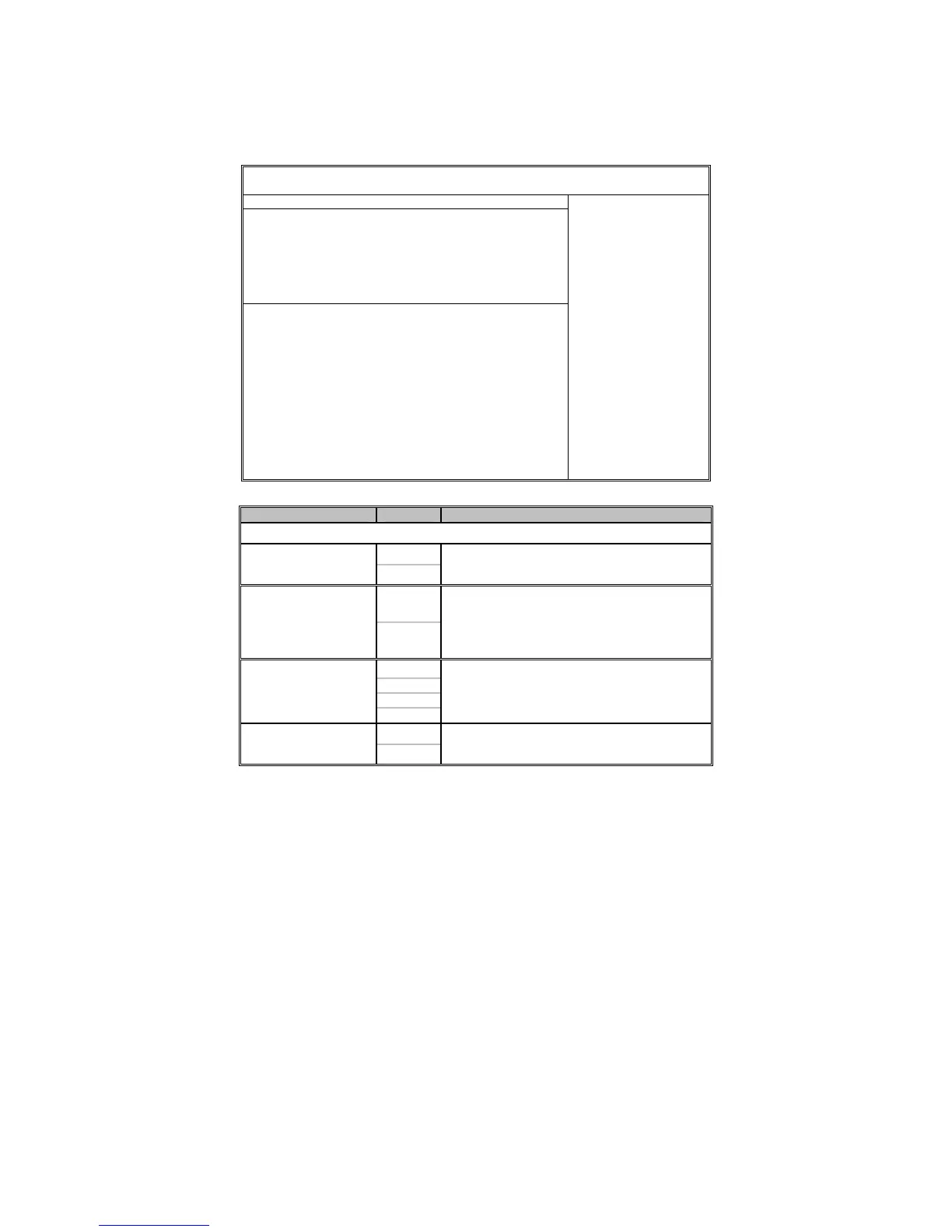
You can use this screen to view the Hardware Health Configuration Settings. Use
the up and down arrow (Ç/È) keys to select an item. Use the Plus and Minus (+/-)
keys to change the value of the selected option. The settings are described on the
following pages.
BIOS Setup Utility
Main Advanced PCI/PnP Boot Security Chipset Exit
Hardware Health Configuration
H/W Health Function
Auto FAN Control
PWM Minimal Duty Cycle
Fan Fail LED Indicator
Hardware Health Event Monitoring
[Enabled]
[Disabled]
[50%]
[Disabled]
Mainboard Voltages Report
CPU0 Temp.
CPU1 Temp.
Ambient1 Temp. (Near Memory)
Ambient2 Temp. (Near VGA)
CPUFAN1 Speed
CPUFAN2 Speed
FAN1 Speed
FAN2 Speed
FAN3 Speed
:xx C/ xxx F
:xx C/ xxx F
:xx C/ xxx F
:xx C/ xxx F
:xxxx RPM
:xxxx RPM
:xxxx RPM
:xxxx RPM
:xxxx RPM
Enables Hardware
Health Monitoring
Device.
← → Select Screen
↑↓ Select Item
+/- Change Option
Tab Select Field
F1 General Help
F10 Save and Exit
ESC Exit
Feature Option Description
Hardware Health Configuration
Enabled
H/W Health Function
Disabled
Enables Hardware Health Monitoring Device.
Disabled
Auto FAN Control
Enabled
FAN power duty cycle is auto dynamic
programmed in selected temperature range.
Disabled: Fan Power On.
Enabled: Fan Power Duty Cycle=50%(32°C)-
100%(0°C), see max (CPU0, CPU1)
50%
40%
30%
PWM Minimal Duty
Cycle
0%
This item allows you to set minimum PWM Duty
Cycle.
Note: This item is hidden and will appear when
Auto FAN Power Control is set to [Enabled].
Disabled
Fan Fail LED Indicator
Enabled
Enabled: Any FAN speed less than 800 RPM,
the FAN Fail LED will be lighted.


 To Next Page