12
5. Recalibrate AI
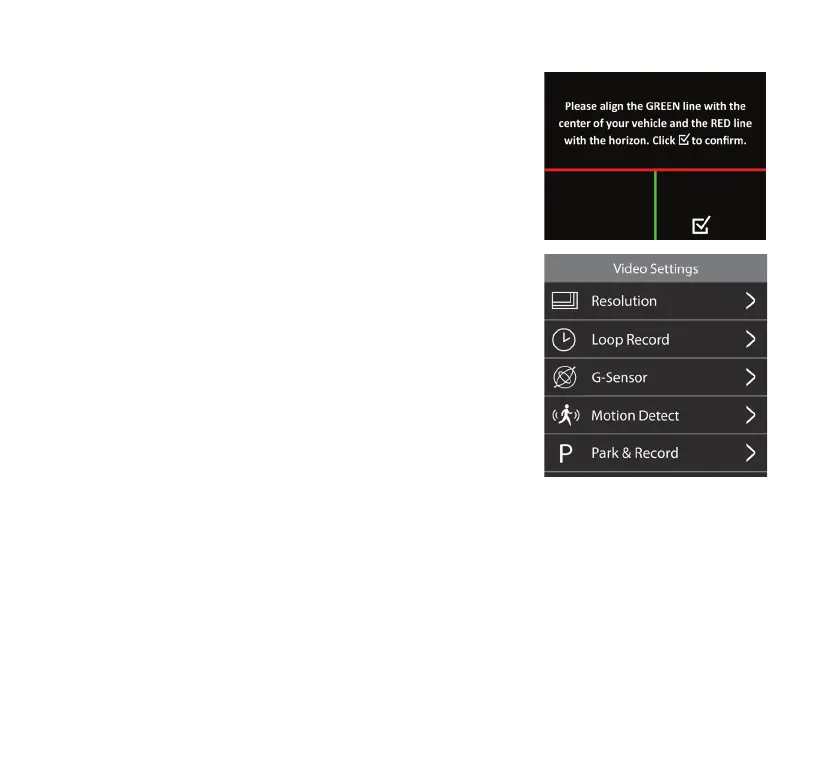
To recalibrate the camera AI, enter calibration mode. The screen
will automatically display calibration lines as guides (refer to
page 6).
Video Settings
1. Resolution
Switch video resolution between 4K + FHD, 2K + FHD and
FHD + FHD.
2. L oop R eco rd
Select the duration of each recorded video le between 1
minute, 3 minutes and 5 minutes. The oldest unlocked les will
be overwritten once the storage limit is reached.
3. G-Sensor
Adjust the G-Sensor sensitivity between High, Mid, Low and OFF.
When the G-Sensor detects a sudden impact, like a collision, it
automatically locks and saves the footage in the Event folder
to prevent important data from being overwritten by the loop
record feature.
4. M otio n Det ect
Motion Detect On/O.
The Motion Detect function allows the camera to start recording automatically when a moving
object is detected. Please only use this function when the vehicle is parked.
NOTE: Motion Detect does not support Time Lapse Mode.
5. Park & Record
Park & Record On/O.
The Park & Record function allows the camera to record videos when an impact is detected while
the vehicle’s engine is o. The camera will power on automatically and record a 20-second video clip
then shut down.
NOTE: Feature only available when the camera is hardwired to the fuse panel. Hardwiring kit
(AC533513) sold separately.


 To Next Page