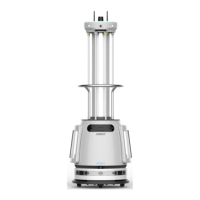
The Cadebot-L100 is a delivery robot designed for various service environments, offering automated delivery and interactive functionalities. This user manual provides comprehensive details on its features, operation, and maintenance.
Function Description
The Cadebot-L100 is primarily a delivery robot, capable of navigating complex environments to transport items. It features multiple trays for carrying goods, making it suitable for food delivery, item collection, and other service tasks. The robot is equipped with advanced sensors for safe operation, including obstacle avoidance and precise positioning. It supports both local and cloud-based map management, allowing for flexible deployment in different venues.
Key functions include:
- Automated Delivery: The robot can be programmed to deliver items to designated locations, with support for multiple tasks and return options (e.g., to a charging station, drop-off point, or welcome point).
- Interactive Features: The robot includes a screen for user interaction, voice broadcast capabilities, and touch sensors for human-machine interaction (e.g., "patting the head" to trigger voice responses).
- Map Management: Users can create, edit, and manage maps, including setting destination points, charging docks, pick-up points, plate-return points, and greeting points. Virtual walls and tracks can be defined to guide navigation and restrict movement.
- Network Connectivity: The robot supports both Wi-Fi and 4G SIM card connections for data upload, remote maintenance, and speech interaction.
- Advertising Display: An ad screen allows for the display of advertising content, with customizable plans and time segments.
- Welcome Mode: The robot can enter a welcome mode, greeting guests at designated points with pre-set phrases.
- Emergency Stop: A physical emergency stop button is available for immediate cessation of movement in critical situations.
- Battery Management: The robot monitors its battery level and can automatically return to a charging station when low.
Important Technical Specifications
The Cadebot-L100, model XCAD101, has the following key specifications:
- Product Dimensions: 551(L) × 484(W) × 1252(H) (mm)
- Product Weight: 55kg
- Load Capacity: 40kg
- Number of Trays: 4
- Maximum Weight per Tray: 10kg
- Touch Screen: 10.1 inch, resolution 1920x1200
- Advertising Screen: 21.5 inch, resolution 1920x1080, 16:9
- Moving Speed: 0–0.8m/s
- Passage Width: ≥650mm
- Trench Width: ≤40mm
- Climbing Ability: ≤5°
- Barrier Crossing Height: ≤20mm
- Charging Method: Adapter or charging station (optional accessory)
- Operating Temperature: 0–40°C (for indoor use only)
- Operating Humidity: 10–90% (for indoor use only)
- Storage Temperature: -20–60°C
- Storage Humidity: ≤90%
- Acoustic Device: Speaker*1
- Network: WiFi2.4GHz/5G, WWAN (WCDMA B2/WCDMA B4/WCDMA B5 LTE B2/B4/B5/B7/B12/B13/B14/B25 /B26/B38/B41/B66/B71)
- Battery Capacity: 25.41V 20Ah
- Charging Time: About 4 hours
- Working Time: About 8 hours
- Standby Time: 12 hours
- Input Voltage: AC100-240V
- Output Voltage: DC29.4V
The robot's physical components include a front camera, depth cameras, SIM card slot, Ad Screen, Li-dar, ultrasonic sensor, crash sensor, emergency stop button, microphone, top camera, touch sensor, and tray mats. The bottom view reveals barrier crossing wheels, power switch, shock absorbers, universal wheels, suspension, wheel hub motors, and a lithium-ion battery. The optional charging station features a Li-dar scanning area, charging plug, status light, and charging contact.
Usage Features
The Cadebot-L100 is designed for user-friendly operation with a focus on safety and efficiency.
- Power On/Off: To power on, open the power switch (green flashing light) and then short-press the power button (blue light on screen bottom). To power off, long-press the power button for 3 seconds until the screen goes black. The power switch should be turned off for extended periods of non-use.
- Charging: Connect the charging cable to the robot's charging port or use the optional charging station. The base light turns green and breathes when charging. It's recommended to keep the battery level at 10% or higher. Below 10%, the robot enters a low-battery state; below 1%, it enters battery protection mode.
- Light Language: The bottom atmosphere lamp indicates various states: blue constantly on for "Working," blue quick flash for "Waiting for food delivery," blue running around the rim for "Delivery completed," blue breathing for "Idle," yellow breathing for "Lost direction," red breathing for "Faulty," green flashing (1s) for "Turning on power switch," green breathing for "Charging," green continuously on for "Fully charged," and red flashing for "Taking an emergency stop." The robot's head and ear lights indicate "Speaking" (blue flashing) and "Touching head" (pink flashing).
- Network Settings: Access network settings via the settings icon. Users can connect to Wi-Fi networks by selecting a nearby network and entering the password. Hidden networks can be added manually. If a 4G SIM card is inserted, cellular network access is available. Public Wi-Fi requiring double verification is not supported.
- Basic Settings: Adjust screen brightness, volume, voice broadcast language, and walking speed.
- Account Settings: Manage administrator and delivery person roles, modify passwords, and enable/disable tray detection. Tray detection allows the robot to automatically proceed to the next task when a tray is taken.
- Map Settings: Create and manage maps, including local and cloud storage. Users can select active maps, upload local maps to the cloud, and edit map names. The robot requires re-localization when switching maps or making changes. Users can manually push the robot to a nearby positioning point for re-localization.
- Map Editing: Within the map preview interface, users can add destination points, group them, and define virtual walls and tracks. Virtual walls prevent robot movement into specific areas, while tracks guide the robot along preferred routes. Noise removal can be used to beautify maps by erasing unwanted obstacles from radar scans.
- Food Delivery: Select a destination and tray number on the screen. The robot navigates to the destination, and the tray lights up upon arrival. Users confirm item collection. If multiple tasks exist, the robot proceeds to the next; otherwise, it returns automatically.
- Emergency Stop: Pressing the top emergency stop button halts the robot and unlocks its chassis drive wheels, allowing it to be pushed. On slopes, the robot should be held steady to prevent sliding.
- Welcome Mode: Select a welcome point, and the robot will navigate there, scan the environment, and broadcast greetings. Touching the robot's head triggers voice interactions.
Maintenance Features
Proper maintenance ensures the longevity and optimal performance of the Cadebot-L100.
- General Cleaning:
- Do not use abrasive agents, aerosols, liquids containing alcohol, or other flammable/damaging substances on the robot's plastic casing.
- Avoid spraying or wetting the robot with water or other liquids. Keep the robot dry.
- Do not use irritant-containing cleaning agents or organic solvents on the camera lens.
- Use soft microfiber cloths to clean dust from the camera and sensors.
- Robot Cleaning Procedure:
- Turn off the robot using the base power button to ensure it is completely powered off.
- Clean the exterior with a soft, damp cloth.
- Thoroughly wipe the exterior with a soft, dry cloth.
- Verify that the robot is dry before use.
- Adapter Cleaning:
- Unplug the adapter from the wall outlet.
- Ensure the adapter is dry.
- Use a soft, dry cloth to clean the power cord plug and the adapter.
- Troubleshooting (Common FAQ):
- Robot not turning on: Check battery level and charge if low. Ensure the base power switch is on. Contact customer service if issues persist.
- Robot not charging: Check the adapter's indicator light (red for charging, heating up). Verify voltage output from the charging socket/adapter plug. Ensure the charging plug is firmly inserted and the recharging pole touches the charging spot. Confirm the power switch is on. Contact customer service if issues persist.
- WiFi connection failure: Confirm correct WiFi password. Ensure the robot is close enough to the WiFi router. Note that WiFi requiring two-factor authentication is not supported.
- Robot cannot move: Restart the robot. If motor overcurrent protection is active, press the emergency stop button to recover.
- Robot suddenly shuts down: Restart the robot. If battery overcurrent protection is active, try restarting after 5 minutes. Charge the robot if the battery is low.
- Robot positioning fails: Check if the map and positioning points are correct. Clean the sensors if dirty. Assess if the environment or characteristic features of the positioning point have changed.
- Software Updates: The robot's software functions are regularly updated. Users can check for new versions in the "About" section of the settings and choose to upgrade.
- Technical Support: For unresolved problems or damage, abnormal sounds, or malfunction, contact the company's technical support or local after-sales service.
The Cadebot-L100 is designed to be a reliable and versatile delivery solution, with clear guidelines for safe operation and maintenance to ensure optimal performance in various service environments.

 Need help?

 To Next Page
 General